ENEnglish
 LTLietuviškai
 DEDeutsch
 FRFrançais
 RUРусский
 ESEspañol
 PLPolski
 ITItaliano
 UKУкраїнська
 CSČeština
 PTPortuguês
 JA日本語
JA日本語 LVLatviešu valoda
 ETEesti
 HUMagyar
 IDBahasa Indonesia
 TRTürkçe
 HIहिन्दी
 ELΕλληνικά
 ARالعربية
 THไทย
THไทย VITiếng Việt
 RORomână
 MSBahasa Melayu
 BNবাংলা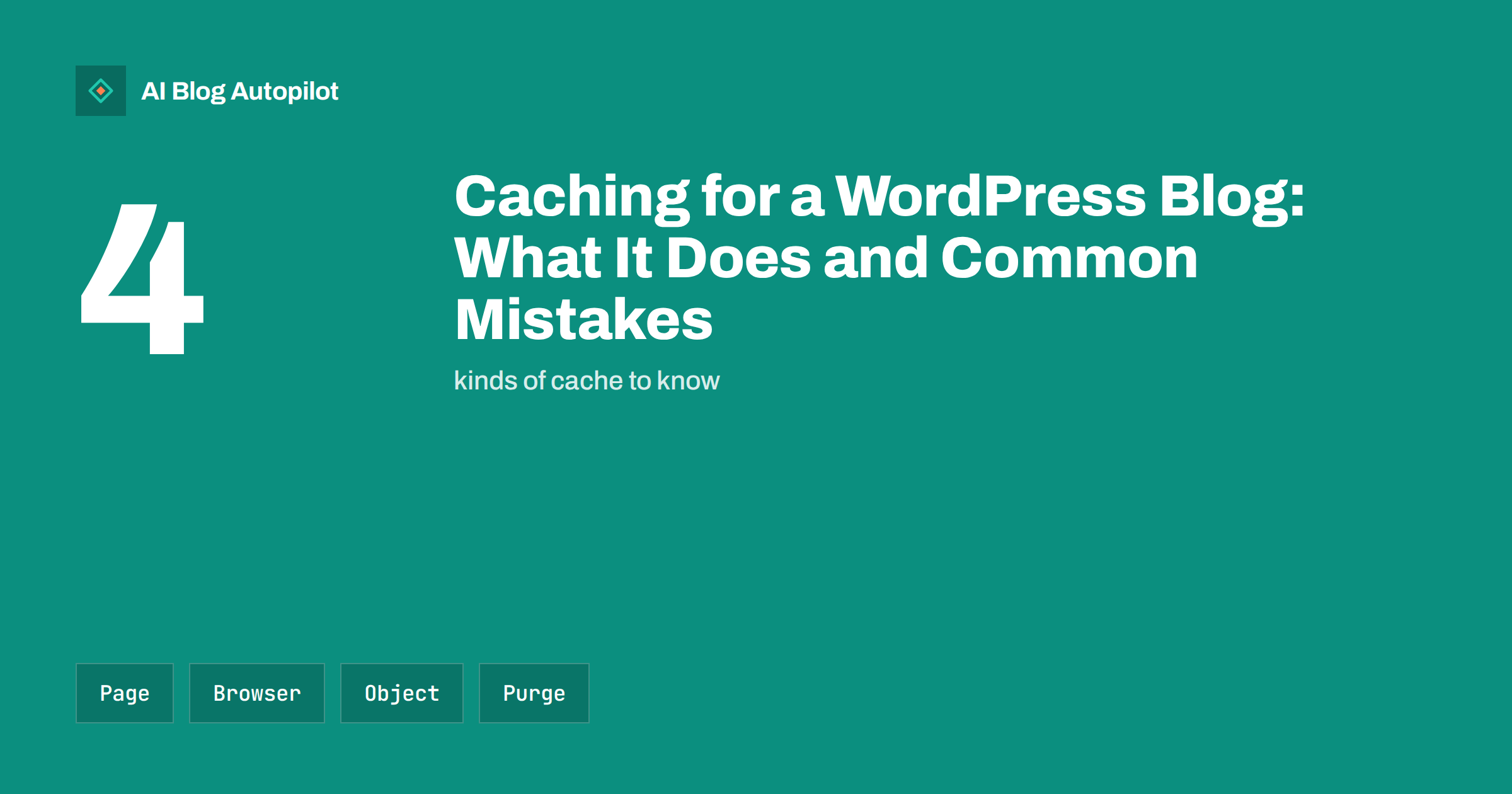
Short answer: caching saves a ready-made copy of your pages so that WordPress does not have to rebuild them for each visitor. This can cut load times a great deal and ease the load on your hosting. The common risks are showing old content after an update, caching pages that must stay personal and running two cache tools that fight each other. Use one page-cache solution, set sensible rules, clear the cache after each publication and test the result as a visitor and as a logged-in user.
A WordPress page is built on demand. For each visit, the system reads the database, runs plugins, applies the theme and produces the page. That takes time, and with many visitors it can slow the site. Caching stores the finished result and serves it again, so the next visitor gets a fast answer. For a blog, where most pages do not change from one visitor to another, it is one of the most effective speed improvements available.
This guide explains the main kinds of cache in simple language, shows how to set them up safely and lists the mistakes that cause most of the trouble. No special skills are needed to follow it, although some steps may be done by your host.
There is also a fifth layer that people forget: the cache inside your own tools. Some page builders, shop plugins and security services keep their own saved copies. When something looks wrong, ask where the copy could be held, from the server to the browser, and clear each layer in turn. This habit saves hours of guessing.
The four kinds of cache
A page cache stores the final HTML of each page. When a visitor asks for a page, the server hands over the saved file instead of running WordPress. This gives the largest gain on a content site, and it is what most caching plugins mean by caching.
A browser cache lives on the visitor’s device. Your server tells the browser that files such as images, styles and scripts can be kept for a period, so the browser does not download them again on the next page. It speeds up repeat visits and reduces data use. It is controlled by headers that your server or plugin sends.
An object cache keeps the results of database queries in memory, so that repeated queries are answered quickly. It helps sites with heavy logic, such as shops and membership sites, more than a simple blog. Finally, a content delivery network keeps copies of your files in many places near your visitors, which also depends on your hosting, as described in how hosting affects SEO.
Why caching matters for readers and search
Speed shapes how people feel about a site. A page that appears at once invites reading, and a slow one invites a back button. Search engines also measure real-user experience, including how quickly the main content appears, as explained in Core Web Vitals for bloggers. A cache often improves these measures with little effort.
Caching also helps when traffic spikes. If a post is shared widely, hundreds of people may arrive within minutes. Without a cache, the server must build each page, and it may slow down or fail. With a cache, it serves saved copies, which are far cheaper. The article on server errors and downtime shows why an unstable site can hurt rankings.
Do not expect a cache to fix everything. If a page is slow because of huge images or heavy scripts, caching only hides part of the problem. Combine it with the basics in page speed for content sites.
Consider your traffic and your budget. A small blog with a few hundred visits a day may be served well by a simple setup, while a site with large peaks may benefit from server-level caching and a CDN. Do not buy complexity that you do not need, and do not accept a slow site because a fix feels technical. A middle path is usually enough.
Choosing a setup
Start by asking your host. Many hosts provide their own cache at the server level, which is often faster and simpler than a plugin. If your host offers one, use it, and avoid adding a second page-cache plugin on top. Two systems that both try to store and serve pages may conflict, and the results are hard to debug.
If your host does not provide a cache, choose one well-known caching plugin and use its recommended settings. Read the documentation for your theme and any shop or form plugins, since they may need exceptions. Do not install several optimisation plugins that overlap, which also ties in with the advice on how many plugins are too many.
Keep a note of what you enabled and when. If something breaks, the first step is to switch the newest setting off. A note with dates turns a long search into a quick fix.
Remember images, which are often the heaviest part of a page. Caching stores them closer or for longer, but it does not make a large file smaller. Resize and compress pictures before you upload them, and use modern formats where your theme supports them. A cache works best on a page that was already built with care.
Safe settings for a blog
For most blogs, the following rules work well. Turn on the page cache for public pages. Set a reasonable lifetime for saved pages, such as a day or longer, and rely on automatic clearing when content changes. Turn on compression, and set browser caching for static files, with longer periods for files that rarely change, such as logos.
Exclude pages that must stay personal, such as account pages, carts, checkouts and pages that show a visitor’s own details. A cache that serves one person’s page to another is a privacy risk. Most plugins exclude the standard pages automatically, but check your own custom pages and forms.
Be careful with options that combine or delay scripts. They can speed the page up, but they are also a common cause of broken menus, sliders and forms. Switch them on one at a time, and test after each one.
If you use a newsletter, a feed reader or social sharing, remember that these tools fetch your pages too. If the cache serves an old version of the feed, subscribers may not see your new post for a while. Check your feed address after publishing, and clear it with the rest of the cache.
Keeping content fresh
The most visible mistake is old content. You publish a new post, but the home page and the category page still show the old list, because their cached copies were not cleared. A good setup clears the related pages when a post is published or updated, including the home page, the category and tag pages and the feed.
Scheduled posts need a check. When WordPress publishes a scheduled post at the set time, the plugin should clear the cache at that moment. If it does not, the new post may not appear on the home page until the saved copy expires. Test this with a scheduled post, as the guide to scheduling posts in WordPress suggests, and look at the home page after the time passes.
Changes to a theme, menu or widget should also clear the whole cache. After a design change, purge everything, and then look at the site in a private window to see what a new visitor sees. If you used a CDN, purge it as well, since it holds its own copies.
Common mistakes
The first mistake is to run two page caches at once, for example a host cache and a plugin. The second is to test only while logged in. Many plugins skip the cache for logged-in users, so you may see a fast, fresh page while visitors see something different. Always test in a private window.
The third mistake is to cache error pages or redirects wrongly, so that a temporary error is served for hours. The fourth is to forget the mobile version, when the theme serves different content to phones. Check both. The fifth is to leave the cache unchanged after changing the domain or the protocol, which may serve old links.
Finally, avoid chasing a perfect score on a speed test. Test tools show lab numbers, which differ from the experience of real visitors. Use them to spot problems, then confirm with real-user data when you have it, for example from the reports mentioned in Search Console for bloggers.
Keep a short checklist for every release: publish, view as a visitor, view on a phone, check the feed, look at the home page and test a form. Five minutes of testing after each major change catches almost every caching problem before your readers do.
How to test your cache
Open a public page in a private window, and check the response headers in the browser tools. Many caches add a header that says whether the page was served from the cache. Reload and compare the first and second loads. The second should be faster and marked as a hit.
Next, make a small change, such as editing a title or publishing a draft, and see how long it takes to appear for a visitor. If it appears at once, the clearing rules work. If not, note the delay and adjust the plugin or ask your host.
Repeat the test after major updates to WordPress, the theme or the plugins. The advice in security basics for a business blog fits well here, since updates may change how caching behaves.
How AI Blog Autopilot helps
AI Blog Autopilot publishes new articles to your WordPress blog at the hour you choose, so make sure your cache clears the home page and archives at that moment. Each article comes with FAQ, tags and SEO meta, and is shared to your social networks after it goes live. See the pricing page for plans.
Related reading
- Page Speed on a Content Site: What Actually Helps
- Does Web Hosting Affect SEO? What Matters for a Blog
- Security Basics for a Business Blog
The bottom line
Use one page cache, exclude personal pages, clear it after each publication and test as a visitor. A small amount of care makes the blog fast and keeps it fresh.
FAQ
Do I need a caching plugin if my host has a cache?
Usually not. Use the host cache and avoid a second page cache on top, since two can conflict.
Why does my blog show old content after I publish?
The saved copy of the home page or archives was not cleared. Check the clearing rules and purge the cache and any CDN.
Can caching break forms or logins?
It can if personal pages are cached. Exclude account, cart and form pages, and test them in a private window.
How do I know a page is served from the cache?
Check the response headers in your browser tools. Many caches add a header showing a hit or a miss.
Will caching improve my search ranking?
It can help indirectly by making pages faster and more stable, but it will not fix poor content or heavy images.