ENEnglish
 LTLietuviškai
 DEDeutsch
 FRFrançais
 RUРусский
 ESEspañol
 PLPolski
 ITItaliano
 UKУкраїнська
 CSČeština
 PTPortuguês
 JA日本語
JA日本語 LVLatviešu valoda
 ETEesti
 HUMagyar
 IDBahasa Indonesia
 TRTürkçe
 HIहिन्दी
 ELΕλληνικά
 ARالعربية
 THไทย
THไทย VITiếng Việt
 RORomână
 MSBahasa Melayu
 BNবাংলা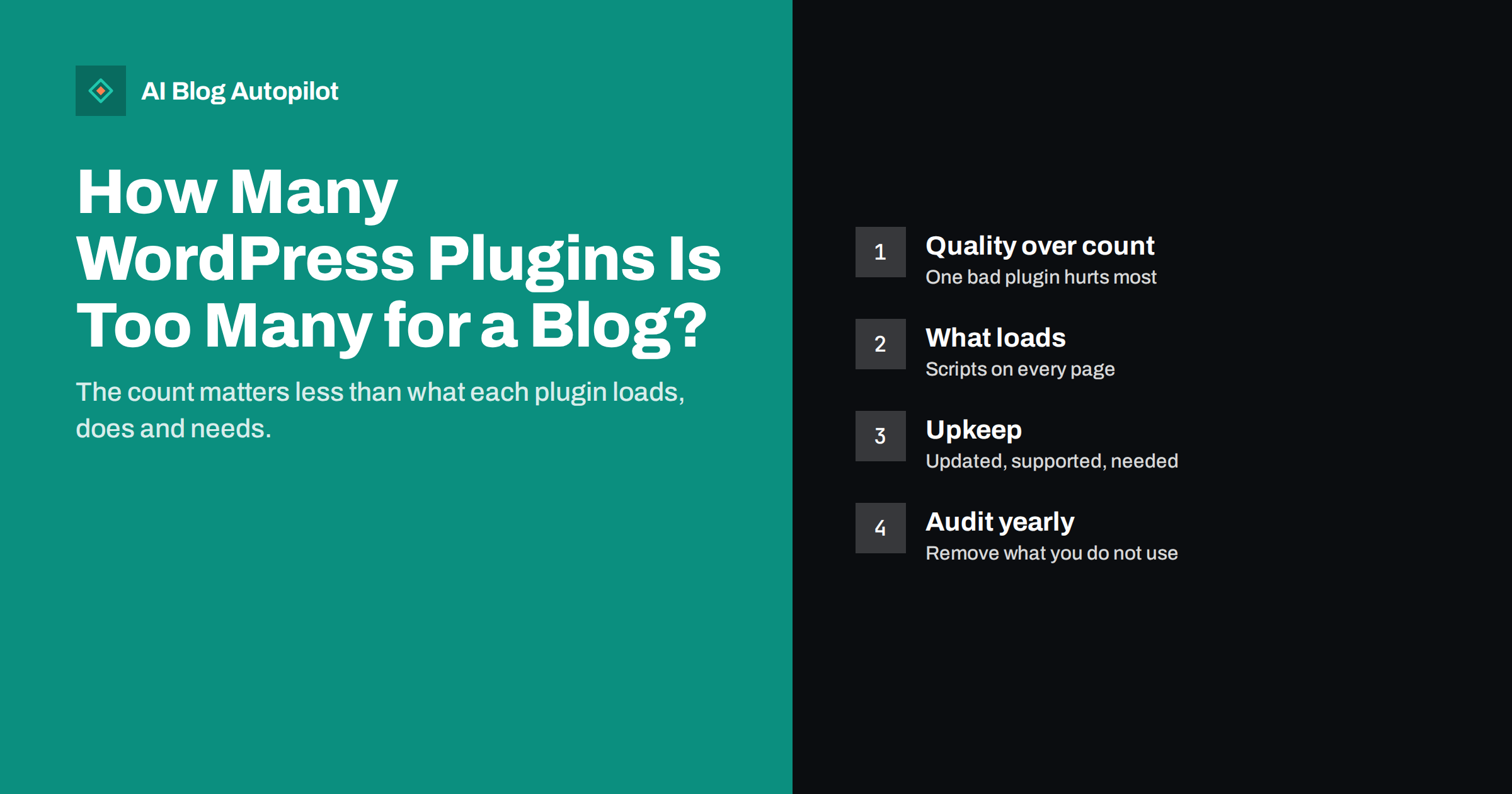
Short answer: there is no number of WordPress plugins that is “too many”. A blog with 30 well-built plugins can be fast and secure, while one with five can be slow and vulnerable if one of them is poorly made or abandoned. What matters is what each plugin loads on the front end, how much work it does on each request, whether it is maintained, and whether you still need it. Audit your plugins once or twice a year, remove the ones you do not use, replace abandoned or heavy ones, and avoid several plugins doing the same job.
“How many plugins should I have?” is one of the most common WordPress questions, and it rarely gets a useful answer. Some advice says no more than ten; some says it does not matter at all. Both miss the point. Plugins are code that runs on your site, and like any code, each one has a cost and a benefit. This guide explains what actually makes plugins a problem, how to audit the ones you have and how to keep the list healthy over time.
Why the number is the wrong question
A plugin can be a few lines of code that adds one setting, or a large application with its own database tables, scripts, styles and background tasks. Counting them treats both the same.
What affects your blog is the total work the plugins do:
- Front-end weight: scripts, stylesheets and fonts added to the pages readers load.
- Server work: database queries, external requests and processing on each page view.
- Background tasks: scheduled jobs, scans and imports that use server resources.
- Admin weight: slow dashboards and editor screens, which affect you more than readers.
- Security exposure: every plugin is code that may contain a vulnerability.
One badly written plugin can do more damage than twenty careful ones. So the useful question is not “how many” but “which ones, and are they worth it?”
The admin side deserves a mention too. Plugins that add notices, dashboards and upsell banners to every admin screen make WordPress slower and more cluttered to work in. That does not affect readers directly, but a slow, noisy dashboard makes writing and editing more tiring, and people put off maintenance when the admin area is unpleasant to use.
How plugins slow a blog down
The most common performance problems from plugins are predictable:
- Assets on every page. A contact form plugin that loads its scripts on every article, not just the contact page, adds weight everywhere. Sliders, popups, social share buttons and page builders are frequent offenders.
- External requests. Plugins that load fonts, icons, tracking or widgets from other servers add connections and can block rendering.
- Heavy database queries. Related posts, statistics and some search plugins run complex queries on each page view.
- Autoloaded options. Some plugins store large amounts of data in options that WordPress loads on every request, even after the plugin is removed.
- Overlapping features. Two caching plugins, two SEO plugins or two image optimisers can conflict and slow things down.
The effect often shows in Core Web Vitals and page speed tests. A test tool that lists scripts and their sizes usually reveals which plugins load what on the front end.
Measure before and after any change. Note the page weight, the number of requests and the main Core Web Vitals for two or three typical pages, then repeat the test after removing or replacing a plugin. Real numbers tell you which changes helped and stop you from removing useful plugins on a hunch.
Security and maintenance risks
Vulnerable plugins are one of the most common ways small WordPress sites are hacked. The risk is not the number of plugins as such, but the chance that one of them is outdated, abandoned or poorly maintained.
Signs of a plugin that deserves a closer look:
- It has not been updated in a long time, or the developer has stopped responding to support requests.
- It has been removed from the official plugin directory.
- It is a “nulled” or pirated copy of a premium plugin. Remove these immediately; they often contain backdoors.
- It has a history of security issues without timely fixes.
- It is installed but not activated. Inactive plugins can still be exploited in some cases, and they still need updates.
Keeping plugins updated, removing unused ones and choosing well-maintained options is one of the most effective security measures for a blog. The WordPress hardening guide covers this alongside other basics.
Auditing your plugins step by step
A plugin audit takes an hour or two and is worth doing once or twice a year:
- Back up the site, files and database, before changing anything.
- List every plugin with its purpose in one sentence. If you cannot say why it is there, mark it for investigation.
- Remove inactive plugins you do not plan to use. Delete them, not just deactivate them.
- Find duplicates. Look for several plugins doing similar jobs: caching, SEO, security, forms, image optimisation, analytics.
- Check maintenance. Note the last update date and whether the plugin is compatible with your WordPress version.
- Check front-end impact. Run a speed test on a typical article and see which scripts and styles each plugin adds.
- Ask whether the theme or WordPress already does it. Newer WordPress versions and modern themes include features that used to need plugins, such as basic sitemaps, lazy loading and block patterns.
- Remove or replace one plugin at a time and check the site after each change.
Do the changes on a staging copy first if your host offers one, especially for plugins that affect layout, forms or e-commerce.
Plugins most blogs actually need
Every blog is different, but a typical business blog can work well with a short list of categories:
- An SEO plugin for titles, meta descriptions, sitemaps and structured data.
- Caching and performance, unless your host already provides server-level caching.
- Security and login protection, or equivalent features from your host.
- Backups, automatic and stored off-site, unless the host handles them reliably.
- A form plugin for contact or lead forms.
- Image optimisation, if images are not optimised before upload.
- Privacy and consent, if your analytics or embeds require it in your region.
Beyond that, add plugins for specific needs, such as a table plugin for comparison articles or a code highlighting plugin for technical posts. Each addition should have a clear reason.
Some hosts also include features such as caching, backups, security scanning or image optimisation in their plans. If yours does, a separate plugin for the same job may be unnecessary or may even conflict with the host’s version. Check your hosting control panel before installing.
Choosing plugins well
Most plugin problems can be prevented when choosing:
- Prefer plugins with recent updates, many active installations and responsive support.
- Read recent reviews and support threads for reports of conflicts or performance issues.
- Choose plugins that do one job well over large all-in-one suites you will use a tenth of.
- Check whether the plugin loads assets only where it is used, or offers a setting to limit this.
- Avoid plugins that require broad permissions or external connections without a clear reason.
- Consider whether a few lines of code in a child theme or a small site-specific plugin would do the job more lightly, if you or your developer are comfortable with that.
Removing plugins without breaking things
Removing a plugin can have side effects. Before deleting one, consider:
- Shortcodes in content. Plugins that add shortcodes leave raw codes in posts when removed. Search your posts for them first.
- Blocks. Custom blocks from a removed plugin may show an error in the editor and may not display properly on the front end.
- Redirects and settings. A redirect plugin’s rules disappear with it. Export them or move them to another solution first.
- Data left behind. Some plugins leave database tables and options after deletion. Their documentation often explains how to remove them cleanly.
- SEO plugins. Switching SEO plugins needs care so titles, descriptions and settings are migrated. Most major ones have import tools.
Check a few key pages and the site’s main functions after each removal: home page, an article, the contact form, search and anything that takes payments.
Keeping the list healthy
A few habits stop plugin sprawl from returning:
- Install new plugins on staging first, or at least test them on a quiet day.
- Remove plugins you tried and did not keep, the same day.
- Keep a short note of each plugin’s purpose and who requested it.
- Apply updates regularly, ideally after a backup, and enable automatic updates for plugins you trust.
- Repeat the audit every six to twelve months.
How AI Blog Autopilot fits in
AI Blog Autopilot connects to WordPress in one click: you click Connect and approve it in WordPress, and it publishes full SEO articles with FAQ, tags and SEO meta at your chosen hour, then shares each one to your social networks. Your existing SEO plugin, theme and caching continue to handle the site itself. See the pricing page for plans.
Related reading
- WordPress SEO Plugin Settings That Actually Matter
- Page Speed on a Content Site: What Actually Helps
- Security Basics for a Business Blog
- Changing a Blog Theme Without Hurting SEO
The bottom line
There is no safe or unsafe number of WordPress plugins. What matters is what each plugin loads and does, whether it is maintained and whether you still need it. Audit your plugins once or twice a year: back up, list each plugin’s purpose, remove unused and duplicate ones, replace abandoned or heavy ones, and check the site after each change. Choose new plugins carefully, keep them updated, and your blog will stay fast and secure however long the list is.
FAQ
How many plugins is too many for WordPress?
There is no fixed number. A site with many well-built, maintained plugins can be fast and secure, while a few poor ones can cause problems. Judge plugins by what they load, how well they are maintained and whether you need them.
Do inactive plugins slow down WordPress?
Inactive plugins do not run on page views, so they rarely affect speed. They can still be a security risk and add maintenance, so delete plugins you do not plan to use.
How do I find which plugin is slowing down my site?
Run a speed test on a typical page and look at which scripts and styles are loaded and by which plugin. You can also deactivate plugins one at a time on a staging copy and measure the difference.
Is it safe to delete a WordPress plugin?
Usually, but check first for shortcodes, custom blocks, redirects or settings the plugin provides. Back up the site, remove one plugin at a time and test key pages afterwards.
Should I replace plugins with custom code?
Sometimes. Small features, such as a single setting or a simple snippet, can be lighter in a child theme or site-specific plugin. For complex features, a well-maintained plugin is usually safer than custom code nobody maintains.