ENEnglish
 LTLietuviškai
 DEDeutsch
 FRFrançais
 RUРусский
 ESEspañol
 PLPolski
 ITItaliano
 UKУкраїнська
 CSČeština
 PTPortuguês
 JA日本語
JA日本語 LVLatviešu valoda
 ETEesti
 HUMagyar
 IDBahasa Indonesia
 TRTürkçe
 HIहिन्दी
 ELΕλληνικά
 ARالعربية
 THไทย
THไทย VITiếng Việt
 RORomână
 MSBahasa Melayu
 BNবাংলা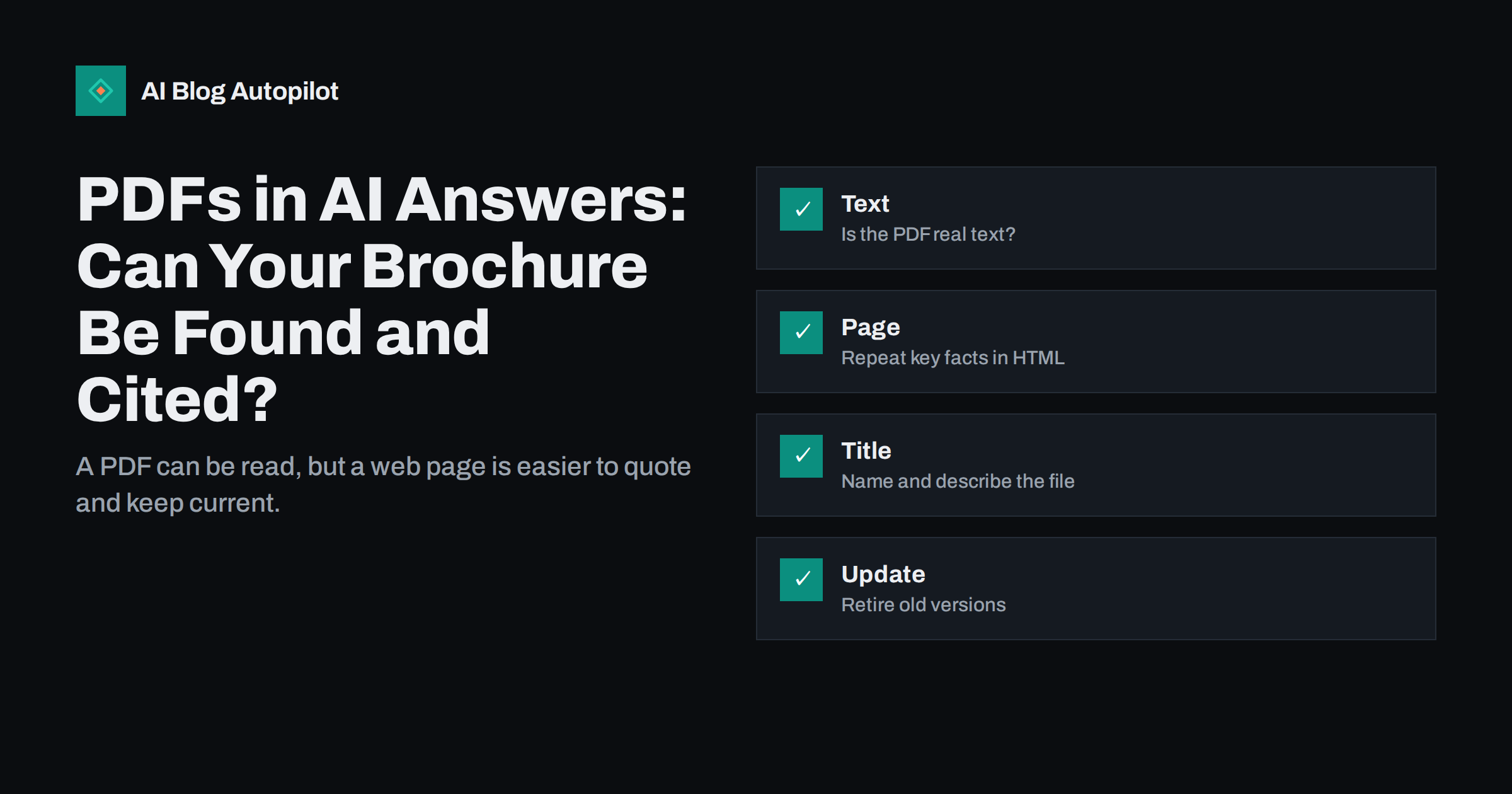
Short answer: search engines can read many PDF files, and some AI assistants can use them too, but a PDF is a harder source to find, quote and keep current than a normal web page. Make sure the PDF contains real text, give it a clear title and link to it from a page, and put the key facts in plain HTML as well. Treat the PDF as an extra, not as the only home of important information.
Many businesses keep their most detailed information in documents: brochures, price lists, product sheets, annual reports, user guides and white papers. These files often hold the best answers to customer questions. Yet when someone asks an AI assistant about the business, the answer may come from a thin web page or a third-party listing and not from the careful document. This article explains why, and what to do about it.
Remember that readers matter as well as machines. A person who finds your PDF in search may land in the middle of a long file with no menu and no link to the rest of your site. Add a clear first page with your name, a short summary and the address of the web page where they can find more.
Can AI and search engines read PDFs?
Search engines have indexed PDF files for many years. If a PDF contains text that can be extracted, it can appear in results, often with a label that shows it is a document. AI assistants that search the web may use these results too, and some tools let a user upload a file for analysis. So the basic answer is yes: PDFs can be read.
But being readable is not the same as being chosen. A web page gives a crawler a clear title, headings, links and structure, and it can be updated with ease. A PDF is a closed package, and many are created for printing, with layouts that make text extraction messy. When two sources have the same fact, the one that is easier to read and trust has an advantage.
Behaviour differs across tools and changes over time, so avoid strong assumptions. Test with your own documents and questions, as described in checking visibility in AI answers.
Text or picture of text?
The first check is whether your PDF has real text. Open the file and try to select a sentence with your cursor. If you can select and copy words, the text exists. If the page behaves like a picture, it may be a scan, and the text is not available unless the file went through text recognition. Search engines may try to recognise text in scans, but the result is less reliable.
Next, look at the order of the text. Documents with several columns, side boxes, tables and decorative elements can produce text in a jumbled order when extracted. Copy a few paragraphs into a plain editor and see how they look. If the result is a mess, a machine will struggle too.
Check the file settings. Documents made by exporting from a layout or word-processing program with the option for tagged, accessible output usually have a better structure, with headings and a reading order. That also helps readers who use screen readers, a point covered in accessibility for blogs.
Give the file a good name and title
Many PDFs have a default title such as “Document1” or a file name with version codes. Set a proper title in the document properties and use a clear file name with real words, such as the name of the product and the type of document. Search engines often use the title in the document properties when they show the file in results.
Write a short description in the page that links to the file. A link with the text “download” tells nobody what the file contains. A link such as “Product guide for the starter kit, PDF” gives the context that search engines and visitors both need. The surrounding text is a significant clue for what the file is about.
Keep the address stable. If you upload a new version under a different name each time, old links break and old copies linger. Use one address for the current version and keep older versions out of reach unless readers need them.
A good test is to ask a customer question aloud and see where the answer lives. If the answer exists only on page nine of a brochure, a visitor and a machine will both struggle. If it lives in a heading on a web page, with the PDF as the full reference, both can find it in seconds.
Put key facts on a web page
The most reliable step is to repeat the important facts in HTML. If your price list, your opening hours, your service area or your product specifications live only in a PDF, put the essentials on a normal page and link to the document for the full version. Assistants and search features find it easier to quote a heading and a paragraph than a line from page eleven of a file.
This also helps with accuracy. A web page is easy to change in a moment, while a PDF requires a new export, an upload and a fix of every link. Pages that carry the main facts are less likely to show outdated information, a problem that is explained in when AI answers get your business wrong.
Do not copy the whole document into a page without thought. Pick the questions that customers ask and answer them well. See a pricing page for search and AI for an example of how to present details that change.
Think of the link text as a label for machines and a promise to people. Say what the file is, who it is for and roughly how large it is. A visitor who knows that a file is a two-page sheet will click more readily than one who fears a hundred-page report.
Link the PDF from pages that matter
A file that nothing links to is hard to discover. Link it from the product or service page it belongs to, from a downloads page and, where useful, from blog posts that discuss the topic. These links show search engines that the file is part of your site and tell them what it is for.
Include the PDF in your normal checks. Some files are blocked by accident through robots rules or by being placed in a private folder. Make sure that the file can be reached without a login or a form if you want it to be found. If you do gate it, remember that gated files are generally not available to crawlers, as discussed in gated content and AI search.
If you publish blog posts as PDFs as well, think about duplication. Our article on PDF versions of blog posts covers whether such copies help or compete with the original page.
Name the owner of every document. Without an owner, files drift: nobody updates them, nobody removes them and they remain online long after the facts have changed. A yearly review of the file list takes an hour and prevents many embarrassing quotes.
Keep versions under control
Old files cause real trouble. A price list from three years ago may still be indexed and linked, and an assistant may quote it as if it were current. Make a list of all PDFs on your site, with their dates and the pages that link to them. Remove or replace the ones that are out of date.
Add the date inside the document and on the page that links to it. A visible “valid from” or “updated” note helps readers and machines judge the age of the information. If a file has been replaced, consider a redirect from the old address to the new one, so that old links still work.
Make a rule for who updates documents and when. Facts that appear in a document and on a page must change together. Otherwise you will create the kind of mismatch described in conflicting facts across pages.
If you publish documents in several languages, treat each language version as its own file with its own title and link. A single file that mixes languages is hard to read for people and hard to classify for machines, so keep one language per document.
Size, speed and mobile use
Large files are slow to load and awkward on phones. Compress images in the document, keep the file as small as is reasonable and avoid very long documents for simple answers. A short, focused sheet is better than a heavy brochure that tries to cover everything.
Think about how people will actually use it. On a phone, a PDF often opens in a viewer that is hard to read. If most visitors come on mobile devices, a clear web page is the better first choice and the file is a download for those who want it. Test by opening the file on a phone.
Finally, consider whether you need the PDF at all. For information that changes often, a web page may be enough. Keep documents for content that people print, sign or save, such as forms, manuals and reports.
How AI Blog Autopilot helps
AI Blog Autopilot writes full SEO articles for your WordPress blog from the topics, keywords, audience and tone you set, with FAQ sections, tags and SEO meta included, and it shares each one to your social networks. Articles are normal web pages, so they give assistants plain, readable text on topics that your documents also cover, and approval mode lets you read each one first. See the pricing page for plans.
Related reading
The bottom line
PDFs can be read, but web pages are easier to find, quote and update. Use real text, clear titles and links, put key facts in HTML and retire old versions.
FAQ
Can AI assistants read PDF files?
Many tools can, especially when the PDF contains real text. Behaviour varies, so test with your own files.
Is a PDF better than a web page for AI answers?
Usually not. A web page has clearer structure and is easier to update, so put key facts there and link the PDF as an extra.
What if my PDF is a scan?
Run text recognition so the words can be selected, and check the result. Plain web text is still more reliable.
Should I delete old PDFs?
Remove or replace outdated ones, and redirect the old address if links point to it. Old price lists can be quoted as current.
Do PDF titles matter?
Yes. Set a clear title in the document properties and use a descriptive file name and link text.