ENEnglish
 LTLietuviškai
 DEDeutsch
 FRFrançais
 RUРусский
 ESEspañol
 PLPolski
 ITItaliano
 UKУкраїнська
 CSČeština
 PTPortuguês
 JA日本語
JA日本語 LVLatviešu valoda
 ETEesti
 HUMagyar
 IDBahasa Indonesia
 TRTürkçe
 HIहिन्दी
 ELΕλληνικά
 ARالعربية
 THไทย
THไทย VITiếng Việt
 RORomână
 MSBahasa Melayu
 BNবাংলা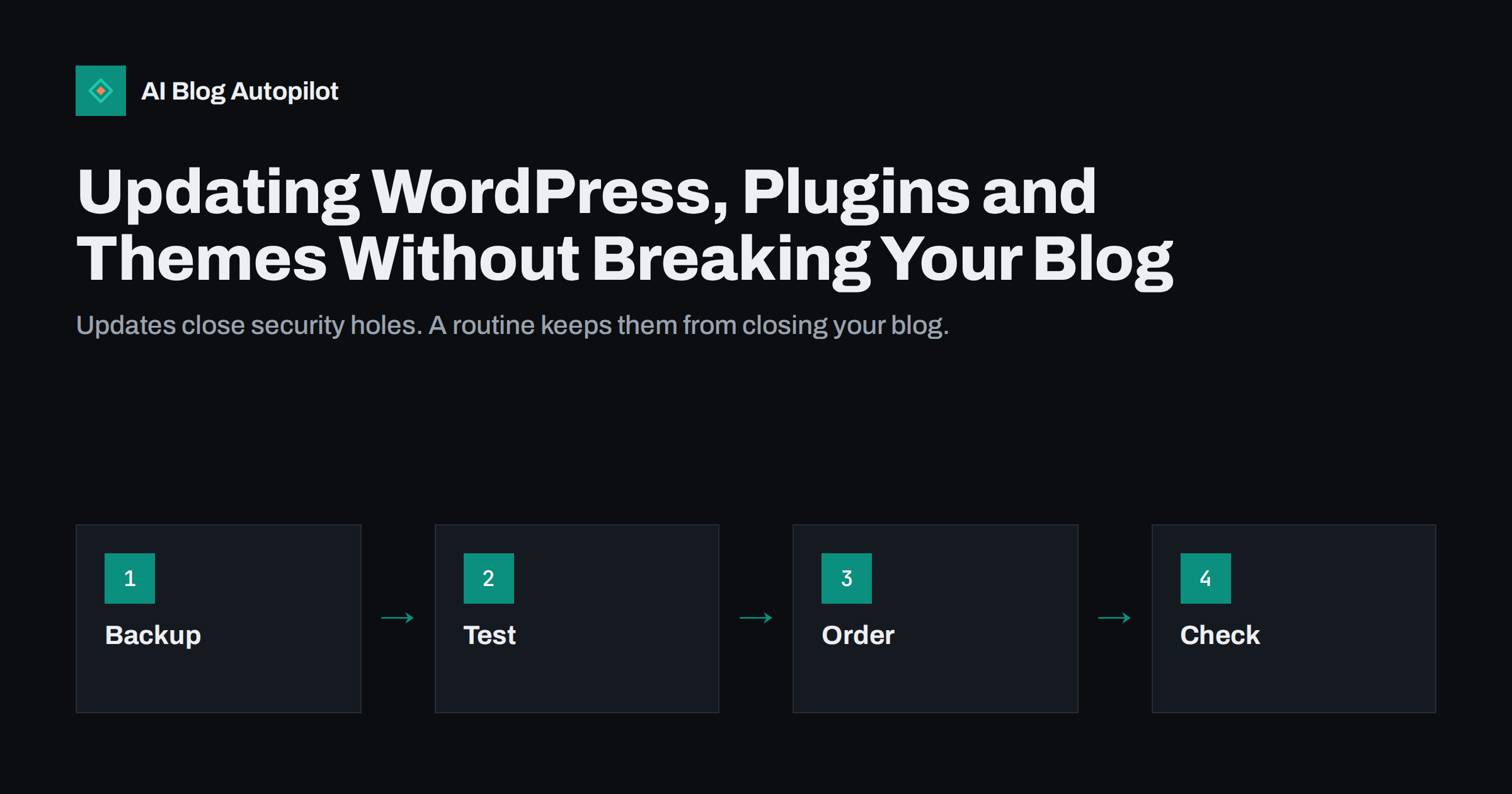
Short answer: update WordPress, themes and plugins on a regular routine, usually weekly, and never without a fresh backup. Where you can, try the updates on a copy of the site first, update one thing at a time or in small groups, and afterwards check the home page, a post, a form, the sitemap and the admin screens. Delay major version jumps for a few days and switch on automatic updates only for low-risk items.
Putting off updates feels safe because nothing breaks today. In reality, old software is the most common way blogs get hacked, and it is also a source of slowdowns and errors that hurt search results. The opposite worry is also fair: a rushed update can break a layout or a plugin on the day that a big article is due. A short, repeatable routine solves both problems.
Why updates matter for a blog
Updates fix security flaws, repair bugs, add features and keep the software working with current versions of the language it runs on. Attackers read the public notes of each security fix and then look for sites that have not applied it, so the days after a release are a risky time for slow updaters. Our guide to blog security basics gives the wider picture.
There is an SEO angle as well. A hacked site can show spam pages, redirect visitors or be marked as unsafe in search results, which can take weeks to repair, as described in hacked blog spam cleanup. Slow or broken pages caused by outdated plugins also reduce the experience that search engines measure.
Finally, updates are cheaper when done often. A site that is one version behind is simple to update. A site that is four years behind can need a careful project and some plugins may have no matching version at all.
Before you start: backup and a safety net
A backup of the files and the database, stored away from the server itself, is the one thing that turns an update from a gamble into a routine. Check that the backup finished and that you know how to restore it. The steps are in backups for a blog. If your host takes daily snapshots, a manual copy just before a larger update is still worth the few minutes.
Next, note who can help. Know your host’s support contact, keep the login details in a safe place and make sure that the admin account has a working email address for recovery. If several people have admin access, tell them when you are updating so that nobody edits content at the same time.
Finally, choose the time. Avoid the hour before a scheduled article or a promotion. Early in the week, in a quiet period for your readers, gives you time to react if something looks wrong.
A simple weekly routine can be written on one card. Monday morning: check that the latest backup exists. Then open the updates screen, read the list and note anything marked as a major change. Apply the minor items, test the site, apply the rest, test again and log the date and the versions in a small file. The whole routine takes fifteen to thirty minutes for a typical blog, and it is far less stressful than a yearly clean-up.
Test on a copy when you can
A staging copy is a private duplicate of your site where you can try updates without risk. Many hosts offer it with one click. Apply the updates there, open the main pages and check that all looks right, then repeat them on the live site. Make sure that the copy is not visible to search engines, as explained in staging site indexed by Google.
If you have no staging option, you can still reduce risk. Update during a quiet time, update in small groups so that you know the cause of a problem, and keep the backup close. For a very simple blog with few plugins, this is often enough.
Whichever you choose, read the notes that come with the update when the change is large. A major version of a plugin may change settings or remove features, and a short read can save an hour of repair. The same care applies when you change the look of the site, as covered in changing a blog theme without hurting SEO.
Pay attention to the compatibility notes on plugin pages. They show which WordPress version a plugin was last tested with and when it was last updated. A plugin that has not been touched for more than a year may still work, but it deserves a closer look and perhaps a replacement. Choose tools that are actively maintained and that have a clear way to report problems.
The order that causes the fewest problems
A sensible order is: WordPress core first, then the theme, then plugins, and finally any translation files. After each group, load the site and look for errors. If a problem appears, you know which group caused it. For plugins, do the most important ones one by one, for example the SEO plugin, the cache plugin and anything that handles forms or payments, and update the smaller helpers together.
If your server software is out of date, check whether the new versions need a newer one. Updating the language version on the server is a separate task that can break old plugins, so do it on a copy first. Ask your host which versions they support and how to change them.
Remove plugins and themes that you do not use. Inactive items still need updates, and they can still be attacked. Our guide to too many WordPress plugins helps you decide what to keep, and WordPress SEO plugin settings lists the few settings that matter.
What to check afterwards
Open the home page, a recent article, a category page and the search results page in a private window. Look for layout problems, missing images and error messages. Send a test message through your contact form, post a test comment if comments are on, and check that the login still works.
Then look at the parts that search engines see. Open the sitemap and the robots file, view the source of a post to confirm that the title, description and structured data are still there and make sure that the canonical tag points to the right address. If your theme or SEO plugin changed, compare a few pages with their earlier version, since a setting can reset during an update.
Finally, check the admin dashboard for warnings, and watch the error reports in your search tools for a few days. A sudden rise in errors after an update is a clue worth following at once. See page indexing statuses explained for how to read those reports.
Time your updates around publishing as well. If articles are scheduled to go live at fixed hours, as covered in scheduling posts in WordPress, do not run a large update just before one is due, because a site in the middle of an update may miss the slot or show an error to the first readers.
Automatic updates: when they make sense
Automatic updates are useful for security and minor releases, where the risk of breaking something is low and the risk of waiting is higher. WordPress can apply these to the core, and you can choose them for plugins and themes one at a time. A good rule is to allow them for simple, well-maintained items and to keep manual control over anything that shapes your layout or handles important functions.
If you use automatic updates, keep daily backups and set up a notification so that you hear about a failed update. Review the list of changes once a week. Automatic does not mean ignored: you still need to check that the site works, and you still need to remove software that is no longer maintained.
For a blog managed by several people, record who is responsible. A short note in your editorial notes, such as the one described in WordPress user roles for blogs, avoids the common situation in which everyone assumes that someone else does the updates.
Keep a short list of the settings that you changed from the defaults, such as the permalink structure, the SEO plugin options and the cache rules. If an update resets one of them, you can restore it in minutes. It also helps when you hand the blog to someone new, who then does not have to guess why a particular option is switched on.
If an update breaks something
Stay calm and work from the simplest fix. First clear any cache, since a stale file often looks like a break. Then check whether the problem appears for everybody or only in your browser. If the site shows an error, deactivate the plugin that you updated last, either from the admin or by renaming its folder through your host’s file manager, and test again.
If that does not help, restore the backup and tell the plugin author what happened. Do not leave a broken site online while you search. A page that returns server errors for a long time can lose its place in search results, as covered in server errors and downtime. A short maintenance message is better than a broken page.
Afterwards, write down what went wrong and what fixed it. Over a year, these notes become the most useful manual that you have for your own site.
How AI Blog Autopilot helps
AI Blog Autopilot writes full SEO articles for your WordPress blog from the topics, keywords, audience and tone you set, with FAQ sections, tags and SEO meta included, and it shares each one to your social networks. A tidy, updated site is a good base for a steady stream of articles. Approval mode lets you read each article first, which is handy when you want to pause around a maintenance window. See the pricing page for plans.
Related reading
The bottom line
Back up, try updates on a copy where possible, update in a sensible order, check the pages that matter and use automatic updates only for low-risk items. A weekly habit beats a yearly panic.
FAQ
How often should I update a WordPress blog?
Check weekly and apply security updates quickly. Larger version changes can wait a few days while you test them.
Do I need a staging copy?
It is the safest way, but a backup, small update groups and a quiet time are enough for a simple blog.
Should I switch on automatic updates?
For security and minor releases of well-maintained items, yes. Keep manual control over layout and key plugins.
What if the site shows an error after an update?
Clear caches, deactivate the plugin updated last and, if needed, restore the backup. Do not leave the site broken.
Do inactive plugins need updates?
Yes, they can still be attacked. Remove software that you do not use.