ENEnglish
 LTLietuviškai
 DEDeutsch
 FRFrançais
 RUРусский
 ESEspañol
 PLPolski
 ITItaliano
 UKУкраїнська
 CSČeština
 PTPortuguês
 JA日本語
JA日本語 LVLatviešu valoda
 ETEesti
 HUMagyar
 IDBahasa Indonesia
 TRTürkçe
 HIहिन्दी
 ELΕλληνικά
 ARالعربية
 THไทย
THไทย VITiếng Việt
 RORomână
 MSBahasa Melayu
 BNবাংলা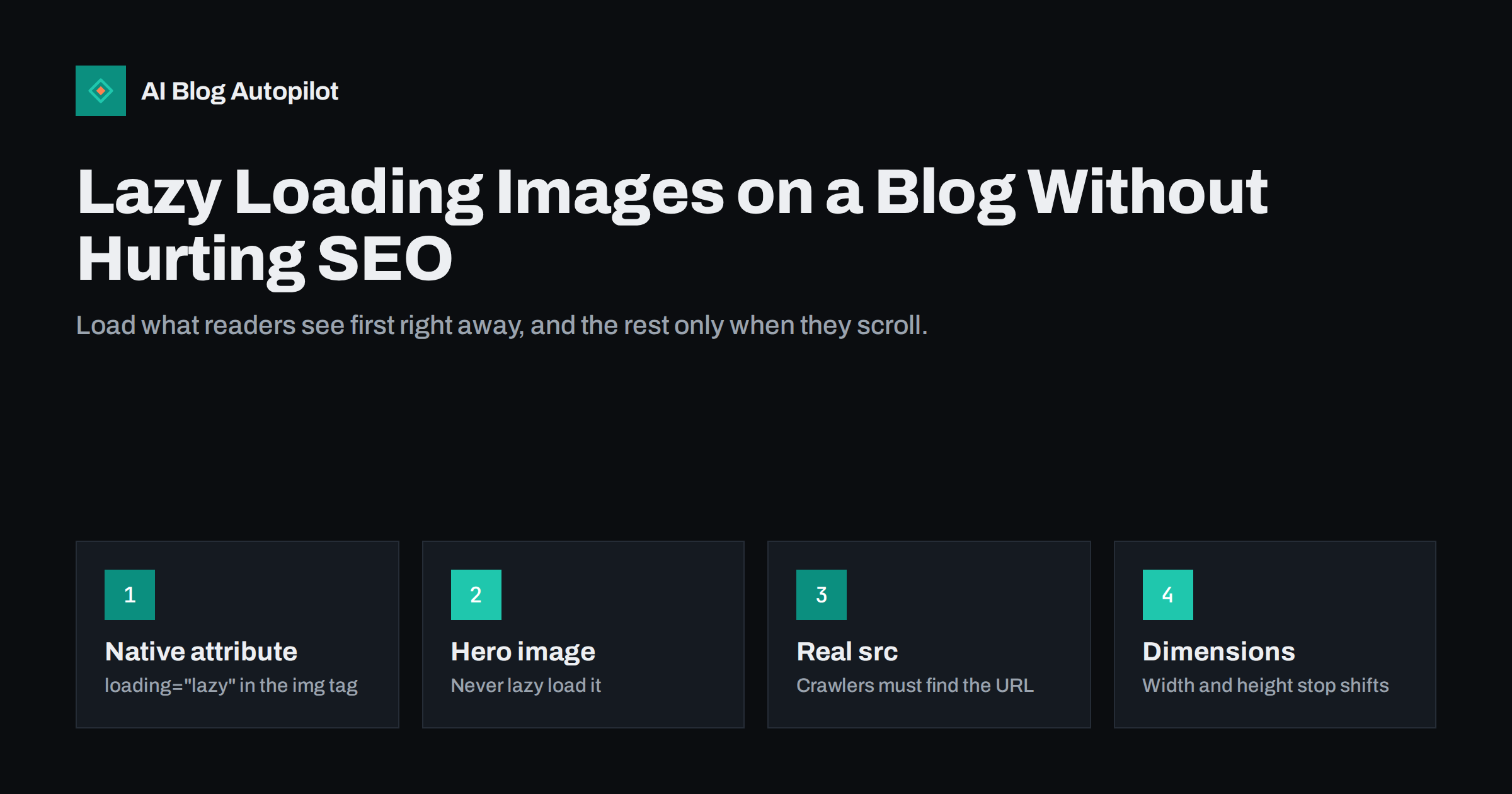
Short answer: lazy loading delays images that are below the visible part of the page until the reader scrolls near them, which makes the first view load faster. It is safe for SEO when you use the browser’s native loading="lazy" attribute, keep the real image URL in the src attribute, and never lazy load the main image at the top of the article. WordPress adds lazy loading automatically to most content images, so the usual job is checking that the featured image and first image are excluded and that plugins have not replaced it with a script that hides images from crawlers.
Images are often the heaviest part of a blog post. A long article with ten screenshots can easily weigh several megabytes, most of which the reader does not see until they scroll. Lazy loading solves that by fetching images only when they are about to become visible. Done well, it improves speed with no downside. Done badly, it slows the main image, causes layout jumps or hides images from search engines. Here is how to get it right.
What lazy loading does
Without lazy loading, the browser starts downloading every image on the page as soon as it reads the HTML. With lazy loading, images that are far below the visible area wait. When the reader scrolls and an image comes close to the screen, the browser fetches it.
The benefits are practical:
- The first screen loads faster because it does not compete with images further down.
- Readers on mobile data download less, especially if they leave after the introduction.
- The server handles fewer requests for images nobody looks at.
Lazy loading does not make images smaller or compress them. It only changes when they load. You still need properly sized, compressed images in modern formats; lazy loading is one layer on top of that.
Native lazy loading vs JavaScript libraries
There are two ways to lazy load images. The modern one is built into the browser: you add loading="lazy" to the image tag, and the browser decides when to fetch it. All major browsers support it, and it needs no extra code. The web.dev guide to browser-level lazy loading explains how browsers choose the distance at which they start loading.
The older method uses JavaScript. The real image address is stored in a custom attribute such as data-src, the src holds a placeholder, and a script swaps them when the image scrolls into view. This approach still exists in some themes, page builders and optimisation plugins.
For a blog, native lazy loading is almost always the better choice:
- It works even if JavaScript fails or loads slowly.
- The real image URL stays in the HTML, where crawlers and link previews can find it.
- There is no extra script to download and run.
If a plugin offers its own lazy loading, check whether it uses the native attribute. If it relies on a script, consider turning that feature off and letting WordPress handle it.
How WordPress handles it
Since version 5.5, WordPress adds loading="lazy" to images in post content, featured images and other images it outputs, as long as their width and height are known. Later versions added an important refinement: WordPress tries not to lazy load the first images on the page, because those are usually visible straight away, and it can add a high fetch priority to the likely main image.
In practice this means a standard WordPress blog with a well-built theme already does the right thing. Problems appear when:
- A theme outputs the featured image in a way WordPress cannot recognise, so it gets lazy loaded anyway.
- A page builder or slider adds its own lazy loading on top of the native one.
- An optimisation plugin replaces native lazy loading with a script-based version.
- Images are added through custom HTML without width and height, so WordPress skips them.
The fix is to view the page source of a real post and check the first image yourself, as described below.
Never lazy load the main image
The most common lazy loading mistake is applying it to the image that appears at the top of the post, usually the featured image or the first content image. That image is often the largest visible element, which makes it the element that Largest Contentful Paint measures. If it is lazy loaded, the browser waits until it has worked out the layout before requesting it, and the main image appears later than it should.
The rule is simple:
- Images visible on the first screen, on both desktop and mobile, should load normally, without
loading="lazy". - The main image can carry
fetchpriority="high"so the browser requests it early. - Everything further down the article can be lazy loaded.
Remember that mobile screens are narrow and short. An image that is below the fold on a laptop might be the first thing on a phone, or the reverse. Check both.
Making sure search engines see your images
Search engines render pages much as a browser does, but they do not scroll like a person. Google’s documentation on fixing lazy-loaded content says lazy loading must load content when it becomes visible in the viewport, and recommends native lazy loading or the IntersectionObserver API rather than methods that depend on scroll events or user actions.
For images to be found and indexed, check these points:
- The real URL is in
srcorsrcset. If the HTML only has a placeholder and the real address sits in a custom attribute, some crawlers and tools will never see it. - Images do not need a click or a scroll event. Galleries that load images only after a button press are invisible to crawlers.
- Alt text is present on the image element. Lazy loading does not change how alt text works, but some scripts recreate image tags and drop attributes.
- A
noscriptfallback exists if you must use a script-based method, so the image is still available without JavaScript.
The URL Inspection tool in Search Console shows the rendered HTML Google sees. Inspect a long post and confirm that images further down have their real addresses.
Prevent layout shifts
A lazy-loaded image that appears without reserved space pushes the text below it downwards. If the reader is in the middle of a paragraph, the page jumps. This is what Cumulative Layout Shift measures, and it is annoying even when nobody measures it.
The fix is to give every image a width and height, or an aspect ratio in CSS, so the browser reserves the right space before the file arrives. WordPress adds width and height to images inserted through the editor. Images added through custom code, embeds or some page builders may need attention.
Other places to use lazy loading
The same idea applies to other heavy elements in a blog post:
- Iframes and video embeds. The
loading="lazy"attribute also works on iframes, and WordPress adds it to many embeds. A video near the end of a post should not slow down the introduction. - Video facades. A lighter approach shows a thumbnail and loads the full player only when the reader clicks play.
- Comment sections. Long comment threads or third-party comment widgets can load when the reader reaches them.
- Background images set in CSS are not affected by the attribute. Keep decorative backgrounds small or avoid them in articles.
Archive pages, home pages and lists
Lazy loading matters just as much outside single articles. A blog home page, a category archive or a tag page often shows ten or more post thumbnails. Only the first two or three are visible on arrival, so the rest are ideal candidates for lazy loading.
The same rule about the first screen applies here. On a list page, the first thumbnail, or a large “featured post” image at the top, should load normally. If the theme shows a big header image on archive pages, that image should not be lazy loaded either.
Also check the size of thumbnails. Themes sometimes load the full-size featured image and shrink it with CSS, so a list page downloads several large files to show small pictures. Using the right registered image size, with a srcset so the browser can choose, often saves more data than lazy loading itself. Related posts blocks at the end of articles and sidebar widgets with images deserve the same quick look, because they appear on every post.
A quick audit for one post
You can check your setup in a few minutes on any long article:
- Open the post, view the page source and search for the featured image file name. Confirm it has no
loading="lazy"and, ideally, hasfetchpriority="high". - Search for a few images further down and confirm they have
loading="lazy", a realsrc, alt text, and width and height. - Look for
data-srcor similar attributes, which suggest a script-based method. - Run a page speed test for mobile and look at the Largest Contentful Paint element and any layout shift warnings.
- Inspect the URL in Search Console and check the rendered HTML for the lower images.
Do this once for each post template your blog uses. If one article passes, others built on the same template usually pass too.
How AI Blog Autopilot fits in
AI Blog Autopilot publishes articles to WordPress through its standard connection, so images and markup go through WordPress like any post you write by hand, and your theme’s lazy loading behaviour applies to them as well. Each article comes with FAQ, tags and SEO meta, and passes an automatic quality check before it goes live. See the pricing page for plans.
Related reading
- Image SEO for Blog Posts: File Names, Size and Formats
- Core Web Vitals for Bloggers: LCP, INP and CLS Explained
- Page Speed on a Content Site: What Actually Helps
- JavaScript SEO for Blogs
The bottom line
Lazy loading is an easy speed win for long, image-heavy blog posts, and it is safe for SEO when done the native way. Let WordPress add loading="lazy" to images further down the page, keep the main image loading normally with a high fetch priority, make sure real image URLs stay in the HTML, and give every image dimensions. Audit one post per template, fix what the check shows, and the setup will keep working for every new article.
FAQ
Is lazy loading bad for SEO?
No, when it is done correctly. Native lazy loading with the real image URL in the src attribute lets search engines find images normally. Problems come from script-based methods that hide the real URL or require scrolling or clicks.
Should the featured image be lazy loaded?
No. The featured image or first visible image is often the largest element on the first screen. Lazy loading it delays Largest Contentful Paint. Load it normally and consider adding fetchpriority=”high”.
Does WordPress lazy load images automatically?
Yes. Since version 5.5, WordPress adds loading=”lazy” to most images with known dimensions, and newer versions try to skip the first images on the page. Themes and plugins can change this behaviour, so check your own posts.
Do I need a lazy loading plugin?
Usually not. Native browser lazy loading, which WordPress already uses, covers most needs. A plugin can help with special cases such as video facades, but avoid ones that replace native lazy loading with scripts.
Why do my images cause the page to jump?
The browser does not know how much space to reserve before the image loads. Adding width and height attributes or a CSS aspect ratio to every image prevents these layout shifts.