ENEnglish
 LTLietuviškai
 DEDeutsch
 FRFrançais
 RUРусский
 ESEspañol
 PLPolski
 ITItaliano
 UKУкраїнська
 CSČeština
 PTPortuguês
 JA日本語
JA日本語 LVLatviešu valoda
 ETEesti
 HUMagyar
 IDBahasa Indonesia
 TRTürkçe
 HIहिन्दी
 ELΕλληνικά
 ARالعربية
 THไทย
THไทย VITiếng Việt
 RORomână
 MSBahasa Melayu
 BNবাংলা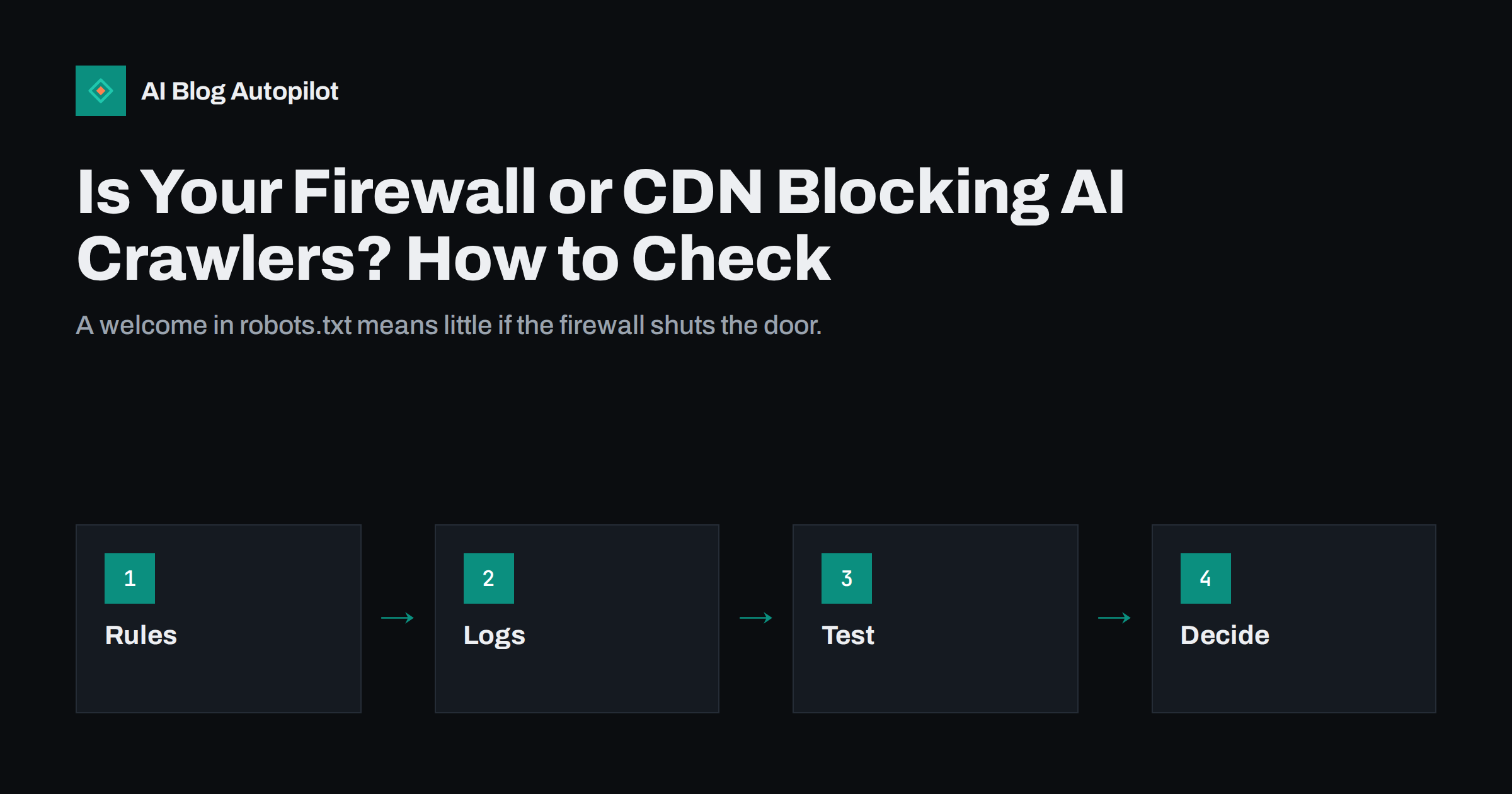
Short answer: a site can allow AI crawlers in robots.txt and still block them in practice, because a firewall, a CDN or a security plugin sits in front of the site and refuses requests that look automatic. To check, read your robots.txt, look in your server or CDN logs for blocked requests from known crawlers, test a page with a crawler-style request and read your bot-protection settings. Then decide on purpose which crawlers to allow, and write the choice down.
Many site owners tell themselves that their site is open to AI search, since the robots.txt file says so. Yet the robots.txt file is only a polite request. The real gatekeeper is often a security layer that was switched on for good reasons, such as stopping spam and attacks, and that treats every unfamiliar bot as a threat. This article shows how to find out what is happening, and how to set the rules sensibly.
It is a technical subject, but the checks are short. If you cannot make the changes yourself, you can still collect the facts and hand them to your host or developer.
Two layers: the request and the door
Think of two layers. The first is the robots.txt file, which tells well-behaved crawlers which parts of your site they may visit. The second is the technical layer that decides whether a request reaches your pages at all. It may be a web application firewall, a content delivery network, a security plugin or the settings of your hosting company.
Crawlers read robots.txt first, and then request pages. If the second layer answers with an error or a challenge, the crawler cannot read the page, whatever robots.txt says. For the crawler, a blocked page looks the same as a page that does not work, and it may try again later or give up.
The guide to AI crawlers, robots.txt and llms.txt explains the first layer. This article is about the second, which is more often forgotten.
Shared hosting adds a third cause. Some hosts protect all customers on a server with common rules, so a crawler that is blocked for one site is blocked for yours as well. If you suspect this, ask your host in plain terms whether any rules limit automated clients, and which crawler names are affected. A clear question usually gets a clear answer.
Why firewalls turn bots away
Modern security tools judge visitors by behaviour. A client that makes many requests, does not run scripts, has no cookies or comes from a data centre looks suspicious, and many crawlers look like that. The tool may then show a challenge page, slow the client down or refuse it outright.
Some services have a setting that blocks a long list of automated clients, and a few offer a one-click switch for AI crawlers. Hosting companies and security plugins may also apply default rules without telling you. The default may be right for a site that wants to limit automated visits, but wrong for a site that wants to be quoted in AI answers.
Rate limits are another cause. If a crawler fetches many pages in a short time, a rate limit may start to refuse it for a while. For a small site, this can happen with only a modest amount of crawling, especially if the hosting is limited. The article on server errors and downtime describes what repeated errors do to visibility.
Compare the picture with your analytics. If the logs show many requests from a crawler but your pages never appear in its answers, the crawler may be reading challenge pages. If the logs show almost no requests at all, the crawler may be turned away before it reaches the server, in which case only the CDN or firewall dashboard will show the attempts.
How to see what is being blocked
Start with your logs. Access logs from your host or your CDN show each request, the address of the client, the name that it gave itself and the response. Look for the names of the crawlers that you care about and check the response codes. A long run of 403 or 429 codes, or responses that are much smaller than normal pages, is a warning.
Many CDN and security dashboards also show blocked or challenged requests, with the rule that stopped them. Look for categories such as bots, verified bots, AI crawlers or rate limiting, and read the recent events. If you see a crawler that you want to allow in the blocked list, you have found the problem.
If you have never read a log, the guide to server log analysis explains what to look for. A few minutes of reading is enough to learn which bots visit you, and how your server treats them.
Test more than the home page. A rule may apply to certain paths only, such as the blog folder, the feed or pages with parameters. Pick an article, a category page, the sitemap and the robots.txt file, and compare the results. Different answers for different paths point you to the exact rule that needs a change.
A simple test you can run
You can test by requesting a page in the way a crawler would. A command line tool or an online fetch tool can send a request that carries a crawler’s name. If the page comes back normally, with a success code and the full text, that name is not being blocked by simple rules. If it returns an error or a challenge, you have evidence.
Be aware of the limits. Some systems verify real crawlers by their network address, not only by their name, so a test from your own computer with a borrowed name may be treated differently from the real crawler. A pass does not prove that the real crawler is allowed, but a fail on a simple test is a strong sign that something is wrong.
The official documentation of each crawler usually lists its name, and some publish the address ranges it uses. Use these sources rather than lists from third parties, since names and ranges change. Note the date of each check.
Keep the evidence. Save the response of each test, with the date and the address you requested, in a small folder. If you need to ask your host or a security provider to adjust a rule, a file that shows exactly what happened is far more persuasive than a general complaint, and it speeds up the work.
Reading the codes
A few codes tell most of the story. A 403 means that the server understood the request but refuses it, which often points to a firewall rule. A 429 means that the client has made too many requests, and it points to rate limits. A 503 can mean that the server is overloaded or that a protective page is shown. A 200 with a challenge page instead of your article is the sneakiest case, since the code looks fine.
Look at the size and the content as well. If a page that should be 60 kilobytes comes back at 4 kilobytes, it may be a challenge page. Open the saved response and read it. If you see a message asking to prove you are human or to enable scripts, the crawler would see the same.
Repeat the test for a few important pages, and for the sitemap and the robots.txt file. If the sitemap cannot be fetched, crawlers cannot find your new pages easily. The guide to XML sitemaps explains why it matters.
Think about the cost side as well. Crawlers use bandwidth and server time, and a small site on weak hosting may feel it. If a crawler asks for pages too often, you can use a crawl delay where it is respected, caching to serve repeated requests cheaply, or a limit that is high enough for normal use. Allowing access and controlling load are separate decisions.
Deciding what to allow
Now comes the choice, which belongs to you. Some site owners want to appear in AI answers and search, and they allow the crawlers that serve those purposes. Others prefer to block crawlers that gather content for training. These are different groups, and many companies use separate names for each, so you can often allow one and block another.
Write a short policy: which crawlers you allow, which you block and why. Review it every few months, since new crawlers appear and old ones change. If your goal is visibility, the article on how AI search picks sources explains what else matters once a page can be fetched.
Remember that a decision to block is legitimate. The point is not to open everything, but to make sure that what you do is what you intended, rather than the accident of a default setting.
Making changes safely
Change one rule at a time, and note the date. In a CDN or firewall, look for options to allow verified bots, to create an exception for a named crawler or to lower the strictness of a bot setting. Avoid turning off protection altogether. A site that is open to everything may invite scraping and attacks that cost more than they bring.
After each change, repeat your test, and check the logs a day or two later. Look at your analytics, too, as described in tracking visits from AI assistants, since a change in access may show up as a change in referrals after some weeks. Do not expect an immediate effect, because crawlers return on their own schedule.
Keep your protection for real threats. The article on bot traffic in analytics explains how to tell harmful automated visits from useful ones.
How AI Blog Autopilot helps
AI Blog Autopilot publishes articles with a clear structure, FAQ sections, tags and SEO meta on your own WordPress blog, so there is plenty for crawlers to read once they can reach your pages. It cannot change your firewall for you, so run the checks above first. See the pricing page for the plans.
Related reading
- AI Crawlers, robots.txt and llms.txt: What Site Owners Should Know
- Robots.txt for a Blog: What to Allow and What to Block
- Server Log Analysis: Seeing How Bots Crawl Your Blog
The bottom line
A permissive robots.txt does not guarantee access. Check your logs and bot settings, test a few pages, and choose on purpose which crawlers may visit.
FAQ
Can my site block AI crawlers without my knowing?
Yes. Firewalls, CDNs, security plugins and hosts often apply bot rules by default, even when robots.txt allows the crawler.
How do I check if a crawler is blocked?
Look in your server or CDN logs for 403 or 429 responses to that crawler, and test a page with a crawler-style request.
Does allowing AI crawlers guarantee I will be cited?
No. It only makes your pages readable. Citation depends on the quality, clarity and relevance of the content.
Should I allow every AI crawler?
Not necessarily. Some serve answers and search, others gather training data. Decide which you want and record the choice.
Is it safe to turn off bot protection?
Usually not. Make a targeted exception for the crawlers you want, and keep protection against abusive traffic.