ENEnglish
 LTLietuviškai
 DEDeutsch
 FRFrançais
 RUРусский
 ESEspañol
 PLPolski
 ITItaliano
 UKУкраїнська
 CSČeština
 PTPortuguês
 JA日本語
 LVLatviešu valoda
 ETEesti
 HUMagyar
 IDBahasa Indonesia
 TRTürkçe
 HIहिन्दी
 ELΕλληνικά
 ARالعربية
 THไทย
 VITiếng Việt
 RORomână
 MSBahasa Melayu
 BNবাংলা
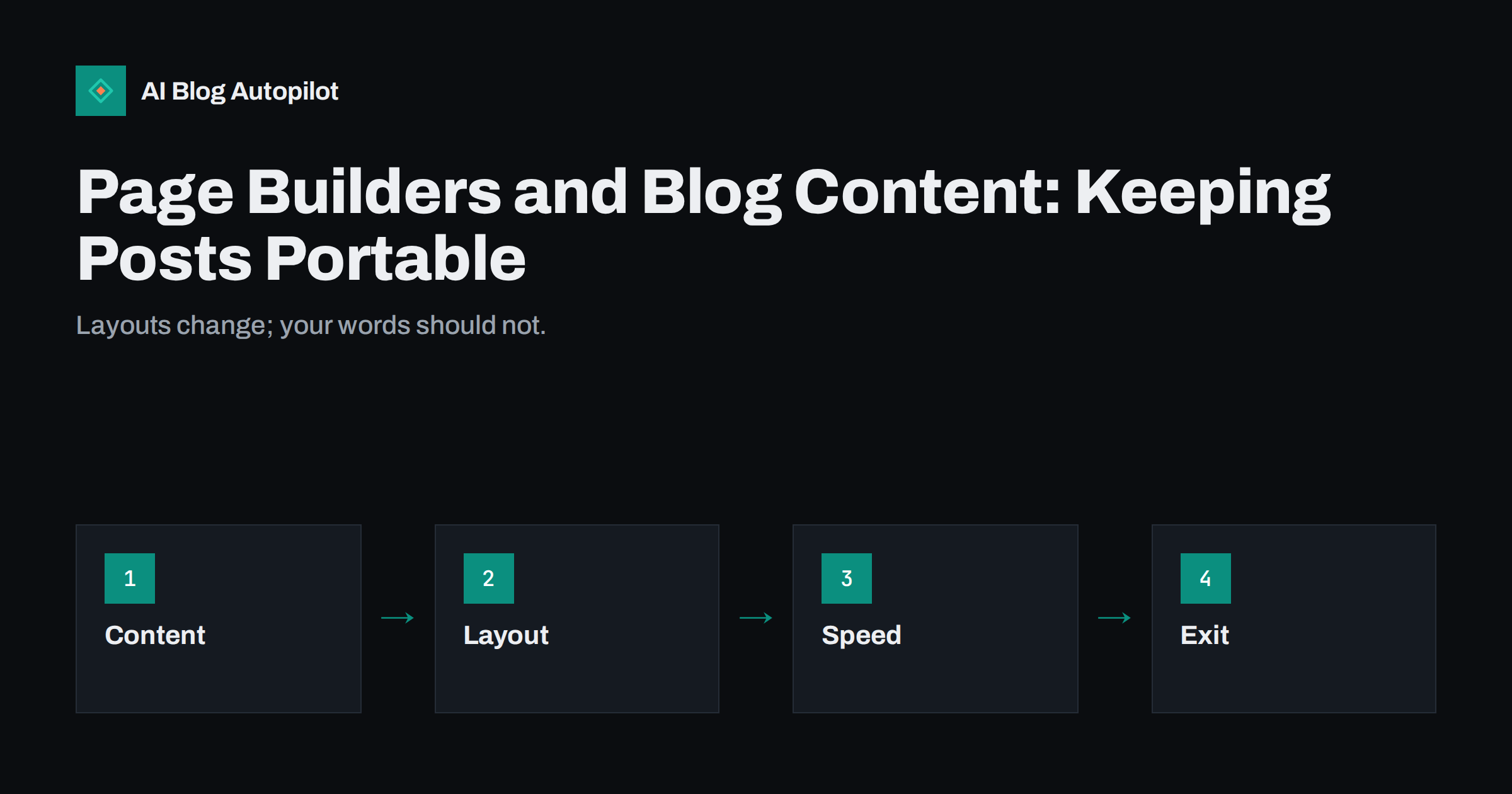
Short answer: keep the words, headings, images and links of your articles in the standard editor and put layout in the theme or in templates. Use a page builder for landing pages if you like it, but avoid building every blog post inside it, so that you can change design, tools or hosting without rewriting content.
Page builders let anyone create attractive layouts without writing code. That is a real benefit, and many good sites use them. The risk appears later, when a redesign, a plugin change or a move to another platform reveals that years of articles are stuck inside builder-specific blocks and shortcodes.
This guide explains the problem in plain terms, how to tell whether your content is portable, what to do for new articles and how to clean up older ones. It is written for owners and editors of WordPress sites, but the principles apply to any system.
What “portable content” means
Portable content is text and media that can move from one design to another without loss. A heading is a heading, a paragraph is a paragraph, an image has a file and an alt description, and links are plain links. Open the article in a simple editor and everything makes sense.
Non-portable content is mixed up with the tool that built it. Instead of a heading, there is a block of builder code with settings for fonts, spacing and colours. If you disable the builder, the page may show strange codes in the middle of the text, or the layout may collapse into a single column of loose fragments.
The difference matters most when you change something big. A new theme, a switch from one builder to another, a move to a headless setup or a migration to a different platform all rely on content that can be read by software other than the original tool. The guide to headless CMS and content shows why clean content is valuable.
Why builders create lock-in
Many builders store layout instructions in the post content or in extra fields. The visible result depends on the plugin that interprets them. If the plugin is removed, deactivated or broken by an update, the instructions remain but nothing displays them properly.
Some builders also generate heavy markup: many nested containers, inline styles and scripts for each element. This slows pages and makes it hard for search engines and AI systems to find the main text. It also makes pages heavy on mobile devices.
Pricing and licences can change as well. A tool that is free or cheap today may become costly, and moving away is expensive if the content is trapped. Think about the costs of leaving before you commit all your articles to one tool.
Ask your developer or host for an export of the content and open it in a spreadsheet or text editor. If the text is readable and in sensible order, you are in good shape. If it is full of long strings of unfamiliar symbols, you have a clear picture of the work involved in any future move.
Check how portable your content is
Run a simple test. Open a typical article in the editor and look at the code view. Is it mostly paragraphs, headings, lists and images? Or is it full of builder shortcodes and unfamiliar wrappers? A few shortcodes may be fine; a page in which most of the text is hidden inside them is a warning.
Temporarily switch to a default theme on a staging copy of the site and view the same article. If the text appears in a readable order, the content is largely portable. If you see raw codes or missing sections, you have lock-in. Never test on a live site.
Check how the article reads in a plain-text view or in a reader mode on your browser. If the main text appears properly, search engines and assistants are likely to read it properly too. See reader mode and read-later apps for how these tools extract text.
Use reusable patterns for repeated elements, such as an author box or a call-to-action. If your theme supports them, patterns let you update a box in one place without editing every article, and they use standard blocks, which keeps the content clean. Name them clearly so that editors know when to use each one.
Keep a note of any custom code or special plugins that affect articles. When a plugin quietly changes how headings, tables or galleries are produced, the article may look right but behave differently elsewhere. Documenting these dependencies is a small effort that pays off when someone new joins the team or the site moves.
Keep articles in the standard editor
For blog posts, the simplest policy is to write in the standard editor with its normal blocks: paragraph, heading, list, image, quote and table. These are widely supported and survive theme changes. Leave the layout of the article page to the theme or to a template.
If you want extra elements such as call-to-action boxes or comparison tables, build them as reusable patterns that rely on the standard blocks, or add them through the theme. That way the content stays plain while the look is controlled in one place.
Agree a short style guide for editors: use headings in order, keep one idea per paragraph, add alt text to images and avoid copying text from word processors with hidden formatting. The guide to an editorial style guide shows how to write one.
Train editors on the rules you set. A short guide with screenshots, listing which tool to use for which type of page, prevents a drift back to old habits. Review new articles in the first month after the guide is introduced, and give friendly feedback. A clear policy only works if the people who write the content know and understand it.
Use builders where they help
Page builders are most useful for landing pages, home pages and special layouts that do not change often and do not hold long articles. A campaign page with a custom layout is a good fit. If the page is retired later, little is lost.
When you use a builder, keep the important text in simple blocks inside it and avoid putting key content in images, sliders or tabs. Provide real headings and plain paragraphs, since these are what search engines and visitors rely on. The guide to content in tabs and accordions explains the trade-offs.
Document where the builder is used. A simple list of pages built with it makes a later migration much easier, because you know which ones need special treatment.
Be careful with fonts and icon libraries that come with builders. Loading several font families and a large icon set for a few small symbols adds weight to every page. Limit fonts to what the design needs, and use simple inline symbols where possible. Test the effect on a mobile connection, not only on fast office broadband.
Watch for duplicated content created by builders, such as hidden mobile and desktop versions of the same text. Search engines may read both, and screen readers may announce the text twice. Use responsive layouts that show one version, and check the page with assistive technology if you can.
Protect speed and search visibility
Heavy markup affects loading times and Core Web Vitals. Test a representative page with a speed tool and check how much code and how many scripts load for a simple article. If a plain article page produces hundreds of elements, there may be savings to make.
Disable features of the builder that you do not use, and avoid loading its scripts and styles on pages that do not need them. Many tools provide settings for this. The article on Core Web Vitals for bloggers lists the measures to watch.
Check that the structure is clean for search: one main heading, headings in logical order, real lists and tables, text in HTML and not in images. See semantic HTML for blog posts for a reference. Clean structure helps people using assistive technology and also helps AI systems pick out passages.
Think about images and media too. Builders often store images as backgrounds or inside sliders, where they have no alt text and cannot be found in the media library in the usual way. Use standard image blocks with descriptions, captions where helpful, and sensible file names. Keep the media library tidy, since a clean library makes any future move easier. The advice on image SEO for blog posts explains how.
Look at forms, buttons and special widgets as well. These are often tied to the builder and will need rebuilding after a move. List them, note what each one does and where it is used, and decide which are essential. A short inventory prepared now will save days of confusion later.
Clean up and migrate older posts
If your older articles are tangled with a builder, do not rush to rebuild them all. Start with the pages that matter most: those that bring traffic and enquiries. Copy the text into the standard editor, rebuild the headings and lists, check images and links, then compare the result with the original.
Work on a staging copy and keep the same web address. Check redirects, canonical tags and structured data after the change. If a page performs well, change it carefully and monitor it afterwards. The guide to changing a blog theme without losing SEO explains the checks.
Make a backup before you begin and keep it until you are sure that everything works. The article on backups for a blog explains the routine. Do the work in batches, and after each one, test on a phone.
How AI Blog Autopilot helps
Articles that AI Blog Autopilot publishes to WordPress are full articles with headings, FAQ, tags and SEO meta, which fits the standard-editor approach. You connect with a click and approve it in WordPress, and the product also offers a webhook or API option. See the plans for details.
Related reading
The bottom line
Keep your words in the standard editor, put layout in the theme, use builders for pages that suit them and clean up important older posts, so a redesign never means a rewrite.
FAQ
Are page builders bad for blogs?
Not necessarily. They are fine for landing pages, but building every article inside one can lock content in and add heavy code.
How can I test whether my content is portable?
View an article in code view and on a staging copy with a default theme. If the text stays readable, it is portable.
Should I convert all old posts at once?
No. Start with the pages that bring traffic and enquiries, work on a staging copy and check redirects and structure.
Do builders slow my site?
They can, through heavy markup and extra scripts. Test a typical article page and disable unused builder features.
Where should layout live?
In the theme or in templates, so the article text stays plain and works in any design.