ENEnglish
 LTLietuviškai
 DEDeutsch
 FRFrançais
 RUРусский
 ESEspañol
 PLPolski
 ITItaliano
 UKУкраїнська
 CSČeština
 PTPortuguês
 JA日本語
JA日本語 LVLatviešu valoda
 ETEesti
 HUMagyar
 IDBahasa Indonesia
 TRTürkçe
 HIहिन्दी
 ELΕλληνικά
 ARالعربية
 THไทย
THไทย VITiếng Việt
 RORomână
 MSBahasa Melayu
 BNবাংলা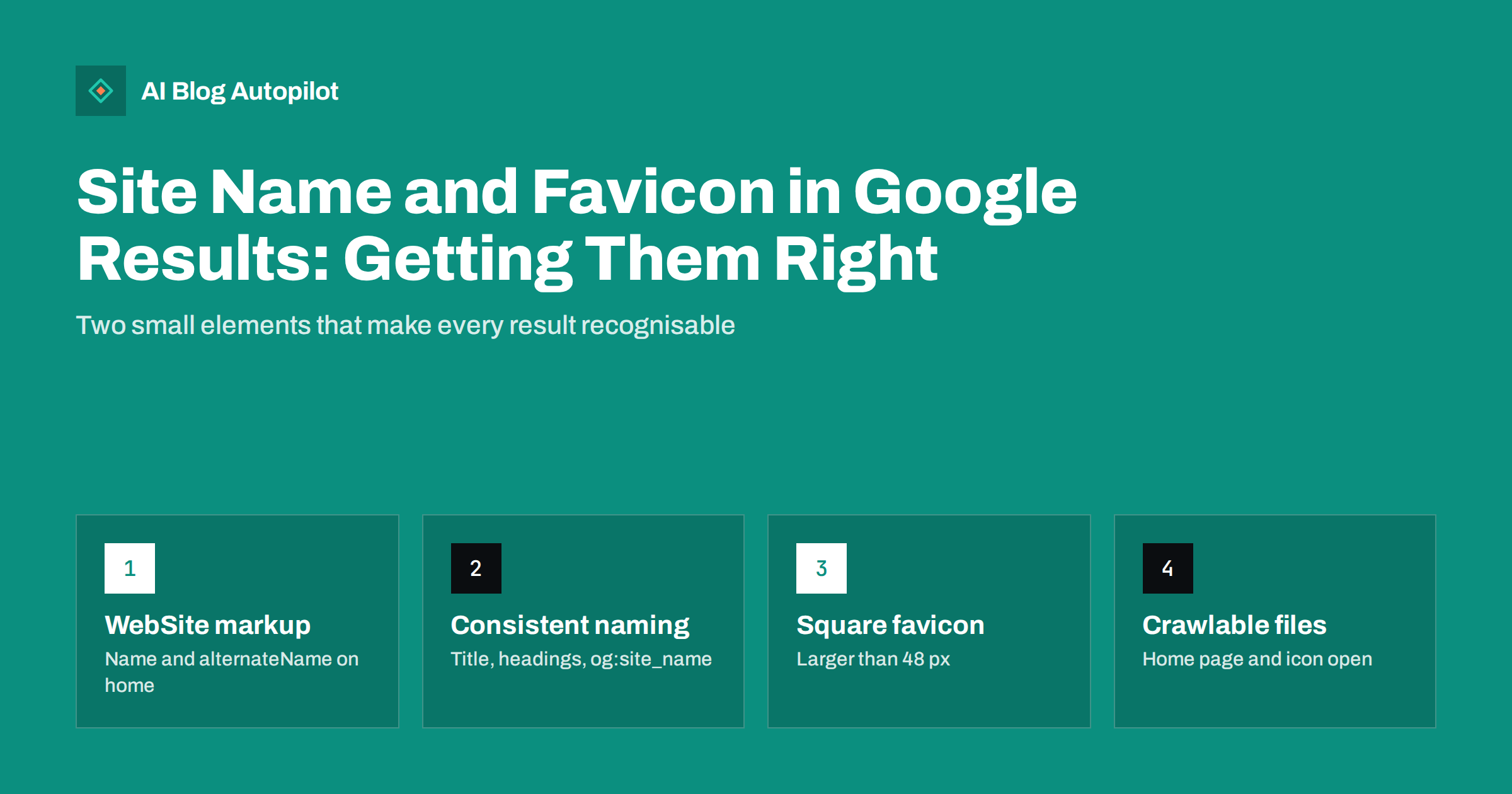
Short answer: Google shows a site name and a favicon next to each search result, and it chooses both automatically for the whole site, based mainly on your home page. To state your preferred name, add WebSite structured data with name and optionally alternateName to the home page, and use the same name consistently in the title, headings and og:site_name. For the favicon, link a square icon, ideally larger than 48 by 48 pixels, from the home page, and make sure both the page and the icon file can be crawled.
Every search result carries a small amount of branding: the site name and a tiny icon above the title link. They are easy to overlook, but they help searchers recognise a source they already trust, especially on mobile where results are compact. When the name is wrong, shows a domain instead of your brand, or the favicon is a generic globe, the result looks less trustworthy than it should. This guide explains how Google chooses both and how to fix common problems on a blog.
What the site name and favicon are
The site name is the name of the website shown with each result, separate from the page’s title link. The title link describes the page; the site name identifies the source. For a blog post, you might see “Brand Name” as the site name and the article title as the title link.
The favicon is the small icon shown beside the site name. It is the same icon browsers show in tabs and bookmarks, taken from your site’s HTML.
Neither element is a ranking factor in the usual sense, but both influence whether a searcher chooses your result over the one next to it. Both apply to the site as a whole, not to individual pages. According to Google’s documentation on site names, a site is defined by the domain or subdomain. A blog in a subfolder, such as example.com/blog/, shares the site name and favicon of the main domain. A blog on a separate subdomain, such as blog.example.com, can have its own.
How Google chooses the site name
The process is automated. Google looks at the home page and at how the site is referred to elsewhere on the web, and considers several sources on the home page:
- WebSite structured data, which Google describes as the most important way to state a preference.
- The home page title tag.
- Headings and other prominent text on the home page.
- The
og:site_nameOpen Graph tag.
Google cannot change a site name manually on request, but it does let you suggest an alternative through structured data if your first choice is not used. It may pass over a preferred name that is generic, misleading or already used by another prominent site, and sometimes it prefers an acronym if that is how the site is commonly known.
Choosing and declaring your site name
Pick a name that is short, recognisable and specific to you:
- Use the name people actually call your business, such as “Northwind” rather than “Northwind Trading Ltd”.
- Avoid generic descriptive names such as “Best Plumbers in Leeds”, which are unlikely to be chosen unless they are a genuinely well-known brand.
- Keep it concise, because long names can be shortened on some devices.
Then declare it on the home page with WebSite structured data. The required properties are name, your preferred site name, and url, the canonical home page URL. The optional alternateName property lets you give an alternative, such as an acronym or shorter form. Many WordPress SEO plugins output WebSite markup automatically and take the name from a settings field, so check what your plugin generates before adding your own. Google asks for one WebSite block rather than several competing ones.
Finally, make the other signals agree. If the structured data says “Northwind”, but the home page title says “Home | NW Trading Solutions” and the og:site_name says something else again, the system has mixed evidence. Consistency is what makes the preferred name likely to be used.
Common site name problems and fixes
- The domain is shown instead of the name. Usually no clear site name signals exist, or the home page cannot be crawled. Add WebSite structured data and make the title and main heading consistent.
- An old brand name appears after a rebrand. Update the structured data, title, headings,
og:site_nameand logo alt text on the home page. The change appears after Google recrawls and reprocesses the home page. - The blog subdomain shows the wrong name. Without its own WebSite markup, a subdomain may fall back to the main domain’s name. Add markup on the subdomain’s home page if you want a distinct name.
- Different names on www and non-www or HTTP and HTTPS versions. Use the same structured data on all duplicate home pages, and redirect to one canonical version.
- A generic or acronym name is chosen. Provide the full preferred name in
nameand a sensible alternative inalternateName, and make sure the brand name is used prominently on the home page.
Getting the favicon to appear
Google’s favicon guidelines set out what is needed:
- A
<link>element in the home page’s head, withrel="icon"(or one of the other supported values such asapple-touch-icon) and the icon’s URL inhref. - A square image, at least 8 by 8 pixels, with Google recommending larger than 48 by 48 pixels so it looks good on different surfaces.
- A supported format, such as PNG or ICO.
- A stable URL that does not change frequently.
- Crawl access: Googlebot must be able to crawl the home page and Googlebot-Image the icon file.
- An icon that visually represents your brand and is not inappropriate.
One favicon applies per hostname. As with site names, a blog in a subfolder uses the main site’s icon.
On WordPress, the site icon setting in the theme customiser usually generates the necessary link elements in several sizes automatically. Check the page source afterwards: some themes also hard-code an old favicon in the header template, and two conflicting icons can leave search engines using the wrong one. Keep the uploaded icon file at a fixed address, because replacing it with a new file name every time you tweak the design breaks the “stable URL” guideline and delays the update in search.
Designing a favicon that works at small sizes
A favicon is shown very small in search results, often at 16 to 32 pixels on screen. Detailed logos turn into blurs at that size. Practical tips:
- Use a simplified mark: the logo symbol or an initial, not the full wordmark.
- Choose strong contrast that works on both light and dark backgrounds, since search results can appear in dark mode.
- Fill the square sensibly; very thin shapes with lots of empty space look tiny.
- Export a larger source, such as 96 or 192 pixels, and let browsers and search engines scale it down.
- Check it next to other results by viewing a search results page on your phone, in both light and dark mode.
How long changes take and how to check
Both the site name and favicon are updated when Google recrawls and reprocesses your home page. That can take from days to several weeks. You can speed up discovery by inspecting the home page in Search Console’s URL Inspection tool and requesting indexing after you make changes.
To check your markup, test the home page in the Rich Results Test, which shows detected WebSite structured data, and view the page source to confirm the favicon link. Then check real search results for a few queries that return your pages. If the favicon or name still has not updated after several weeks, recheck crawl access with a live URL test, because a blocked icon file or home page is the most common hidden cause.
A quick checklist for a blog
- One WebSite structured data block on the home page with
name,urland, if useful,alternateName. - The same name in the home page title, main heading and
og:site_name. - Same markup on all duplicate versions of the home page, with redirects to the canonical one.
- A square favicon larger than 48 by 48 pixels, linked from the home page, in a supported format.
- Home page and icon file crawlable, with no robots.txt blocks.
- A blog on a subdomain has its own markup and favicon if it should look different.
How AI Blog Autopilot fits in
AI Blog Autopilot publishes articles to your WordPress blog with their own titles, descriptions and tags. The site name, WebSite structured data and favicon are site-wide settings that stay with your theme and SEO plugin, so the steps above are a one-time setup that every published article then benefits from. See how Autopilot works on the home page.
Related reading
- Meta Titles and Descriptions: What to Write and What to Automate
- Structured Data for a Blog: What Is Worth Adding
- Changing a Blog’s Domain Name Safely
The bottom line
The site name and favicon make every result recognisable. Declare your preferred name with WebSite structured data on the home page, use it consistently everywhere on that page, and link a simple, square, crawlable favicon. After that, give Google time to recrawl and check the results on a real phone.
FAQ
Why does Google show my domain instead of my site name?
Usually because clear site name signals are missing or inconsistent, or the home page cannot be crawled. Add WebSite structured data with your preferred name to the home page and use the same name in the title and headings.
Can a blog in a subfolder have its own site name?
No. Google supports site names at the domain and subdomain level only. A blog at example.com/blog/ uses the main domain’s site name. A blog on its own subdomain can have a separate one.
What size should my favicon be?
It must be square and at least 8 by 8 pixels, and Google recommends larger than 48 by 48 pixels. Many sites provide a 96 or 192 pixel icon so it scales well everywhere.
How long does it take for a new favicon to appear in search?
It changes after Google recrawls and processes your home page, which can take days to several weeks. Requesting indexing of the home page in Search Console can help it be recrawled sooner.
Can I ask Google to change my site name manually?
No. Site names are chosen automatically. You can state a preference with WebSite structured data and suggest an alternative with alternateName, and keep your naming consistent across the home page.
Does the favicon affect rankings?
There is no indication that it does. Its value is recognition: a clear favicon helps searchers spot a site they know and trust among other results.