ENEnglish
 LTLietuviškai
 DEDeutsch
 FRFrançais
 RUРусский
 ESEspañol
 PLPolski
 ITItaliano
 UKУкраїнська
 CSČeština
 PTPortuguês
 JA日本語
 LVLatviešu valoda
 ETEesti
 HUMagyar
 IDBahasa Indonesia
 TRTürkçe
 HIहिन्दी
 ELΕλληνικά
 ARالعربية
 THไทย
 VITiếng Việt
 RORomână
 MSBahasa Melayu
 BNবাংলা
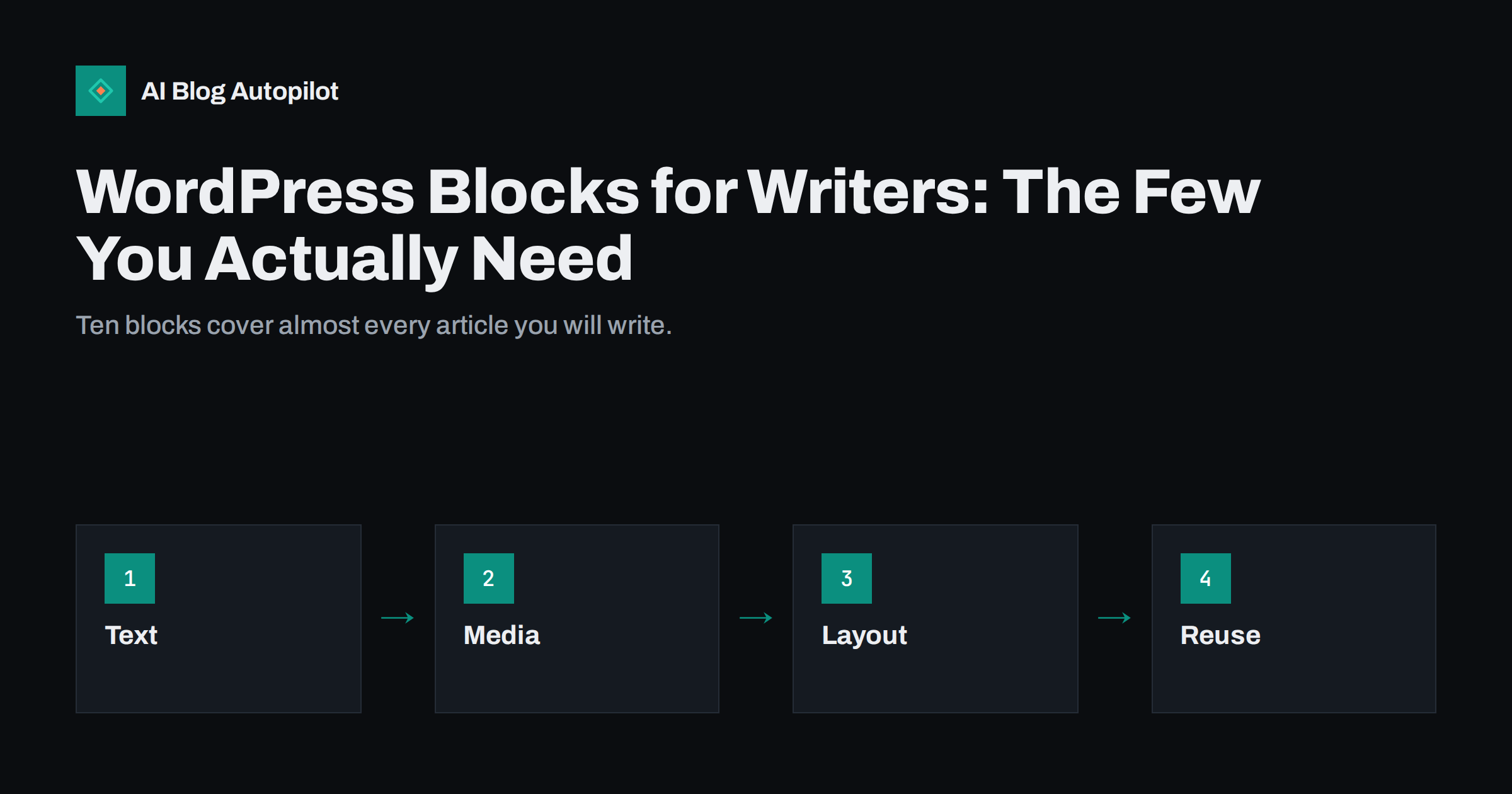
Short answer: most blog articles need only about ten WordPress blocks: paragraph, heading, list, image, quote, table, buttons, embed, separator and a reusable pattern for repeated sections. Learn these well, use them to build a clear structure and ignore the rest until a real need appears. Real headings, real lists and descriptive image text matter more for readers and search engines than clever layouts. Keep your approach consistent across all articles and writers.
The block editor, sometimes called Gutenberg, is the default way to write and edit in WordPress. Each paragraph, image, heading or list is a separate block, and the editor offers a long list of others: columns, covers, galleries, accordions, query loops and more. For a writer, the menu can be overwhelming, and it tempts people to build pages that look busy and take longer to read.
This guide is for writers and editors who want a calm, reliable way to produce articles. It explains the blocks that matter, how to use them for structure and accessibility and which options to leave alone. It also suggests how a team can keep a consistent style without relying on one person who knows the settings.
Why fewer blocks are better
Every extra block type adds choices, and every choice is a chance to be inconsistent. If one writer uses columns for a comparison, another uses a table and a third uses a picture, the blog looks uneven and is harder to maintain. A small, agreed set of blocks gives articles a recognisable shape.
Simple pages are also faster and more accessible. Blocks that load scripts, animations or large images can slow a page, and complex layouts may behave badly on a phone or with a screen reader. The guide on page speed for content sites explains how layout choices affect the time it takes for a page to appear.
Finally, simple structure helps search and AI systems. Clear headings, lists, tables and short paragraphs are easy to read for a machine, and they help passages to be understood on their own. Fancy visual blocks add little that a reader or a crawler can use.
Paragraph and heading blocks
The paragraph block is the workhorse. Keep paragraphs short, with one idea each, and let the theme control font and spacing. Avoid manual formatting such as extra line breaks or colours, since they make a post look different from the rest and can break on small screens. Use bold sparingly for key terms, and use italics for titles or emphasis.
The heading block creates the outline of the article. The title is the first-level heading, and your main sections should use second-level headings, with third-level headings for sub-sections. Never choose a level for its size. Choose it for its place in the outline, and let the theme style it. The article on heading structure for SEO gives examples of good and bad outlines.
Write headings that say what the section contains. A heading such as “How to set up a redirect” is more useful than “Next steps”, both for readers who scan and for assistants that pick passages. Check the outline with the list view of the editor, which shows the order of blocks and the headings at a glance.
Lists and tables
Use the list block for items that belong together. A bulleted list suits items without an order, and a numbered list suits steps. Keep items short and parallel, and avoid putting a full paragraph into a single item. Real lists are easier to scan and are understood properly by assistive tools.
The table block suits comparisons with a few rows and columns. Give the table a header row, keep the text short and check how it looks on a phone, where wide tables may need to scroll. If a table has too many columns, split it or turn it into a list. The guide on when a table beats three paragraphs helps you decide.
Do not use tables for layout. Placing text or images in invisible tables to control the position is an old habit that creates problems for accessibility and for responsive design. If you need side-by-side content, use a block made for it, and test the result on a small screen.
Think about the size and position of each image. A wide image at the top of a section can introduce a topic, while a small image next to a paragraph supports a detail. Avoid placing many images in a row without text between them, since readers may skip the section. Use the same alignment and similar sizes across the article, and check how each image behaves on a phone, where large images fill the screen and small ones may become hard to see.
Images, galleries and embeds
The image block is used in almost every article. Add images from the media library, choose a sensible size, write alt text that describes the image for people who cannot see it and add a caption only if it adds information. The guide to alt text explains how to write it.
Use galleries with care. They suit a set of related photos, such as steps in a process or views of a location, but many images in a gallery slow the page and may be hard to use on a phone. Choose a few strong images and give each one a purpose.
Embed blocks bring in video, social posts and other content from outside sources. They load extra scripts and may track visitors, so use them only when they add real value. Consider a plain link or a screenshot with a link for content that is not essential. Check privacy requirements for embedded services in your region, and follow the advice in the article on embedding video in blog posts.
Quotes, buttons and separators
The quote block is meant for quotations, with a source named, and not for decoration. Use it for words from a person or a document, and credit the source. A pull quote that repeats a line from your own text can help readers who skim, but use it sparingly, since repeated text may clutter the page.
The button block makes a clear call to action. Use it once or twice per article, with plain wording that says what happens, such as “See the pricing” or “Read the guide”. Do not use buttons for ordinary links inside paragraphs. A text link is clearer in the flow of reading, and too many buttons dilute the one that matters.
Separators and spacers create breaks. A separator can mark a change of topic, but a heading usually does the job better. Avoid spacer blocks for creating gaps, since they behave differently on different devices. If spacing looks wrong, fix it in the theme and not in each article.
Reusable patterns and templates
If you repeat the same structure in many articles, such as a call-to-action box, an author note or a disclosure, save it as a pattern. A pattern lets you insert a prepared group of blocks in one click. Some patterns are synced, which means that a change updates every place where they appear, and others are not, so each use can be edited on its own.
Use synced patterns for text that must stay identical, such as a standard disclaimer or a company description. Use unsynced patterns for structures that vary, such as a comparison layout. Name patterns clearly, so that others can find them, and limit their number to avoid confusion.
Post templates go a step further by defining the standard layout for a type of post. The article on WordPress user roles for a blog team explains who should have the right to edit patterns and templates, since a change affects many pages.
Blocks to skip, and settings to leave alone
Skip blocks that you have no clear reason to use. Columns, covers, groups with background colours, animations and sliders can make an article look designed but often hurt readability and performance. If the content does not need a special layout, use plain blocks and let the theme do the styling.
Leave colour, font size and spacing settings alone in everyday writing. Custom colours can break the contrast needed for readability, and custom sizes clash with the theme when it changes. Colour and type belong to design decisions made once, not to each article. The guide on accessibility for a blog lists contrast and size rules that matter.
Avoid the HTML block for ordinary content. Raw code is easy to break, and it hides text from the editor’s tools. Use it only for rare cases, such as a special embed, and test the result. If your site shows an error in the editor after a theme or plugin update, report it and avoid editing the affected blocks until it is fixed.
Keep drafts tidy while you write. Many writers start with a rough outline of headings, fill in the paragraphs and only then add lists, images and tables. This order keeps the structure in front of you and avoids the common mistake of building a layout before you know what you want to say. Save the draft often, and use the revision history to go back if an edit goes wrong.
Habits for a consistent team
Write a one-page block guide for your team: which blocks to use for which job, how to write alt text, how to place images, how to use buttons and where to find patterns. Include a screenshot of a well-built article and a short list of things to avoid. This guide can sit next to your editorial style guide.
Use keyboard shortcuts to speed up writing. Typing a slash opens the block menu, and shortcuts for bold, italic and links save time. Learn the list view and the options for moving blocks. A few minutes of practice can cut editing time by a large amount.
Review each article in the preview on both desktop and phone before it goes live, and run it through your pre-publication list. The article on the pre-publication checklist for every article includes the checks that catch most layout problems.
How AI Blog Autopilot helps
AI Blog Autopilot publishes articles to your WordPress blog with real headings, lists, FAQ sections, tags and SEO meta, so the structure is already in place when a draft arrives. You can approve each article before it goes live and make small edits with the blocks described here. See the pricing page for plans and monthly credits.
Related reading
- Heading Structure for SEO: H2s, H3s and Common Mistakes
- When a Table Beats Three Paragraphs
- Accessibility for a Blog: The Fixes That Matter Most
The bottom line
Learn about ten blocks, use them for structure and not decoration, save repeated sections as patterns and write a short guide so the whole team works the same way.
FAQ
Which WordPress blocks do I need for blog posts?
Paragraph, heading, list, image, quote, table, button, embed, separator and saved patterns cover nearly all articles.
Should I use columns and cover blocks?
Rarely. They add complexity and can hurt readability and speed. Use them only when the content needs it.
What is a synced pattern?
A saved group of blocks that updates everywhere when you edit it. Use it for text that must stay identical.
Can I change colours and font sizes in each article?
Avoid it. Leave style to the theme to keep contrast, spacing and consistency across the blog.
How do I check the structure of a post?
Open the list view in the editor to see all blocks and headings in order, then preview on desktop and phone.