ENEnglish
 LTLietuviškai
 DEDeutsch
 FRFrançais
 RUРусский
 ESEspañol
 PLPolski
 ITItaliano
 UKУкраїнська
 CSČeština
 PTPortuguês
 JA日本語
JA日本語 LVLatviešu valoda
 ETEesti
 HUMagyar
 IDBahasa Indonesia
 TRTürkçe
 HIहिन्दी
 ELΕλληνικά
 ARالعربية
 THไทย
THไทย VITiếng Việt
 RORomână
 MSBahasa Melayu
 BNবাংলা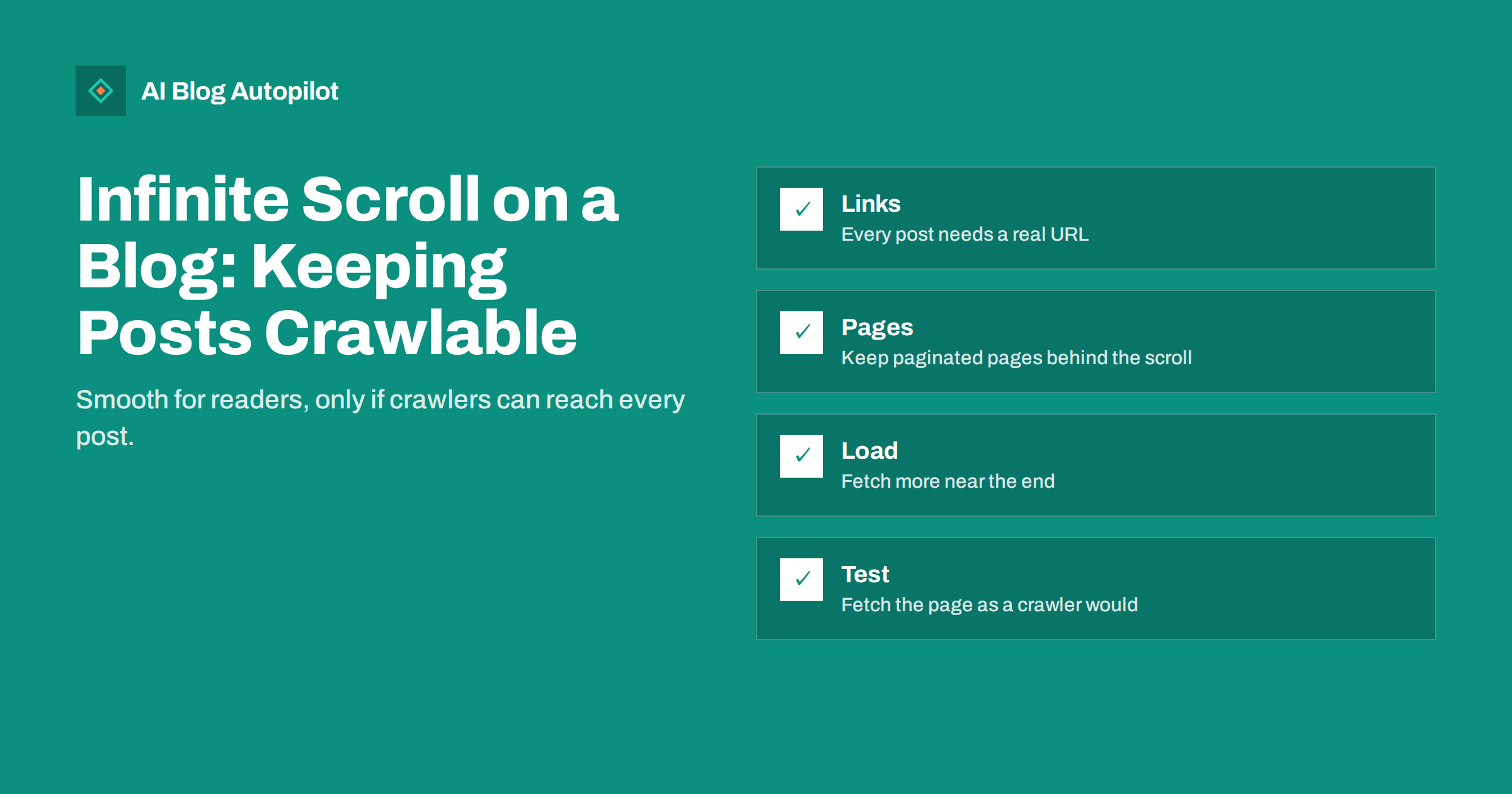
Short answer: infinite scroll is safe for SEO if every post is still reachable through a normal link and a normal URL. Keep real paginated pages behind the scroll, load more posts through links that work without scripting, update the address as the reader moves and test the listing with a crawler or an inspection tool. If posts appear only after a scroll event, search engines may never see them.
Infinite scroll is popular on blog listings because it feels smooth: readers keep moving down a page and new posts appear without a click. It also creates a technical risk. A search engine does not scroll like a person, and a page whose posts load only after a scroll can look short and empty to a crawler. This guide explains the risk and the simple fixes.
Why infinite scroll can hide your posts
A crawler fetches a page, reads the HTML and may run the scripts on it. It follows links that it finds in the page. If your listing shows twelve posts and loads the next twelve when the reader reaches the bottom, the crawler must trigger that loading in order to see the rest. Search engines can run scripts, but they do not scroll the way people do, and they do not wait without limit.
The consequence is simple. Older posts that appear only after the third or fourth load may have no link that a crawler can follow. If those posts are also missing from your sitemap, they may be found late or never. They may then receive little attention, and the pages they link to may be harder to reach as well.
Most of the time this problem is invisible to the owner. The page looks complete in a browser, and nobody notices until the traffic from older posts falls. Our guide to JavaScript SEO for blogs describes the wider issue of content that appears only after scripts run.
Think about what each reader gains. Someone who arrives from a search result usually wants one post and then maybe one more. A visitor who reads a lot, such as a returning subscriber, may enjoy a continuous feed. The listing page is rarely the entrance for new readers, so the main value of its design is to help people who already trust you find more of your work, and to help crawlers reach all of it.
Decide where the scroll belongs. Many blogs use it on the home page and the main blog page, while category and tag pages keep numbered pages. Mixed designs are acceptable, provided that each listing has a stable structure and the numbered pages are not blocked from crawling in your robots file or marked noindex by mistake.
Keep real pages behind the scroll
The recommended approach is to build normal paginated pages first, and to add the smooth scroll on top. Page one lists the newest posts, page two lists the next set and so on, each with its own address and a plain link to the next page. A reader with scripting sees the scroll effect, and a crawler sees ordinary pages with ordinary links.
The address of each page should be clean and stable, for example a path ending with page and a number. Each page should link to the next and the previous one with a standard anchor element. Do not rely on a button that has no address behind it. The principles are the same as in our guide to pagination and archive pages.
If you use WordPress, many themes and plugins already generate paginated archives, and the scroll effect is added by a script that fetches the next page in the background. Check that the underlying archive pages still exist and respond with a normal status code when you open them directly. If they return an error or a redirect to the first page, the scroll is hiding a problem.
Update the address as the reader scrolls
When the reader reaches a new batch, the address in the browser should change to the address of that page. This is done with the browser history interface and it has two benefits. A reader who shares or bookmarks the address gets the page they were looking at, and the back button returns them to a sensible place.
Without this, a reader who clicks a post and then returns often finds the list reset to the top, and must scroll through everything again. This is a common usability complaint, and it affects the time spent on the site and the willingness to explore. Restore the scroll position when the reader comes back, or use a “load more” button, which is often easier to make reliable.
Each batch should also be marked so that people using assistive technology know that new content has appeared. Our guide to accessibility for blogs covers the habits that make a listing usable with a keyboard and a screen reader.
Consider a load more button instead
A “load more” button is a middle path. The reader chooses when to load the next set, the footer stays reachable, and the button can be a real link to the next page that a script enhances. It avoids the trap in which a reader tries to click a footer link and is pulled away by new content that keeps loading.
The footer deserves attention. Links to your policies, contact page and main categories sit there, and an endless list may make them impossible to reach. If you keep infinite scroll, make the footer links available elsewhere, for example in a fixed menu or a sidebar. Our guide to footer and sidebar links explains what belongs there.
For a small blog with a few dozen posts, a plain paginated list or a good set of category pages is often better than any scroll effect. Use the smooth loading only if it adds value for your readers, and do not add it for its own sake.
Help crawlers find everything
Whatever you choose for the listing, do not make it the only route to your posts. Include every post in the XML sitemap, link to important posts from category pages and related posts sections, and link to older material from newer posts. A post that has several routes to it is easy to find, and one that depends on a single scroll is fragile. See XML sitemaps explained for the details.
Check your internal links as well. Posts that are reached by few links from other pages may be treated as less important. The guide to orphan pages on a blog shows how to find posts that have no links pointing to them, which is a common side effect of a listing that hides older posts.
Keep the number of posts per page reasonable. A first page that loads fifty posts with images is slow, and a very small page makes the series long. Somewhere between ten and twenty is a sensible range for most blogs, adjusted to the size of the images and the speed of the site.
Speed and layout stability
Each batch of posts adds images and text, and a careless script can make the page jump while it loads. Reserve space for images, use lazy loading with sizes set, and avoid pushing content that the reader is looking at. Layout shifts are measured as part of page experience, and they annoy readers. See Core Web Vitals for bloggers for what to measure.
Take care with memory on older phones. A page that keeps adding posts without removing any may become heavy after several loads. Some sites limit the number of batches before showing a button, and that is a sensible safeguard.
Measure the effect of the change. Compare the number of pages per visit, the time on page and the clicks to posts before and after you add or remove the scroll. If readers see more posts with the new design, it is working. If not, simpler pagination may serve better.
How to test your listing
Open the listing with scripting turned off and see what remains. You should still see the first batch and a link to the next page. Open the address of page two directly, and check that it loads the right posts and shows a status of success. Then use the inspection tool in your search console to fetch and render the page and look at the rendered HTML and the screenshot. If your older posts are missing there, a crawler may be missing them too.
Use a crawling tool to follow links from the home page and count how many posts it finds. Compare that count with the number of published posts. A large difference points to posts that are hard to reach. Our guide to the URL Inspection tool shows how to read its results.
Repeat the test after any change to the theme or to a plugin. A theme update can alter how the listing loads without any visible sign, and a quick check after each update catches problems early.
Document the setup in your team notes: which plugin or script provides the effect, how many posts load at once and where the real archive pages live. When a developer changes the theme a year later, the note explains what must be preserved, and saves a slow and expensive search for the cause of lost traffic.
How AI Blog Autopilot helps
AI Blog Autopilot publishes full SEO articles to your WordPress blog on a schedule, each with FAQ, tags and SEO meta, so the number of posts grows steadily and your listing pages matter more over time. Keep the archive pages crawlable and the new articles are found and linked in the normal way. See the pricing page for plans.
Related reading
- Pagination and Archive Pages: SEO for Blog Listings
- JavaScript SEO for Blogs: When Rendering Hides Your Content
- Orphan Pages on a Blog: Find and Fix Them
The bottom line
Build ordinary paginated pages first, add smooth loading on top, keep the address and the footer working and test the listing the way a crawler sees it. Then every post stays easy to find, whatever the design.
FAQ
Is infinite scroll bad for SEO?
Not by itself. It is a problem only when posts can be reached solely through a scroll event and have no normal links or URLs.
What is the safest alternative?
Ordinary paginated pages or a load more button that links to the next page.
Does the XML sitemap solve the problem?
It helps search engines find posts, but internal links are still needed to show their importance.
How can I test my blog listing?
Load it with scripting off, open page two directly and use the inspection tool in your search console to view the rendered page.
How many posts should one page show?
Ten to twenty suits most blogs, depending on image size and speed.