ENEnglish
 LTLietuviškai
 DEDeutsch
 FRFrançais
 RUРусский
 ESEspañol
 PLPolski
 ITItaliano
 UKУкраїнська
 CSČeština
 PTPortuguês
 JA日本語
JA日本語 LVLatviešu valoda
 ETEesti
 HUMagyar
 IDBahasa Indonesia
 TRTürkçe
 HIहिन्दी
 ELΕλληνικά
 ARالعربية
 THไทย
THไทย VITiếng Việt
 RORomână
 MSBahasa Melayu
 BNবাংলা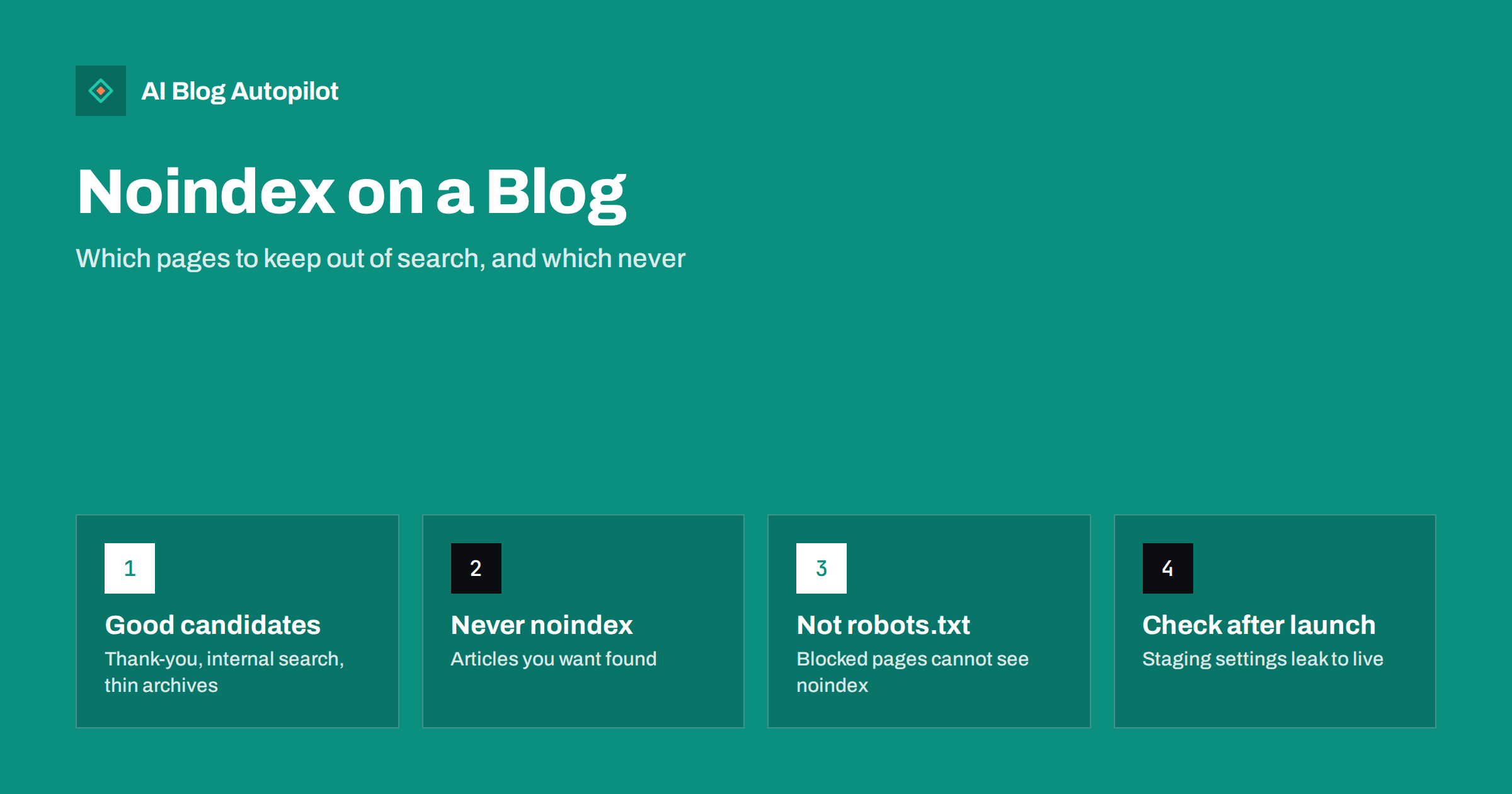
Short answer: a noindex directive tells search engines not to show a page in their results, while leaving it fully accessible to visitors. On a blog, it suits pages with no search value of their own: internal search results, thank-you and confirmation pages, login and account pages, and some thin archives such as author pages on a single-author site or empty tag pages. It should never be on articles or category pages you want found. For noindex to work, the page must not be blocked in robots.txt, because a crawler has to read the page to see the directive.
Noindex is one of the most useful and most dangerous settings on a website. Used deliberately, it keeps low-value pages out of search results and helps search engines focus on the content that matters. Used by accident, it can quietly remove an entire blog from search.
This guide explains how noindex works, which blog pages are good candidates, which are not, and how to check that nothing important has been hidden by mistake.
What noindex does and how it works
Noindex is an instruction to search engines: you may crawl this page, but do not include it in your search results. It can be delivered in two ways.
- A robots meta tag in the page’s HTML head, with the content value noindex. This is the usual method for normal web pages, and the one WordPress and SEO plugins use.
- An X-Robots-Tag HTTP header sent by the server. This works for files that have no HTML head, such as PDFs, and is set in the server configuration.
When a search engine crawls a page and finds the directive, it drops the page from its results, typically on the next crawl. Visitors can still reach the page through links, bookmarks or navigation. Nothing changes for people; only search results are affected.
Google’s page on blocking indexing with noindex is the reference for the exact syntax and behaviour.
Noindex is not the same as robots.txt
This is the most common misunderstanding, and it causes real problems.
Robots.txt controls crawling: whether a crawler may fetch a URL at all. Noindex controls indexing: whether a fetched page may appear in results. The two interact in a counter-intuitive way.
If you block a page in robots.txt, the crawler never fetches it, so it never sees a noindex tag on it. The page can still appear in results as a bare URL if other sites link to it, because the search engine knows it exists but cannot read it. To remove a page from results reliably, allow crawling and use noindex.
| Goal | Use | Do not use |
|---|---|---|
| Keep a page out of search results | Noindex, with crawling allowed | Robots.txt disallow alone |
| Stop crawlers wasting time on endless URLs | Robots.txt disallow | Noindex alone (still crawled) |
| Remove a page completely | Delete it (404 or 410) or redirect it | Noindex on a page nobody needs |
| Consolidate duplicates | Canonical tag or redirect | Noindex on the duplicate as a first choice |
AI crawlers, robots.txt and llms.txt covers the crawling side, and canonical tags explained covers duplicates.
Blog pages that are good candidates for noindex
A page is a good candidate when it has a purpose for visitors but would be a poor search result: it duplicates other pages, has little content, or only makes sense after an action.
- Internal search results pages. These are generated for any word typed into your search box, can be endless in number, and duplicate your articles. Google’s guidelines have long advised against letting them be indexed.
- Thank-you and confirmation pages after a form, sign-up or download. Nobody should arrive at these from search, and indexing them can let people skip the form.
- Login, account, cart and checkout pages, where they exist on the same site.
- Author archives on a single-author blog. They duplicate the main blog listing exactly. On a multi-author blog with real author bios, they can be useful and indexable.
- Tag archives with only one or two posts. A tag page that lists a single article adds nothing beyond that article. Tag pages with a description and a meaningful set of posts are a different matter.
- Date-based archives (by year or month), which rarely match anything people search for and duplicate the main listing.
- Attachment pages, the separate pages some WordPress setups create for each uploaded image. Most SEO plugins redirect these to the image or parent post, which is better still.
Pages that should almost never be noindexed
Some pages are occasionally noindexed out of excess caution, and it costs traffic.
- Articles, including older or modest ones. If an article is weak, improve it, merge it or remove it; hiding it with noindex while keeping it live rarely helps. Content pruning explains the choices.
- Category pages that organise your main topics. With a short introduction, they can rank for broad topic searches and pass value to the articles they list.
- Useful tag pages with descriptions and a solid set of posts.
- Paginated pages of the main blog listing (page 2, 3 and so on). Noindexing them can make it harder for crawlers to discover older posts through the listing.
- About, contact and service pages, which are often searched by name.
When in doubt, ask whether the page could be a genuinely helpful search result for anyone. If yes, leave it indexable and improve it.
Setting noindex in WordPress
You rarely need to edit code. The usual places are:
- SEO plugin settings for content types and archives. Most popular SEO plugins have a section where you choose whether posts, pages, categories, tags, author archives, date archives and media attachments appear in search results.
- Per-post settings. In the post editor, the SEO plugin’s panel usually has an advanced option to exclude that one page from search results. Use it for thank-you and landing pages that should not rank.
- The WordPress reading setting. Under Settings, Reading, the option to discourage search engines from indexing the site applies to the whole site. It is meant for development sites, and leaving it enabled on a live site is one of the most damaging mistakes a blog can make.
After changing any of these, view the source of an affected page and search for noindex to confirm the tag appears only where intended.
The accidents that hide whole blogs
Most noindex disasters are not decisions but leftovers. The typical cases:
- The discourage search engines setting left on after a site moves from staging to live.
- A staging copy’s settings copied back to the live site during an update or migration, bringing noindex with it.
- A plugin setting applied to all posts or a whole category rather than one page.
- A theme or plugin update that changes defaults, for example starting to noindex tag or category archives.
- A server header added for a staging environment and never removed.
The symptom is a gradual drop in indexed pages and traffic, with no error visible to visitors. That is why noindex belongs on every migration and launch checklist, including migrating a blog without losing traffic.
How to audit noindex on your blog
- Search Console pages report. Look for the reason “Excluded by noindex tag”. Open the list and read the URLs. Every one should be a page you meant to exclude.
- URL inspection on your homepage and a few important articles. It shows whether indexing is allowed and whether the page is indexed.
- View source on each page type: homepage, article, category, tag, author and a page. Search for the word noindex.
- Check HTTP headers with your browser’s developer tools on one article, looking for an X-Robots-Tag header.
- Review plugin settings for archives and content types after every major update.
This takes a quarter of an hour and is worth repeating after every migration, redesign or significant plugin change.
What happens when you remove noindex
If you discover an important page was noindexed by mistake, remove the directive and request indexing through URL inspection in Search Console. Recovery depends on how long the page was excluded and how often it is crawled. For a well-linked page, it may reappear within days; for a whole site, full recovery of positions can take longer, because search engines need to recrawl and reassess each page.
Submitting an up-to-date XML sitemap helps crawlers find the affected pages sooner. XML sitemaps explained covers what it should contain: only indexable, canonical URLs, which means noindexed pages should not be listed in it.
How AI Blog Autopilot publishes
AI Blog Autopilot publishes articles to your WordPress site through a one-click connection, as normal posts in the categories you use. Whether posts, categories and tags are indexable is controlled by your WordPress and SEO plugin settings, so a quick noindex audit before you start automated publishing makes sure every new article can be found. See the AI Blog Autopilot home page for how it works.
Related reading
- Categories or Tags: How to Organise a Blog
- Why Your Blog Posts Aren’t Ranking: Eight Real Causes
- Duplicate Content: What Counts and What Doesn’t
The bottom line
Noindex keeps a page out of search results without hiding it from visitors. On a blog, use it for internal search results, thank-you and account pages, and thin archives that duplicate other listings. Keep articles, meaningful categories and useful tag pages indexable. Never rely on robots.txt to remove pages from results, and check for accidental noindex after every launch, migration and major update, because a single leftover setting can hide an entire blog.
SSS
What is a noindex tag?
It is a directive, usually a robots meta tag in the page’s HTML head, that tells search engines not to include the page in their results. Visitors can still open the page normally.
Should I noindex tag pages on my blog?
Noindex tag pages that list only one or two posts and have no description, because they add nothing beyond the posts themselves. Tag pages with a proper description and a meaningful set of articles can stay indexable and may bring traffic.
Can I use robots.txt instead of noindex?
Not to remove pages from results. Robots.txt stops crawling, so the crawler never sees a noindex tag, and the URL can still appear in results if other pages link to it. Allow crawling and use noindex instead.
How do I know if my blog is accidentally noindexed?
Check the Search Console pages report for URLs excluded by a noindex tag, inspect your homepage and key articles, and make sure the WordPress setting that discourages search engines is turned off on the live site.
How long does it take for a page to return after removing noindex?
It depends on how often the page is crawled. Requesting indexing in Search Console and keeping the page in your sitemap speeds things up; well-linked pages often return within days, while full recovery of positions can take longer.