ENEnglish
 LTLietuviškai
 DEDeutsch
 FRFrançais
 RUРусский
 ESEspañol
 PLPolski
 ITItaliano
 UKУкраїнська
 CSČeština
 PTPortuguês
 JA日本語
JA日本語 LVLatviešu valoda
 ETEesti
 HUMagyar
 IDBahasa Indonesia
 TRTürkçe
 HIहिन्दी
 ELΕλληνικά
 ARالعربية
 THไทย
THไทย VITiếng Việt
 RORomână
 MSBahasa Melayu
 BNবাংলা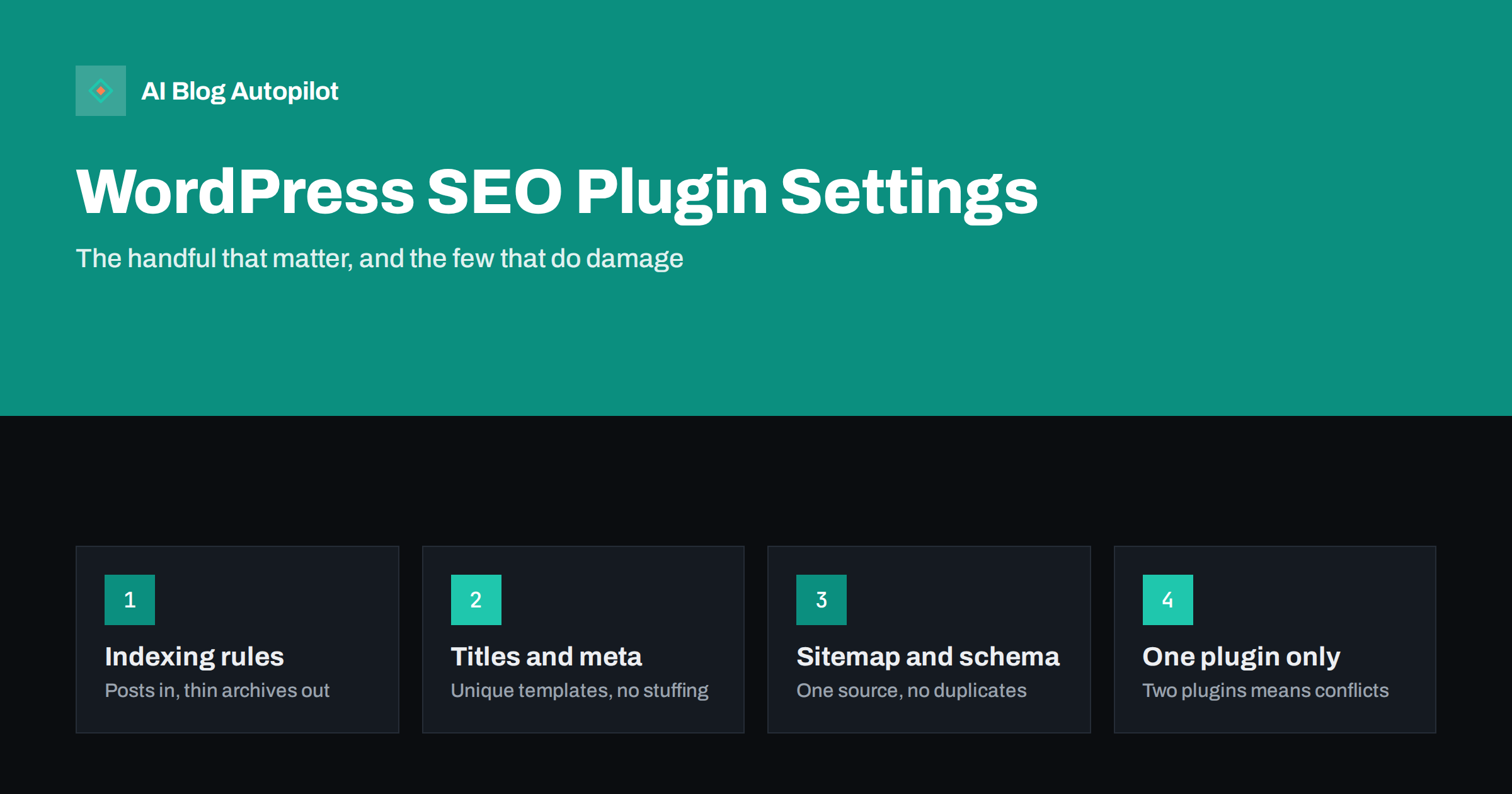
Short answer: on a WordPress blog, only a handful of SEO plugin settings really matter: which content types and archives are indexable, the title and meta description templates, the XML sitemap, the permalink structure, the site’s organisation or person details for structured data, and redirects when URLs change. Get those right, run only one SEO plugin, and confirm the WordPress setting that discourages search engines is off on the live site. Most other options are optional refinements, and per-post content scores are guidance, not targets.
Installing an SEO plugin is one of the first things most WordPress site owners do. Then they meet a settings area with dozens of tabs and toggles, and either accept every default or change things at random. Both approaches can work out, and both occasionally cause serious problems.
This guide focuses on the settings that genuinely affect how search engines see a blog, what sensible values look like, and the few options that cause real damage when set wrongly. It applies to the popular SEO plugins, which differ in layout but offer the same core controls.
Before anything else: one plugin, and the visibility setting
Two checks come before any plugin settings.
- Run only one SEO plugin. Two SEO plugins active together typically output duplicate title tags, duplicate meta descriptions, two sets of structured data and sometimes two sitemaps. Search engines then have to guess which to trust. If you are switching plugins, use the new plugin’s import tool and deactivate the old one.
- Check the WordPress visibility setting. Under Settings, Reading, there is an option to discourage search engines from indexing the site. It is meant for development sites. If it is enabled on a live site, pages are marked noindex regardless of plugin settings. It is one of the most common causes of a blog that never appears in search.
Also confirm your WordPress address and site address use the final domain with https, so every URL the plugin generates is correct.
If your site was built on a temporary or staging address, search the database and settings for that address before launch. Plugins store URLs in several places, including sitemap caches, social images and structured data settings, and a leftover staging address can end up in canonical tags or share previews long after the move.
Indexing rules for content types and archives
This is the most consequential group of settings. The plugin lets you choose, for each content type and archive, whether it should appear in search results.
| Content type | Typical setting for a blog | Reason |
|---|---|---|
| Posts | Index | Your articles; the reason the blog exists |
| Pages | Index | About, contact, services |
| Categories | Index | Topic hubs that can rank and pass value to posts |
| Теги | Index only if tags have descriptions and several posts each; otherwise noindex | Thin tag pages add little |
| Author archives | Noindex on single-author blogs | They duplicate the main blog listing |
| Date archives | Noindex or disabled | Rarely searched, duplicate listings |
| Media attachment pages | Redirect to the file or parent post | Otherwise each image gets a thin page |
| Internal search results | Noindex (usually automatic) | Endless, duplicate pages |
These are sensible defaults, not rules. A multi-author publication with real author bios may want author pages indexed; a blog that uses tags carefully as topic pages may want them indexed. Noindex on a blog explains the reasoning for each.
Title and meta description templates
Plugins generate title tags and meta descriptions from templates, using variables such as the post title, site name and separator. The defaults are usually reasonable, but check them.
- Post titles: the post title, optionally followed by a short site name. If your site name is long, consider leaving it out of post titles so the article’s title is not truncated.
- Category and tag archives: include the category or tag name, so each archive has a unique title.
- Paginated pages: include the page number, so page 2 of a category does not share a title with page 1.
- Homepage: a descriptive title and meta description written by hand, not generated.
- Meta descriptions: for posts, write them individually or use the excerpt. A template that inserts the same text on every post is worse than none.
Then, per post, write or check the SEO title and description. Meta titles and descriptions covers what good ones look like, and why Google rewrites titles explains what happens when they are poor.
XML sitemap
Most SEO plugins generate an XML sitemap automatically. WordPress also has a basic built-in sitemap, which SEO plugins usually replace with their own. Check:
- The sitemap is enabled and loads without errors in a browser.
- It contains posts, pages and categories, and excludes content set to noindex.
- There is only one sitemap index, not the plugin’s and WordPress core’s side by side.
- It is submitted in Search Console and, if you use it, Bing Webmaster Tools.
- It is referenced in robots.txt, which most plugins do automatically.
XML sitemaps explained covers what each part means.
Structured data and site identity
SEO plugins output structured data for articles, the website and the organisation or person behind it. The settings to check:
- Organisation or person. Choose which represents the site, and fill in the name, logo and official social profile links. This feeds the site’s identity in search.
- Default article type. Article or BlogPosting for posts is standard.
- Author information. Make sure posts are attributed to a real author profile with a bio, not a generic admin account.
- No duplicates. Some themes output their own schema. If both theme and plugin do, disable one.
Test a post with a rich results testing tool to confirm what is output. Article structured data describes the fields.
Permalinks and redirects
Permalinks are set in WordPress itself, under Settings, Permalinks, but they are an SEO decision. For most blogs, the post name structure produces short, readable URLs without dates. Decide once and do not change it on an established site without redirects, because every URL would change.
Many SEO plugins include a redirect manager, or can be paired with one. Use it whenever you:
- change a post’s slug;
- merge two articles into one;
- delete a post that had traffic or links;
- restructure categories that appear in URLs.
Permanent redirects from old to new URLs preserve most of the value the old address had built up. URL slugs that work covers slug choices.
Social sharing metadata
Plugins also output Open Graph and similar tags that control how posts look when shared on social networks: title, description and image. Check that:
- a default share image is set for pages without a featured image;
- posts use their featured image as the share image;
- the site name and social profile details are filled in.
Test by pasting a post URL into a social network’s post composer or preview tool and checking the preview.
Social networks cache previews, so a fix may not appear immediately for URLs that have already been shared. Several networks offer a debugging or inspection tool that refreshes the cached preview. Default share images should be at least 1200 pixels wide and avoid plain white backgrounds, which look weak in feeds and link previews.
Settings that are safe to leave alone
Many options can stay at their defaults on a typical blog:
- Breadcrumb display settings, unless your theme needs them enabled.
- RSS feed additions, such as a line crediting the original post.
- Advanced crawl optimisation toggles that remove various links and feeds, which rarely matter on a small site.
- Webmaster verification fields, if you have verified by other means.
- Readability and content analysis features, which are optional helpers.
When unsure about an advanced setting, the default is usually the safer choice.
Keep a short record of any setting you do change, with the date. Plugin interfaces change between versions and settings move between tabs; a simple note of what you set and why makes it much easier to check nothing was reset after an update, or to explain the configuration to someone who takes over the site later.
The settings that cause real damage
A few options can seriously harm a blog if set wrongly. Double-check these after installing, switching or updating a plugin:
- Posts or pages set to noindex at the content-type level.
- Categories set to noindex on a blog that relies on them as topic hubs.
- Canonical URLs overridden incorrectly, such as all pointing to the homepage.
- Robots.txt edited through the plugin to block important paths.
- Attachment pages indexed, creating hundreds of thin pages.
- Two SEO plugins active at once.
After any change, inspect one post, one category and the homepage with Search Console’s URL inspection tool to confirm they are indexable.
How AI Blog Autopilot works with your plugin
AI Blog Autopilot connects to WordPress with one click and publishes articles as normal posts, with titles, descriptions, tags and FAQ written for each article. Your SEO plugin then applies its templates, sitemap and structured data as it does for any post, so checking the settings above once means every new article benefits. See the AI Blog Autopilot home page for how the connection works.
Related reading
- Setting Up a New Blog for SEO: The First Day
- How to Connect WordPress to an Automated Publishing Tool, Safely
- WordPress or Another Platform for a Business Blog?
The bottom line
An SEO plugin needs attention in only a few places: indexing rules for content types and archives, title and description templates, the XML sitemap, structured data and site identity, social metadata and redirects. Run one SEO plugin, make sure WordPress is not discouraging search engines, and verify with URL inspection after changes. Leave most other options at their defaults and spend the saved time on content.
FAQ
Which SEO plugin settings matter most on WordPress?
Indexing rules for posts, pages, categories, tags and archives; title and meta description templates; the XML sitemap; organisation details for structured data; and redirects when URLs change. Most other settings are optional.
Should I noindex tags and categories?
Keep categories indexable if they organise your main topics. Tags are worth indexing only if each has a description and several posts; otherwise noindex them to avoid thin pages.
Can I use two SEO plugins at once?
No. Two SEO plugins usually output duplicate titles, descriptions, structured data and sometimes sitemaps, which confuses search engines. Use one, and import settings when switching.
Why is my WordPress site not showing in Google?
A common cause is the Settings, Reading option that discourages search engines being left on after launch. Also check that posts are not set to noindex in the SEO plugin and that the sitemap is submitted in Search Console.
Do I need to reach a green score in my SEO plugin for every post?
No. Per-post scores are simplified checklists. Use them as reminders, but prioritise a clear, useful article over matching every suggestion.