ENEnglish
 LTLietuviškai
 DEDeutsch
 FRFrançais
 RUРусский
 ESEspañol
 PLPolski
 ITItaliano
 UKУкраїнська
 CSČeština
 PTPortuguês
 JA日本語
JA日本語 LVLatviešu valoda
 ETEesti
 HUMagyar
 IDBahasa Indonesia
 TRTürkçe
 HIहिन्दी
 ELΕλληνικά
 ARالعربية
 THไทย
THไทย VITiếng Việt
 RORomână
 MSBahasa Melayu
 BNবাংলা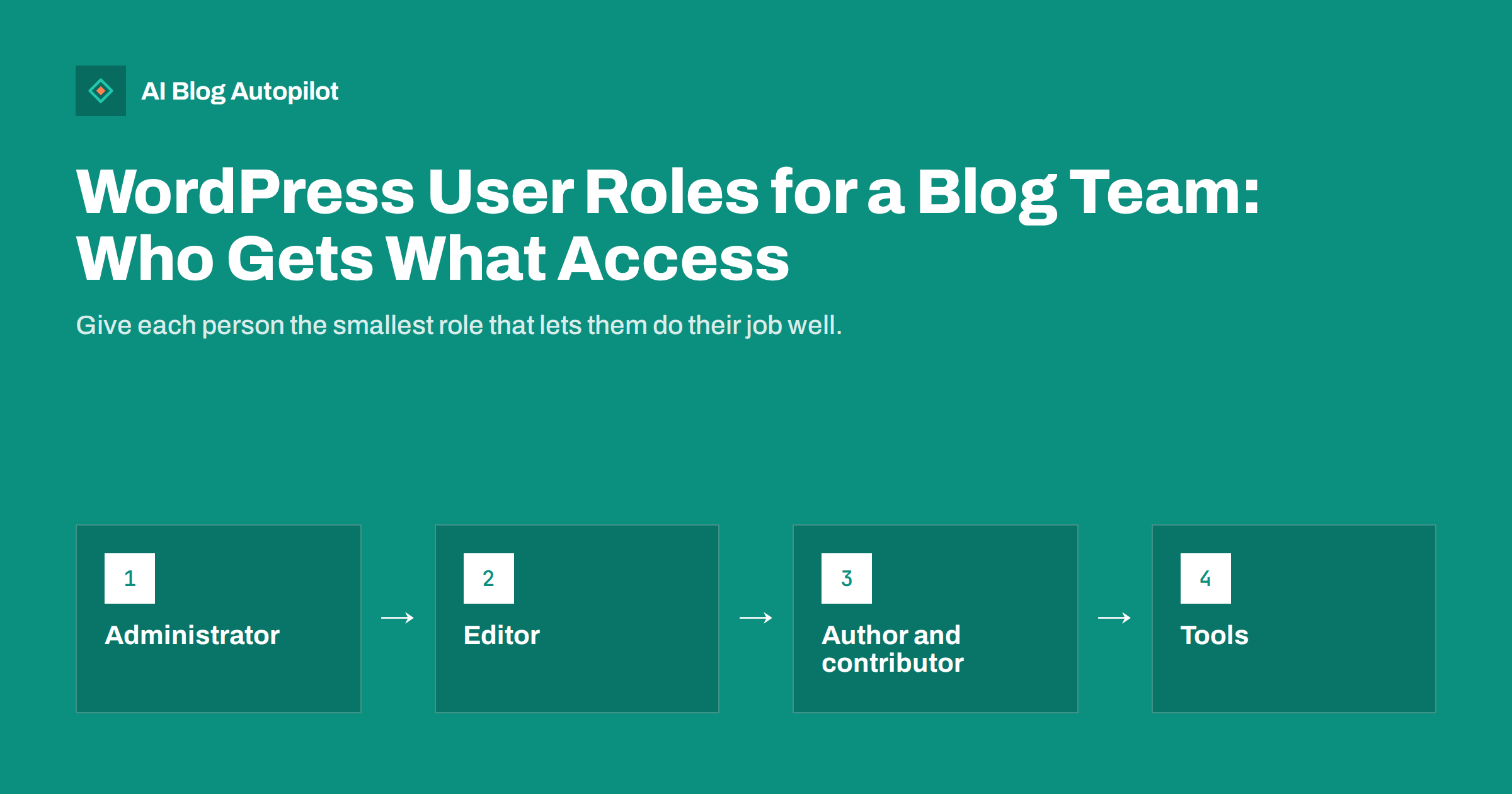
Short answer: WordPress has five standard roles: Administrator, Editor, Author, Contributor and Subscriber. For a blog team, give Administrator only to one or two people who manage the site, Editor to whoever runs the content, Author to trusted writers who publish their own posts, and Contributor to guest or new writers whose drafts need review. Give tools and integrations their own user with the lowest role that works and an application password, and remove accounts as soon as someone leaves.
As a blog grows, more people need access: writers, an editor, a freelance designer, an agency, an SEO consultant, a publishing tool. The easy route is to make everyone an administrator. It is also the riskiest. Every admin account can install plugins, change settings and delete content, and every extra admin is another password that can be stolen. WordPress roles exist to avoid exactly this. Here is how to use them for a typical business blog.
The five standard roles in plain terms
WordPress defines roles as bundles of capabilities. The official roles and capabilities documentation lists every permission in detail. In practice, the roles break down like this:
| Role | What they can do | Typical person |
|---|---|---|
| Administrator | Everything: plugins, themes, settings, users, all content | Site owner, developer |
| Editor | Publish, edit and delete any post or page, moderate comments, manage categories | Content lead, managing editor |
| Author | Write, publish, edit and delete their own posts, upload images | Regular trusted writer |
| Contributor | Write and edit their own drafts, but not publish or upload files | Guest writer, new freelancer |
| Subscriber | Manage their own profile and read | Members, commenters |
On a multisite network there is also a Super Admin, who manages the whole network. Most single business blogs do not need it.
Keep administrators to a minimum
An administrator can do anything, including things that break the site or open security holes: installing a plugin from an unknown source, changing the site address, adding new admins, editing theme files. For that reason, the number of admin accounts should be as small as possible.
- One or two admins are enough for most business blogs: the owner and the person who maintains the site technically.
- Do not use admin accounts for daily writing. If you are the owner and also write, consider a separate Editor or Author account for everyday work, and log in as admin only when you change settings.
- Use strong, unique passwords and two-factor authentication for admin accounts. A security plugin or your host can usually add two-factor login.
- Avoid the username “admin”. It is the first name attackers try.
When a developer or agency needs temporary admin access for a specific job, create an account for them, and remove it or downgrade it when the job is done.
Roles also protect you from honest mistakes, not only from attackers. A writer who accidentally clicks “Update” on a plugin, or a freelancer who changes the permalink settings while looking for something else, can take a site offline or break every URL. Limiting who can reach those screens is the simplest way to make sure such accidents cannot happen in the first place.
Editors run the content
The Editor role is the right choice for whoever is responsible for what the blog publishes. An editor can review and publish other people’s drafts, fix any post, manage categories and tags and moderate comments. What they cannot do is install plugins, change themes or manage users, which keeps the technical side of the site out of reach.
This is usually enough for a content lead or a marketing manager. If they occasionally need something only an admin can do, such as a new plugin for tables, they ask the admin. That small friction is a useful safety check.
Authors and contributors for writers
The difference between Author and Contributor is one important permission: publishing.
- Authors can publish their own posts and upload images. Use this role for experienced, trusted writers whose work does not need a second pair of eyes before going live.
- Contributors can write and save drafts and submit them for review, but cannot publish or upload media. An editor reviews and publishes. This suits guest writers, new freelancers and anyone whose work you want to check first.
The inability to upload images can be inconvenient for contributors. Common solutions are to have the editor add images during review, or to promote reliable writers to Author once they have earned trust. Avoid giving everyone Editor just to solve the image problem; editors can change and delete everyone’s posts.
Contributors are also a good starting role for anyone new to your blog’s style. Reviewing their first few drafts lets the editor give feedback on tone, structure and internal links before anything goes live, and promotion to Author becomes a clear sign of trust once the work is consistently ready to publish without changes.
Agencies, freelancers and consultants
External people need access for different reasons, and the role should match the job, not the size of the company:
- A freelance writer needs Contributor or Author.
- An SEO consultant who edits titles, meta descriptions and content usually needs Editor, plus access to the SEO plugin’s settings, which some plugins allow you to grant separately.
- A designer or developer working on the theme needs Administrator, ideally on a staging copy rather than the live site, and only for the duration of the project.
- An agency managing the whole blog may need one admin account for its technical lead and Editor or Author accounts for its writers.
Every person should have their own account. Shared logins make it impossible to see who changed what, and they cannot be removed for one person without affecting everyone.
Accounts for tools and integrations
Publishing tools, social sharing services, backup services and other integrations often connect to WordPress through its REST API. They need an account, but not necessarily a powerful one.
- Create a dedicated user for each tool. Name it after the tool so it is obvious in the user list and in post history.
- Give it the lowest role that works. A tool that publishes posts usually needs Author or Editor. It rarely needs Administrator.
- Use an application password. WordPress can generate application passwords for a user in their profile. They work only for API access, not for logging into the dashboard, and can be revoked individually without changing the user’s main password.
- Revoke when you stop using the tool. Delete the application password or the whole user.
Connections that use a dedicated user and an application password are easier to audit and safer to remove than ones that use the owner’s account.
Custom roles and when you need them
Sometimes the standard roles do not fit. You might want writers who can upload images but not publish, or an SEO role that can edit meta fields but not content. Role management plugins let you create custom roles or adjust capabilities.
Use this sparingly. Every customisation is something to remember and document, and a mistake can give someone more access than intended. For most small teams, the five standard roles plus a clear review process are enough. If you do customise, write down what each custom role can do and why it exists.
Whatever roles you choose, keep a short written note of who has which account and why. A shared document with names, roles, the date access was given and the reason is enough. It makes reviews quick, and it helps the next person who takes over the site understand what each account is for instead of being afraid to remove anything.
Reviewing and cleaning up accounts
User lists grow quietly. Former employees, old freelancers, test accounts and long-forgotten integrations stay active for years. A short review a few times a year keeps the list under control:
- Sort users by role and check every Administrator and Editor first.
- Remove or downgrade people who have left or finished their work.
- When deleting a user, WordPress asks what to do with their content. Choose to attribute it to another user rather than deleting it, unless you really want the posts gone.
- Check application passwords on tool accounts and revoke ones that are no longer used.
- Make sure contact emails on accounts are current, so password resets reach the right person.
Reassigning content when someone leaves also affects bylines. If author archives and bios are visible on your blog, decide whether posts should stay under the original writer’s name, which is usually more honest, or move to a general team account.
A simple setup for a small blog team
Putting it together, a typical small business blog might look like this:
- Owner: Administrator, used only for settings, with two-factor authentication.
- Web developer: Administrator during projects, removed or downgraded afterwards.
- Marketing lead: Editor.
- Two regular writers: Author.
- Guest writers: Contributor.
- Publishing tool: its own Author or Editor user with an application password.
It takes a few minutes to set up and saves a lot of trouble later.
How AI Blog Autopilot fits in
AI Blog Autopilot connects to WordPress in one click: you click Connect and approve it in WordPress, and it publishes articles with FAQ, tags and SEO meta at the hour you choose. Approval of articles before publishing can be switched on at any time, and agency plans add team and client approval. See the pricing page for details.
Related reading
- How to Connect WordPress to an Automated Publishing Tool, Safely
- Security Basics for a Business Blog
- Editorial Review: Draft, Approve or Full Auto?
- Handing Your Blog to Someone Else Without Losing It
The bottom line
WordPress roles let you give everyone the access they need and nothing more. Keep administrators to one or two people with strong logins, let an editor run the content, use Author for trusted writers and Contributor for drafts that need review, and give each tool its own low-privilege user with an application password. Review the user list a few times a year, reassign content when people leave, and remove access you no longer need.
BUJ
What WordPress role should a blog writer have?
Use Author for trusted writers who publish their own posts, and Contributor for guest or new writers whose drafts need review before publishing. Editors are for people who manage everyone’s content.
How many administrators should a WordPress site have?
As few as possible, usually one or two. Administrators can install plugins, change settings and manage users, so each extra admin account increases risk.
What role does a publishing tool need in WordPress?
Usually Author or Editor, depending on what it does. Create a dedicated user for the tool and connect it with an application password, which can be revoked without affecting other logins.
What happens to posts when I delete a WordPress user?
WordPress asks whether to delete their content or attribute it to another user. Choosing another user keeps the posts on the site. Deleting the content removes their posts too.
Can a contributor upload images in WordPress?
Not by default. Contributors can write drafts but cannot upload media. An editor can add images during review, or you can promote trusted writers to Author.