ENEnglish
 LTLietuviškai
 DEDeutsch
 FRFrançais
 RUРусский
 ESEspañol
 PLPolski
 ITItaliano
 UKУкраїнська
 CSČeština
 PTPortuguês
 JA日本語
JA日本語 LVLatviešu valoda
 ETEesti
 HUMagyar
 IDBahasa Indonesia
 TRTürkçe
 HIहिन्दी
 ELΕλληνικά
 ARالعربية
 THไทย
THไทย VITiếng Việt
 RORomână
 MSBahasa Melayu
 BNবাংলা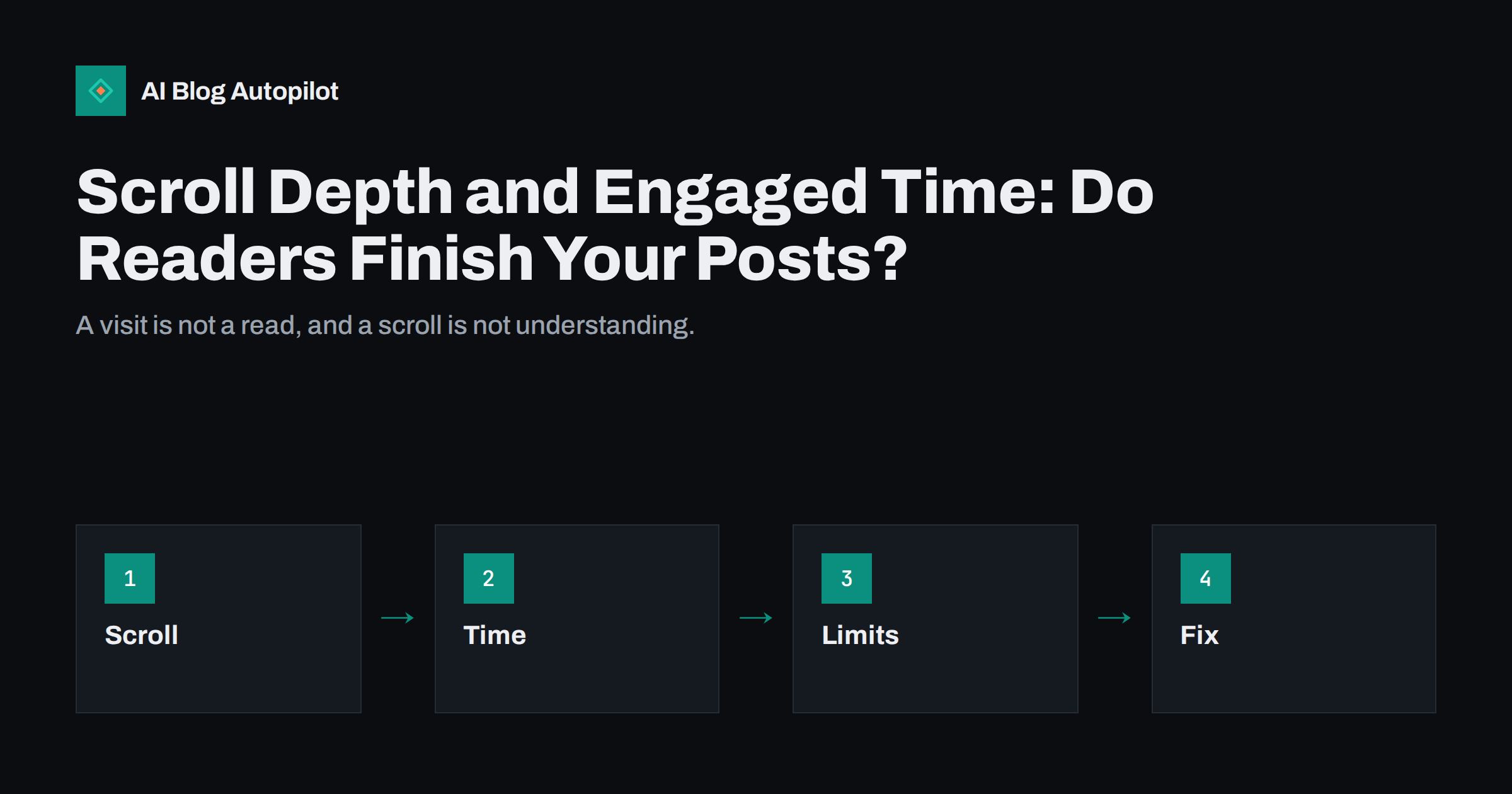
Short answer: scroll depth shows how far down a page people travel, and engaged time shows how long the page was in the foreground. Used together they give a rough picture of whether readers actually read your posts. Neither proves that someone understood or liked the article, so use them to compare pages and to spot problems, and then look at the text itself.
A page view counts a visit, not a read. Two posts can have the same number of views while one holds readers to the final paragraph and the other loses most of them after the headline. Without some measure of attention, you cannot tell which is which, and you may keep writing more of the kind that is quickly abandoned. Scroll depth and engaged time are simple, free ways to see the difference.
What scroll depth really measures
Scroll depth records how far down the page a visitor moved, usually as a percentage of the page height. Many analytics setups record it at fixed points, for example 25, 50, 75 and 100 percent. In Google Analytics 4, the enhanced measurement option includes a scroll event that fires when a visitor reaches roughly 90 percent of the page for the first time. That tells you who got close to the end, but not who stopped at the halfway point. To see intermediate points you need a custom setup, for instance through a tag manager.
Remember what the number means. Scrolling is movement, not reading. A person may scroll quickly to find a particular section, or may reach the bottom of a short page without reading anything. A long article with a table of contents may show low scroll depth even when readers found exactly what they needed, because they jumped to one section and left satisfied. Treat the figure as a clue, not a verdict.
What engaged time adds
Engaged time measures how long the page was in the foreground of the browser, rather than how long the tab stayed open. In GA4, the engagement time of a session is based on that foreground activity, and an engaged session is one that lasts longer than a set threshold, has a conversion event or has more than one page view. The default threshold is ten seconds, and it can be changed in the settings. Check how your own configuration defines these terms before you compare numbers.
Engaged time helps where scroll depth cannot. A short page may be read fully in a minute with little scrolling, while a long page may be scrolled through in seconds. Compare the engaged time with the expected reading time of the article. Our guide on reading time on blog posts explains how to estimate it, and a post with an expected reading time of six minutes and an average engaged time of twenty seconds deserves a closer look.
Set up the measurement carefully
Start with the reports you already have. Our article on GA4 reports for bloggers shows where to find engagement figures for each page. If you want more detail, add scroll events at several thresholds and test them on a few pages before you rely on them, because themes, sticky headers, comment sections and infinite lists can change what “the bottom of the page” means.
Decide which part of the page counts. Many posts end with a long block of related links, comments or a footer. If the tracking counts the whole page, readers who finish the article may appear to stop at 70 percent. Place a marker at the end of the article text, or measure against the content area rather than the whole document, if your tool allows it.
Respect privacy and consent. Tracking behaviour on a page is subject to the same rules as other analytics in many countries, and may need consent before it starts. Our guides to privacy and analytics on a blog and cookie banners and SEO explain what to consider. Where consent is not given, your numbers will cover only part of your visitors, so interpret them accordingly.
Keep the context of the device in mind when you interpret any of these figures. On a phone, an article takes many more screens than on a desktop, and readers often pause, switch to another app and return later. The foreground time may then be short even when the reader came back to finish the text. On a desktop, a tab left open in the background should not count, but the rules differ between tools. If your audience is mostly on phones, give more weight to the share who reach the end and less to the raw time.
Compare like with like
Numbers mean little in isolation. Compare posts of similar length and type, and compare mobile with desktop visitors, because the same article scrolls differently on a small screen. Compare traffic sources too: a reader who arrives from a search for a precise question may leave after finding the answer, while a subscriber who arrives from a newsletter may read slowly. Our article on bounce rate and SEO explains why a quick, satisfied visit is not always a failure.
Look at trends rather than single days. A post that was published last week has too little data. Wait until you have enough visits for the averages to settle, and be careful with pages that have only a handful of visits, where one unusual visitor can distort the result. Keep a simple sheet with the title, the date, the average engaged time and the share of visitors who reached the end, and update it monthly.
Read the pattern, then diagnose the page
If many visitors leave in the first few seconds, the cause is usually at the top of the page: a headline that promised something else, a slow load, a large pop-up or an introduction that does not reach the answer. Our guide to introductions that do not waste time offers ways to start with the point. If visitors read the first section and then stop, look at the structure of the next part: is it a wall of text, is the heading unclear, or does it repeat the introduction?
If readers reach the end but do not act, the problem may be the ending, not the article. A clear next step, such as a related guide or a simple question to the reader, may help, as discussed in our article on blog post conclusions. If long posts show low scroll depth but good engaged time, readers may be using the table of contents, which is fine. Our guide to a table of contents for long articles explains how to make that behaviour work for you.
Change one thing and measure again
Once you suspect a cause, change one element and watch what happens. Shorten the introduction, add a summary at the top, break up a long section with a subheading or a list, compress the images or remove an intrusive pop-up. Make the change on a few pages and compare them with similar pages that you did not touch. Our article on cutting a bloated article describes how to trim without losing value.
Do not chase the number itself. Padding a post with unnecessary steps to raise time on page, or splitting an article into many pages to increase page views, harms readers and rarely helps rankings. The goal is for the reader to find what they came for. A shorter article with a high share of visitors who reach the answer is better than a long one that only looks busy.
Use heatmaps and feedback for the detail
Scroll and time figures show where readers drop away but not why. A heatmap or session recording tool can show where people click, pause or give up, and a one-question feedback form can ask whether the page answered the reader’s question. Use these on a small number of important pages, and check the privacy rules before you collect such data. Our guide to heatmaps for blog posts explains what they can and cannot show.
Combine the evidence. A page with poor scroll depth, weak engaged time and negative comments needs a rewrite. A page with weak numbers but many conversions may be doing exactly what it should for a narrow audience. Do not make big decisions from one measure.
Report the numbers to others without overclaiming
When you share these figures with a client, an editor or a manager, explain what they mean and what they do not. Say that the average engaged time of a page was a certain number of seconds, that a given share of visitors reached the end of the text and that the data covers only visitors who allowed measurement. Avoid saying that “readers loved the article” or that “most people read the whole post” unless the evidence supports it. Honest wording protects your credibility and prevents bad decisions based on a misunderstanding.
A short monthly note is usually enough: the three posts that held attention best, the three that held it worst, one change you made and what happened afterwards. Our guide on blog conversion rate optimisation shows how to connect such findings to the actions you want readers to take.
How AI Blog Autopilot helps
AI Blog Autopilot writes full SEO articles for your WordPress blog from the topics, keywords, audience and tone you set, with FAQ sections, tags and SEO meta included, and it shares each one to your social networks. Once articles are published, the figures in this guide help you see which topics hold readers, so that you can adjust the topics and tone you set. Approval mode lets you read each article before it goes live. See the pricing page for plans.
Related reading
- GA4 Reports for Bloggers: Which Ones Are Worth Opening
- Bounce Rate and SEO
- Reading Time on Blog Posts
- Heatmaps for Blog Posts
The bottom line
Scroll depth and engaged time tell you whether a post holds attention. Set them up carefully, compare similar pages, read the pattern, change one thing at a time and remember that neither number proves understanding. Use them to improve the article, not to chase a figure.
BUJ
What is a good scroll depth for a blog post?
There is no universal figure. Compare posts of similar length and source on your own site, and look at trends over time.
Does GA4 measure scroll depth by default?
Enhanced measurement can record a scroll event when a visitor reaches about 90 percent of the page. Finer thresholds need a custom setup.
Is high engaged time always good?
No. A confusing page can also keep people longer. Compare it with the expected reading time and with other signals.
Do I need consent to measure scrolling?
Rules differ by country, and behaviour tracking is often treated like other analytics. Check the requirements that apply to your visitors.
Should I split long posts into pages to raise the numbers?
No. It frustrates readers and rarely helps search. Improve structure and cut padding instead.