ENEnglish
 LTLietuviškai
 DEDeutsch
 FRFrançais
 RUРусский
 ESEspañol
 PLPolski
 ITItaliano
 UKУкраїнська
 CSČeština
 PTPortuguês
 JA日本語
JA日本語 LVLatviešu valoda
 ETEesti
 HUMagyar
 IDBahasa Indonesia
 TRTürkçe
 HIहिन्दी
 ELΕλληνικά
 ARالعربية
 THไทย
THไทย VITiếng Việt
 RORomână
 MSBahasa Melayu
 BNবাংলা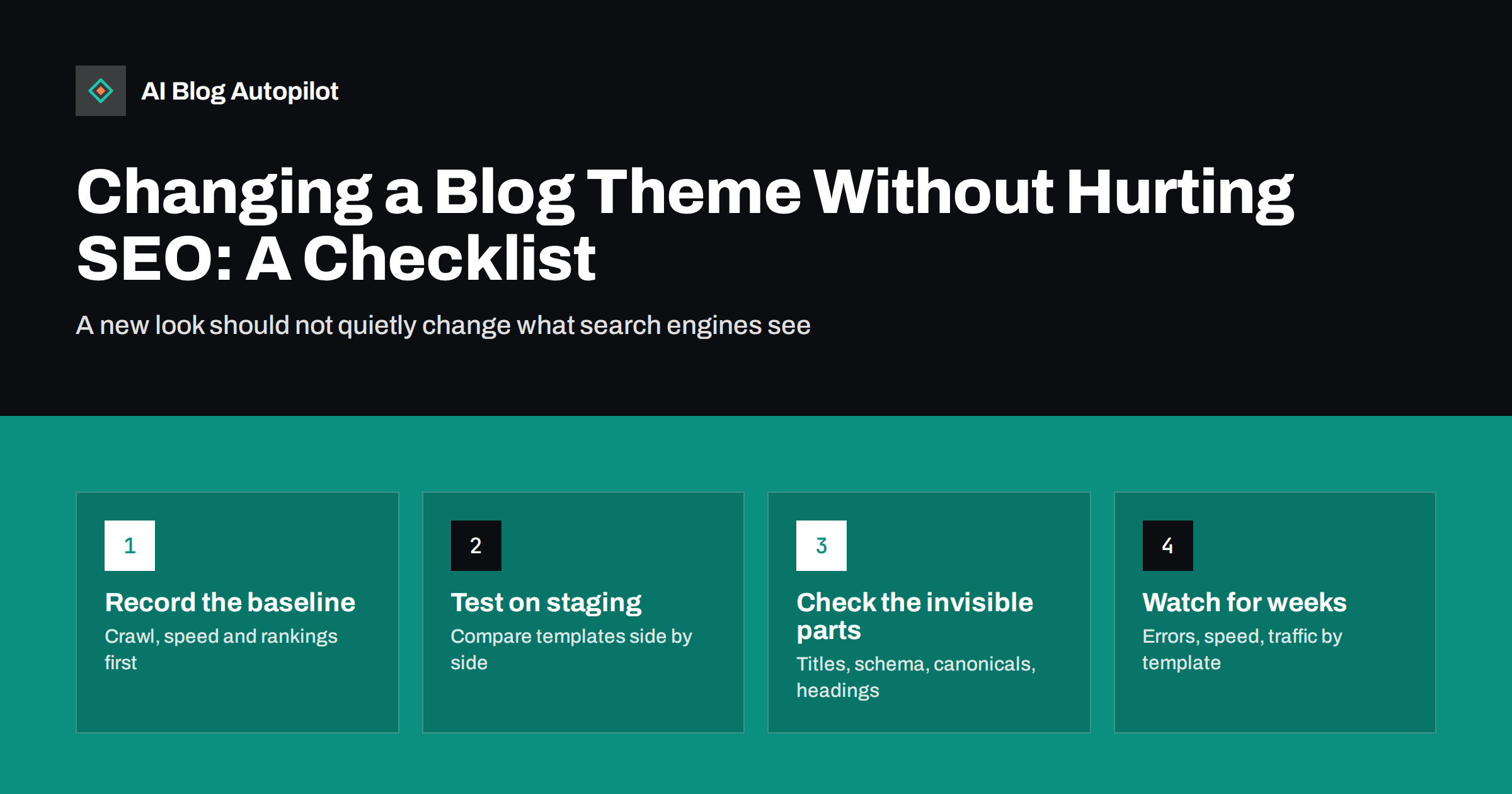
Short answer: changing a blog theme does not have to hurt search performance, but it often changes more than the design. A new theme can alter heading structure, remove structured data, change how titles and meta tags are output, add or remove internal links, slow the site down or hide content on mobile. The safe approach is to record a baseline, test the new theme on a staging copy, compare the old and new versions template by template, switch at a quiet time, and monitor closely for several weeks.
A theme change feels like a design project. For search engines, it can look more like a partial rebuild. The words in your posts stay the same, but the code around them, which tells crawlers what is a heading, what is navigation, which image is the featured one and what the page is about, can change completely.
Most theme changes go smoothly when prepared properly. The problems come from assuming that because the content did not move, nothing important changed. This checklist covers what to check before, during and after the switch.
What a theme controls that matters for search
On most blog platforms, and on WordPress in particular, the theme is responsible for much more than colours and fonts.
- Heading structure. Whether the post title is an H1, whether the site name is also marked as a heading, and how widget and sidebar titles are marked up.
- Title tags and meta tags. Some themes output their own title format or meta description, which may conflict with your SEO plugin.
- Structured data. Many themes add Article, BreadcrumbList or Organization markup. Others add none, or add markup that duplicates your plugin’s.
- Internal links. Menus, breadcrumbs, related posts, category links, author boxes and footer links all come from the theme.
- Images. How featured images are sized, whether they are lazy-loaded, whether alt text is output, and which image is used for social previews.
- Speed. The amount of CSS, JavaScript and fonts loaded on every page.
- Mobile layout. What is shown, hidden or collapsed on small screens, which matters because search engines index the mobile version.
- Archive pages. How category, tag and author pages look, what text they show and how pagination works.
Choosing a theme with search in mind
Much of the risk can be reduced before you even install anything, by choosing a theme that does less on its own.
- Prefer themes that leave SEO to a plugin. A theme that outputs its own titles, meta descriptions and schema is one more thing that can conflict or disappear later.
- Check the demo’s page source. Look for one H1 on post pages, clean heading levels and a reasonable number of scripts.
- Avoid content locked into the theme. Shortcodes and custom content types that only one theme understands make every future change harder.
- Look at update history. A theme that is maintained regularly is less likely to break with platform updates.
Before the switch: record the baseline
You cannot tell whether something changed unless you know how it was before. Spend an hour capturing the current state.
- Export performance data. From Search Console, save the last three months of clicks, impressions and positions by page and by query. Note your top twenty pages.
- Crawl the site. Use a crawler to record every URL, its status code, title, meta description, H1, canonical tag and number of internal links. Save the export.
- Record speed. Test the home page, a typical post and a category page with a speed testing tool, on mobile settings. Save the results.
- Save page source samples. For one post, one category page and the home page, save the full HTML source. This makes later comparison much easier.
- Test structured data. Run a sample post through a structured data testing tool and note which types are detected.
- Take screenshots. Capture key templates on desktop and mobile.
- Back up everything. Files and database, so you can roll back quickly if needed.
During testing: compare template by template
Install the new theme on a staging copy of the site, not the live blog. Then compare the old and new versions of each template type: home page, single post, page, category archive, tag archive, author archive, search results and the 404 page.
For each template, work through these checks.
- One H1, and the right one. On a post, the H1 should be the post title. Some themes make the site logo an H1 on every page, or turn the post title into an H2.
- Headings inside content unchanged. The theme should not restyle your H2 and H3 structure into something else, but check that heading levels in widgets and sidebars do not interrupt the outline.
- Title and meta description. They should match what your SEO plugin produced before. If the theme outputs its own, disable the theme feature so there is only one of each.
- Canonical and robots tags. One canonical per page, pointing to itself, and no unexpected noindex tags.
- Structured data. Compare the detected types with your baseline. Watch for missing Article markup, and for duplicates where both the theme and a plugin output the same type.
- Social tags. Open Graph and similar tags should still use the featured image and the correct title.
- Internal links. Compare the link count on sample pages. Losing breadcrumbs, related posts or category links in the sidebar reduces the internal links pointing to older posts.
- Content visible on mobile. Check that nothing important is hidden or dropped on small screens, such as author information, tables or images.
- Images. Featured images display, alt text is present and image sizes are appropriate. Some themes register new image sizes and need thumbnails regenerated.
- Speed. Run the same speed tests as your baseline. A new theme that looks lighter can still load more scripts.
Features that quietly disappear
Some theme features become part of how a site works without anyone noticing, and they vanish when the theme changes.
- Shortcodes. If the old theme provided shortcodes for buttons, boxes or tabs, posts using them will show raw code like
[button]after the switch. Search the database for shortcodes before changing, and plan replacements. - Custom widgets. Widgets added to theme-specific sidebars may not carry over.
- Theme-stored settings. Analytics codes, verification tags and header scripts placed in theme options are lost when the theme is deactivated. Move them to a plugin or the platform’s own settings first.
- Custom post types. Some themes register their own content types, such as portfolios or testimonials. Switching themes can make those pages disappear, returning errors.
- Table of contents, author boxes and FAQ blocks. If these came from the theme rather than a plugin or the editor, they may be missing from every post.
Making the switch
- Choose a quiet time. Switch when traffic is lowest, and not just before an important campaign or seasonal peak.
- Apply the tested configuration. Menus, widgets, customiser settings and any replacement plugins for lost features.
- Clear caches. Page cache, CDN cache and any optimisation plugin cache, so visitors and crawlers see the new version.
- Spot-check live pages. Open the home page, a recent post, an old post and a category page on desktop and mobile.
- Re-run the crawl. Compare titles, H1s, canonicals, status codes and internal link counts with the baseline export. Investigate every difference.
- Test structured data again on live pages.
After the switch: monitor for weeks
Search engines recrawl gradually, so the effects of a theme change can take weeks to appear. Keep watching.
- Search Console page indexing report. Look for rises in “not found” errors, pages excluded by noindex or duplicate pages without a user-selected canonical.
- Enhancements and structured data reports. Watch for new errors or a drop in detected items.
- Core Web Vitals. Field data takes time to accumulate, so check again after several weeks.
- Traffic by template. Compare clicks for posts, category pages and the home page separately. A drop only on category pages, for example, points to a template-specific issue.
- Top pages. Check your top twenty pages individually. Small changes on important pages matter most.
Some fluctuation in the first days is normal. A steady decline over several weeks, especially concentrated in one template type, is a signal to compare the page source again against your saved baseline.
When to roll back
If something serious breaks, such as posts returning errors, content missing on mobile or noindex tags appearing sitewide, switch back to the old theme immediately while you fix the new one on staging. Rolling back quickly limits the damage, because search engines see the problem for a shorter period. This is why the full backup and a working copy of the old configuration are worth having before you start.
How AI Blog Autopilot fits in
AI Blog Autopilot writes SEO articles and publishes them to your WordPress blog through a standard connection, then shares each one to your social networks. The articles are stored as normal WordPress content with their headings, FAQ, tags and meta, so they are not tied to a particular theme and carry over when you change the design. The theme still decides how they are displayed, so the template checks above apply to them like any other post. You can see how publishing works on the AI Blog Autopilot home page.
Related reading
- Migrating a Blog Without Losing Its Traffic
- Blog Design That Helps People Read
- Page Speed on a Content Site: What Actually Helps
- Backups for a Blog: The Boring Thing That Saves You
The bottom line
A theme change is safe when you treat it as a technical change as well as a design one. Record the baseline, test on staging, compare every template’s headings, titles, canonicals, structured data, links, images, speed and mobile view, replace any features the old theme provided, and monitor for weeks after the switch. With that preparation, a new design can improve the reading experience without costing you search traffic.
BUJ
Will changing my WordPress theme affect SEO?
It can, because the theme controls headings, meta tags, structured data, internal links, speed and mobile layout. The content itself stays the same, so with careful testing and comparison most theme changes cause little or no lasting impact.
How long does it take for rankings to settle after a theme change?
Search engines recrawl pages gradually, so changes can take a few weeks to show. Small fluctuations in the first days are normal. A steady decline after several weeks usually points to a specific technical difference worth investigating.
Should I test a new theme on a staging site?
Yes. A staging copy lets you compare the old and new templates, find missing features and fix problems before visitors and search engines see them. Switching directly on a live blog is the most common cause of avoidable problems.
What is the most common SEO problem after a theme change?
Changed heading structure and lost structured data are among the most frequent. Others include missing internal links from sidebars or breadcrumbs, and tracking or verification codes that were stored in the old theme’s settings.
Do I need to change URLs when I change theme?
No. URLs are controlled by your permalink settings, not the theme. If a theme change seems to alter URLs, check the permalink settings and any custom post types the old theme registered.