ENEnglish
 LTLietuviškai
 DEDeutsch
 FRFrançais
 RUРусский
 ESEspañol
 PLPolski
 ITItaliano
 UKУкраїнська
 CSČeština
 PTPortuguês
 JA日本語
JA日本語 LVLatviešu valoda
 ETEesti
 HUMagyar
 IDBahasa Indonesia
 TRTürkçe
 HIहिन्दी
 ELΕλληνικά
 ARالعربية
 THไทย
THไทย VITiếng Việt
 RORomână
 MSBahasa Melayu
 BNবাংলা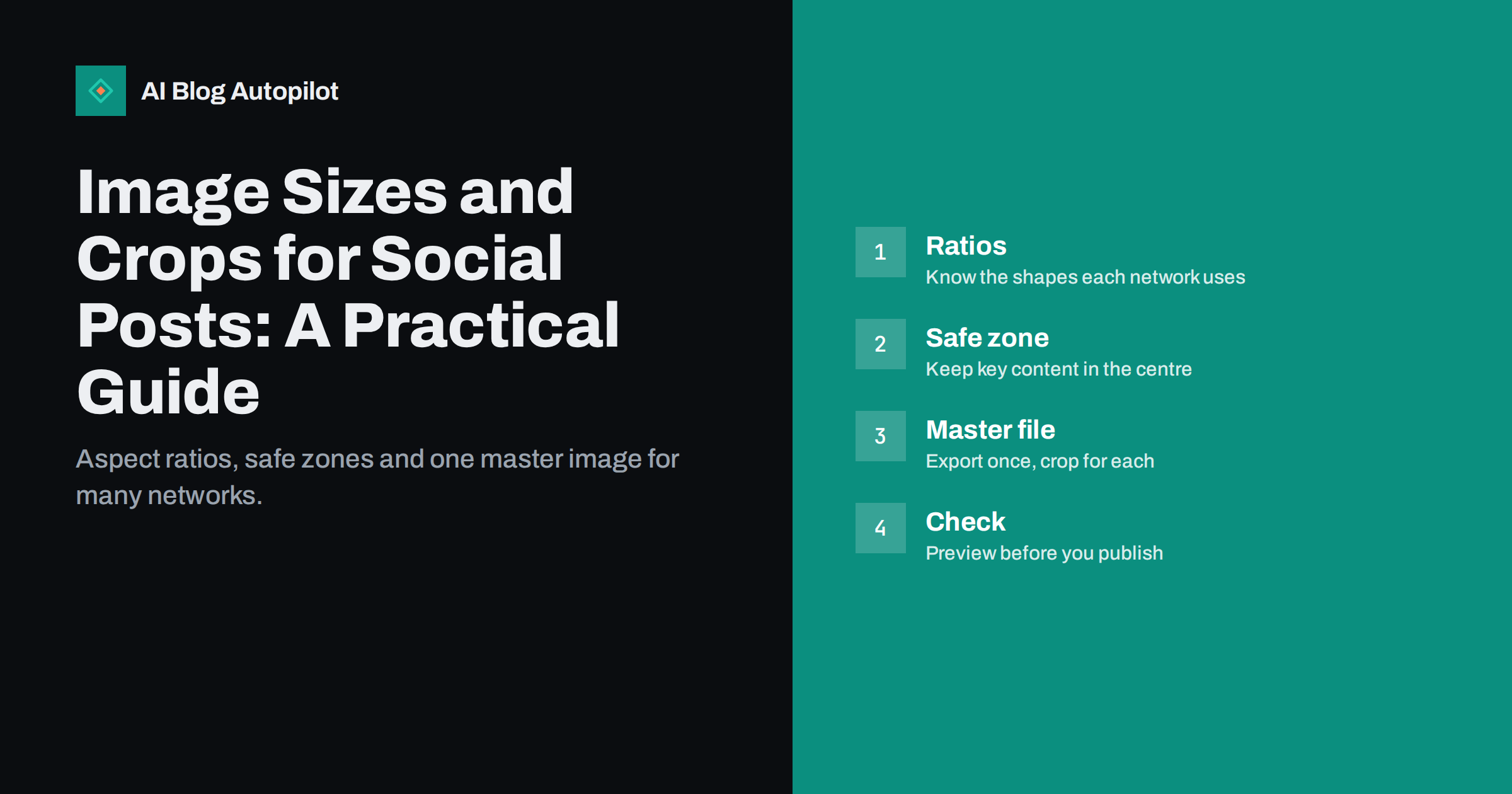
Short answer: social networks show images in different shapes, so a single picture is often cropped in a way you did not plan. Work with a few aspect ratios (about 1.91:1 for link previews, 1:1 and 4:5 for feed posts, 9:16 for stories and short video, 2:3 for pinned images), keep the important content inside a central safe zone, export from one high-resolution master and preview the result. Platforms change their specifications from time to time, so check each network’s current guidance before you build a template.
Anyone who shares blog articles on several networks has seen it: the headline is cut in half, a face is missing or a logo sits too close to the edge. The cause is almost always an image that was designed for one place and published in another. This guide explains the shapes that matter, how to design with a safe zone and how to keep the work small by producing a master image and a few crops.
Why one image does not fit every network
Each network has its own layout. A feed on a phone is narrow and tall, a link preview is wide and short, a story fills the whole screen and a pinboard favours tall images. The network crops, scales or letterboxes whatever you upload to fit its layout, and it often shows a different crop in the feed than on the post’s own page. On top of that, apps adjust their layouts, so a shape that worked last year may be trimmed this year.
That is why a quick look at how your posts appear on a real phone is more reliable than any table of sizes. Image quality matters as well. Networks compress uploads, so a small or heavily compressed file looks worse after upload. Start with a large, clean original and let the platform do the shrinking, instead of uploading a low-resolution file that gets compressed again.
The aspect ratios worth knowing
You do not need to memorise a long table of pixel sizes. A handful of ratios cover most situations, and pixel sizes follow from them.
- Link previews, about 1.91:1: the Open Graph image that appears when you share an article URL. A common size is 1200 by 630 pixels, which is the same shape as most blog featured images.
- Square, 1:1: a safe all-round choice for feed posts on many networks.
- Portrait, 4:5: takes more vertical space in a mobile feed, so it often stands out more than a square.
- Vertical, 9:16: for stories, reels and short video, where the interface also covers the top and bottom of the frame.
- Tall pins, about 2:3: suited to boards that favour vertical images.
- Wide, 16:9: common for video thumbnails and some banners.
Treat these as starting points. Networks publish their own recommendations and sometimes change them, so check the help pages of the networks you use most.
Design with a safe zone
A safe zone is the area of the image that will stay visible in every crop you plan to use. Think of a square in the centre. Put the headline, the face, the product and the logo inside it, and let the outer area carry background, colour and texture that can be cut without loss.
- Decide your main crops, for example 1.91:1, 1:1 and 4:5.
- Overlay the crops on the master image in your design tool and mark the area they share.
- Keep text, faces and key objects inside that shared area, with some margin.
- Leave extra space above and below for stories and short video, where buttons and captions cover parts of the screen.
- Avoid placing small text at the edges, because it is the first thing to be cropped or hidden by interface elements.
This approach lets one design survive several crops. If a design cannot, make a separate version for that format instead of forcing it.
Text on images: keep it short and large
Text on a social image is read on a small screen, often in a hurry. Use a few words, a large size and strong contrast with the background. A good test is to shrink the image to the size of a thumbnail and check that you can still read it. Avoid thin fonts, long sentences and low-contrast colours, and avoid placing text over a busy part of a photo.
Remember that the caption and the alt text carry the full message. The image should attract attention and give a clear idea, and the post text should add the detail. If the image contains important information, repeat it in the text for people who use screen readers or who have images turned off. Our guide to accessible social posts covers alt text and other habits that help everyone.
One master file, several crops
The simplest workflow keeps the effort small. Create one master image at a large size, for example a square or a wide canvas with generous margins, and export the crops you need.
- Work at a high resolution and avoid enlarging small pictures.
- Keep the master in a layered format so that you can adjust text and crops later.
- Export JPEG for photographs and PNG for flat graphics with text, balancing quality and file size.
- Name files clearly, for example with the topic and the format, so that you can find them again.
- Keep one folder per article with the master, the crops and the alt text.
For link previews, the image comes from the article’s Open Graph settings, so choose a good featured image once and the previews on most networks follow from it. See our article on Open Graph tags for how the preview image, title and description are chosen.
Native images versus link previews
When you share a link, the network builds a card from the page’s preview image. When you upload an image, you control the crop completely. Both have a place. Link previews send readers to your article with one click, while a native image often gets more attention in the feed and can carry a short message of its own, with the link in the post text.
Try both for the same article and compare the results over several weeks, using tagged links so that you can see the visits in your analytics. Do not draw conclusions from one post, because timing and topic affect results too. Our article on UTM tags explains how to track social visits.
Check before you publish
Previewing takes less time than fixing a bad post. Use the preview inside each network’s composer, and test the link preview with the sharing debugger tools that the networks provide. If a preview shows an old image, the network has probably cached it, and the debugger tools can refresh it. Check on a phone, because most people will see the post there, and look at both light and dark mode if the image has transparent areas.
- Is the headline fully visible in every crop?
- Is any face or key object touching an edge?
- Can you read the text at thumbnail size?
- Does the file load quickly and look sharp?
- Does the alt text describe what the image shows?
Common mistakes and how to avoid them
Most problems with social images come from a short list of habits. Knowing them makes them easy to fix.
- Uploading a tiny file. A small image looks soft or pixelated once the network compresses and enlarges it. Start from a large original.
- Putting the headline at the edge. The first crop that differs from your design removes the words. Keep them well inside the safe zone.
- Using the same image for every post. Readers scroll past images they have seen before. Give each article its own picture, or at least its own headline text.
- Relying on tiny logos and watermarks. They are unreadable on a phone and often cropped. One clear logo in a corner of the safe zone is enough.
- Forgetting stories and short video. Interface buttons and captions cover the top and bottom of a vertical frame, so leave empty space there.
- Skipping alt text. Without it, people who use screen readers get nothing from the image.
- Never checking the result. A thirty-second preview on a phone catches most faults before readers see them.
If you publish often, a short checklist saves time. Keep it next to your template, and run through it before each batch of posts. It also helps a new team member produce images that match the rest of your feed.
Finally, keep a consistent visual style across your posts: the same fonts, a limited palette and a recognisable layout. Consistency makes your posts recognisable in a crowded feed, and it means you can reuse templates instead of designing from scratch every time. Review the templates twice a year, remove styles you no longer use and update them when a network changes how it displays images. It also helps your link previews, because readers who recognise the look of your cards learn to trust the source.
How AI Blog Autopilot helps
AI Blog Autopilot shares each article to your connected social networks with its own text and timing, so you do not have to rewrite every post by hand. You still decide the look of your featured images, and a safe-zone design makes them work in more places. The pricing page shows how many networks each plan includes.
Related reading
- Open Graph Tags for Blogs
- Featured Images for Automated Posts
- Turning Blog Posts into Social Posts
- Image Alt Text: A Practical Guide
The bottom line
Social images get cropped, so design for it. Learn the few aspect ratios that matter, build a safe zone in the centre, keep text short and large, export from one high-resolution master and preview every post on a phone. Check each network’s current guidance, because specifications change, and write alt text and captions that carry the message when the image cannot.
DUK
What is the best image size for social media?
There is no single size. Use a master image with a safe zone and export the ratios you need, such as 1.91:1 for link previews, 1:1 or 4:5 for feeds and 9:16 for stories.
What size should a blog featured image be?
A shape of about 1.91:1, such as 1200 by 630 pixels, works well for link previews, as long as the key content sits in the centre.
Why does my preview show an old image?
Networks cache link previews. Use the network’s sharing debugger or refresh tool to fetch the current image after you change it.
Should I put text on social images?
Yes, but keep it short, large and high-contrast, and repeat the important information in the post text and the alt text.
Do image sizes change over time?
Yes. Networks adjust layouts and recommendations, so check the current help pages before building templates.