ENEnglish
 LTLietuviškai
 DEDeutsch
 FRFrançais
 RUРусский
 ESEspañol
 PLPolski
 ITItaliano
 UKУкраїнська
 CSČeština
 PTPortuguês
 JA日本語
JA日本語 LVLatviešu valoda
 ETEesti
 HUMagyar
 IDBahasa Indonesia
 TRTürkçe
 HIहिन्दी
 ELΕλληνικά
 ARالعربية
 THไทย
THไทย VITiếng Việt
 RORomână
 MSBahasa Melayu
 BNবাংলা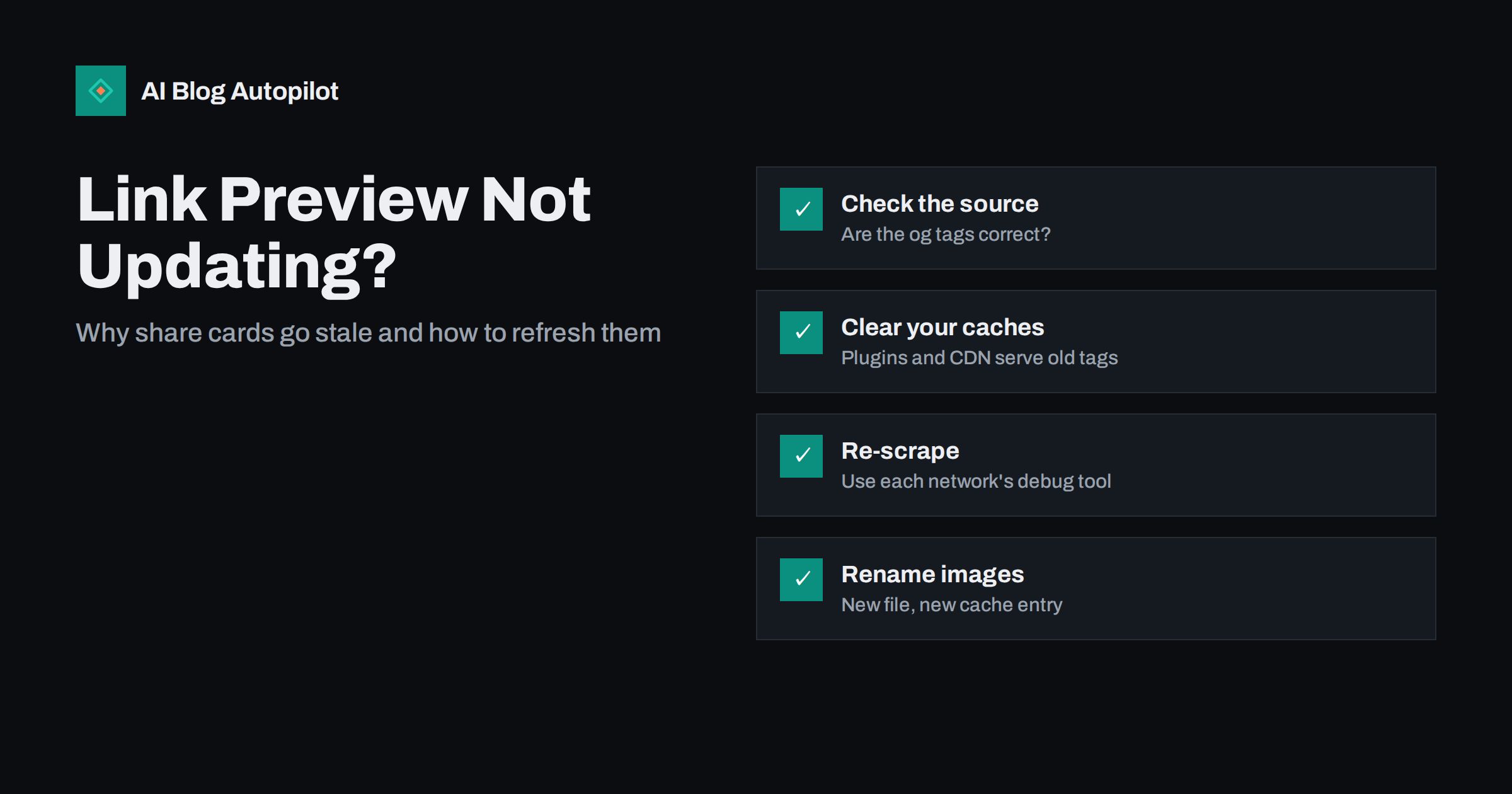
Short answer: social networks and messaging apps fetch a page’s title, description and image once, then cache that preview, often for days or weeks. If the page was shared before its image or title was final, or if your site served old tags from a cache, the stale preview sticks. Fix the Open Graph tags on the page, clear your site and CDN cache, then ask each platform to fetch the page again with its debugging tool. If an image still will not update, upload it under a new file name.
It is one of the most common frustrations in sharing blog posts. You publish an article, share it, and the card shows the working title from the draft, a generic logo instead of the featured image, or nothing at all. You fix the post, share again, and the same wrong preview appears. The platform is not ignoring your changes; it simply has not looked at the page again.
This guide explains how link previews work, the usual causes of stale or broken cards, and the steps to fix them on the major networks and messaging apps.
How link previews are created
When someone pastes a link into a post or a chat, the platform sends its own crawler to the page. The crawler reads the page’s metadata, mainly the Open Graph tags defined by the Open Graph protocol: og:title, og:description, og:image and og:url. Some platforms also read Twitter card tags or fall back to the page’s title and first image.
The result is stored in the platform’s cache, keyed to the URL. The next person who shares the same URL gets the cached version without a new visit to your site. That is efficient for the platform, but it means any mistake in the first fetch can persist.
The usual causes of a stale or broken preview
- The link was shared too early. A post shared seconds after publishing, or while still a draft preview, may have been fetched before the featured image or final title was in place.
- Your site served old tags. A page cache, a CDN or a caching plugin can keep serving the previous version of the page, including old meta tags, even after you edited it.
- The image URL did not change. If you replaced an image but kept the same file name, the platform may keep showing its cached copy of the old image.
- The crawler was blocked. Security plugins, firewalls, bot protection or robots.txt rules sometimes block social crawlers, which then fall back to no image or a generic preview.
- The image does not meet the platform’s requirements. Images that are too small, too large in file size, in an unusual format or behind a login may be skipped.
- The tags are wrong. Missing
og:image, relative image URLs instead of full ones, several conflictingog:imagetags, or anog:urlpointing to a different page. - Redirects. If the shared URL redirects, the platform may use metadata from the final URL or cache it under either address.
Step 1: check what your page actually outputs
Before touching any platform tools, make sure the page itself is right.
- Open the post in a private browser window and view the page source.
- Search for
og:and check the title, description, image and URL. - Confirm the
og:imagevalue is a full URL starting withhttps://and that opening it shows the correct image. - Check there is only one
og:imagetag, or that the first one is the image you want. Themes and SEO plugins sometimes both add tags. - Confirm
og:urlmatches the post’s canonical address.
If the source shows the old values, the problem is on your site, not the platform. Clear your caching plugin and CDN cache, then check again.
Step 2: force each platform to fetch again
Most major platforms offer a way to refresh their cached preview.
- Facebook: the Sharing Debugger shows what Facebook’s crawler sees and lets you click “Scrape Again” to refresh the cache. It also lists warnings, such as a missing or too-small image. The same cache is generally used for other Meta surfaces.
- LinkedIn: the Post Inspector fetches the URL again and updates LinkedIn’s cached preview. Inspecting the URL is usually enough to refresh it.
- X: the platform reads card tags when a link is posted. There is no longer a public preview in its card validator, so the practical approach is to fix the tags, wait for the cache to expire, or share a URL variant as described below.
- Telegram: Telegram caches previews too. Its official @WebpageBot can be sent a link to update the preview.
- Other messaging and chat apps: many cache previews for a period and offer no refresh tool. The URL variant method is the usual workaround.
After refreshing, create a new post with the link. Posts that were already published with the old preview typically keep it; the refresh applies to new shares.
Step 3: if the image still will not update
Images are cached separately from text on some platforms, keyed to the image URL. If you changed the image but kept the same file name, the platform may keep serving its copy of the old one.
- Upload the new image under a new file name and set it as the featured image. The
og:imageURL changes, so the platform fetches it fresh. - Check the size. Large landscape images, commonly around 1200 by 630 pixels, work across most platforms. Very large files may be skipped, so keep them reasonably compressed.
- Check that the image is publicly reachable without cookies, logins or hotlink protection that blocks unknown visitors.
Step 4: the URL variant workaround
When a platform offers no refresh tool, you can share a slightly different URL, for example with a tracking parameter such as ?utm_source=linkedin. To the platform, that is a new URL with no cached preview, so it fetches the page again.
This is safe for SEO as long as your page has a canonical tag pointing to the clean URL, which most WordPress SEO setups provide. It is a workaround, not a fix: if the page’s tags are wrong, the new preview will be wrong too.
When the crawler is blocked
If a debugging tool reports an error such as a 403 response, a timeout or a redirect loop, your site may be blocking the platform’s crawler.
- Check security and firewall plugins for rules that block unknown bots or entire countries.
- Check bot protection at your CDN or host, which sometimes challenges crawlers with a page they cannot pass.
- Check robots.txt for rules that disallow social crawlers.
- Check that the page does not require cookies or a consent click before returning any content.
Allowing well-known social crawlers is usually safe and necessary if you want good previews.
A quick troubleshooting order
When a preview is wrong and you are short of time, work through the problem in this order. Each step rules out a whole group of causes, so you rarely need to go through all of them.
- Is the page source correct? If not, fix the tags in your SEO plugin or theme and purge caches. Nothing else will help until this is right.
- Can the platform reach the page? Run the URL through a debugging tool. Errors point to firewalls, bot protection or redirects.
- Does the tool show the new values after a re-scrape? If yes, share again in a new post. If the text updated but the image did not, rename the image file.
- Is it a platform without a refresh tool? Share a URL variant with a parameter and move on.
- Does the problem affect every post? Then it is a template or plugin issue, not a single-post issue. Compare the head of a working post with a broken one.
Keep a note of what fixed the problem. Stale previews tend to recur for the same reason, and the second time should take two minutes instead of an hour.
Preventing stale previews
- Finish the post before anyone shares it. Set the featured image, title and excerpt before publishing, not afterwards.
- Leave a gap between publishing and sharing. Even a few minutes lets caches clear and gives you time to check the live page.
- Test the first share. Run a new post through a debugging tool before posting it widely, especially after theme or plugin changes.
- Use one source of Open Graph tags. Let either your SEO plugin or your theme output them, not both.
- Never reuse image file names for different images.
- Purge caches after editing a published post’s title, excerpt or image.
How AI Blog Autopilot helps
AI Blog Autopilot publishes each article to your blog first and then shares it to your social networks on a per-network schedule: by default LinkedIn about 30 minutes after the blog, Facebook after two hours and Pinterest the next day. That gap means the page is live and complete when networks first fetch it. Each network also gets its own text rather than the same link repeated. The content map shows every post and, if something failed, tells you why. See how Autopilot shares your articles.
Related reading
- Featured Images for Automated Posts: What Works and What to Avoid
- Auto-Post Every New Blog Article to Social Media Automatically
- Turning an Article Into Social Posts That Get Read
- URL Parameters on a Blog: Duplicates, Tracking and Crawling
The bottom line
Stale link previews happen because platforms cache the first version of a page they see. Check that your page outputs the right Open Graph tags, clear your own caches, ask each platform to scrape again, and rename images you replace. For platforms without a refresh tool, share a URL with a parameter. Then prevent the problem by finishing posts before sharing and leaving a short gap after publishing.
DUK
Why does Facebook show an old image for my blog post?
Facebook cached the preview when the link was first shared. Fix the image on the page, clear your site cache, then use the Sharing Debugger and click Scrape Again. If the image still does not change, upload it under a new file name.
How do I refresh a LinkedIn link preview?
Enter the URL in LinkedIn’s Post Inspector. It fetches the page again and updates the cached preview. Then create a new post; posts already published usually keep the old preview.
Does adding a parameter to the URL hurt SEO?
Not if your page has a canonical tag pointing to the clean URL. Search engines consolidate the variant with the main address. The parameter simply makes the platform treat the link as new and fetch a fresh preview.
Why is there no image in my link preview at all?
Common causes are a missing or relative og:image tag, an image that is too small or too large, or a firewall or security plugin blocking the platform’s crawler. A platform debugging tool usually shows which one it is.
How long do platforms cache link previews?
It varies by platform and is not always documented, from hours to several weeks. Do not wait for it to expire: use the platform’s refresh tool where one exists, or share a URL variant.