ENEnglish
 LTLietuviškai
 DEDeutsch
 FRFrançais
 RUРусский
 ESEspañol
 PLPolski
 ITItaliano
 UKУкраїнська
 CSČeština
 PTPortuguês
 JA日本語
JA日本語 LVLatviešu valoda
 ETEesti
 HUMagyar
 IDBahasa Indonesia
 TRTürkçe
 HIहिन्दी
 ELΕλληνικά
 ARالعربية
 THไทย
THไทย VITiếng Việt
 RORomână
 MSBahasa Melayu
 BNবাংলা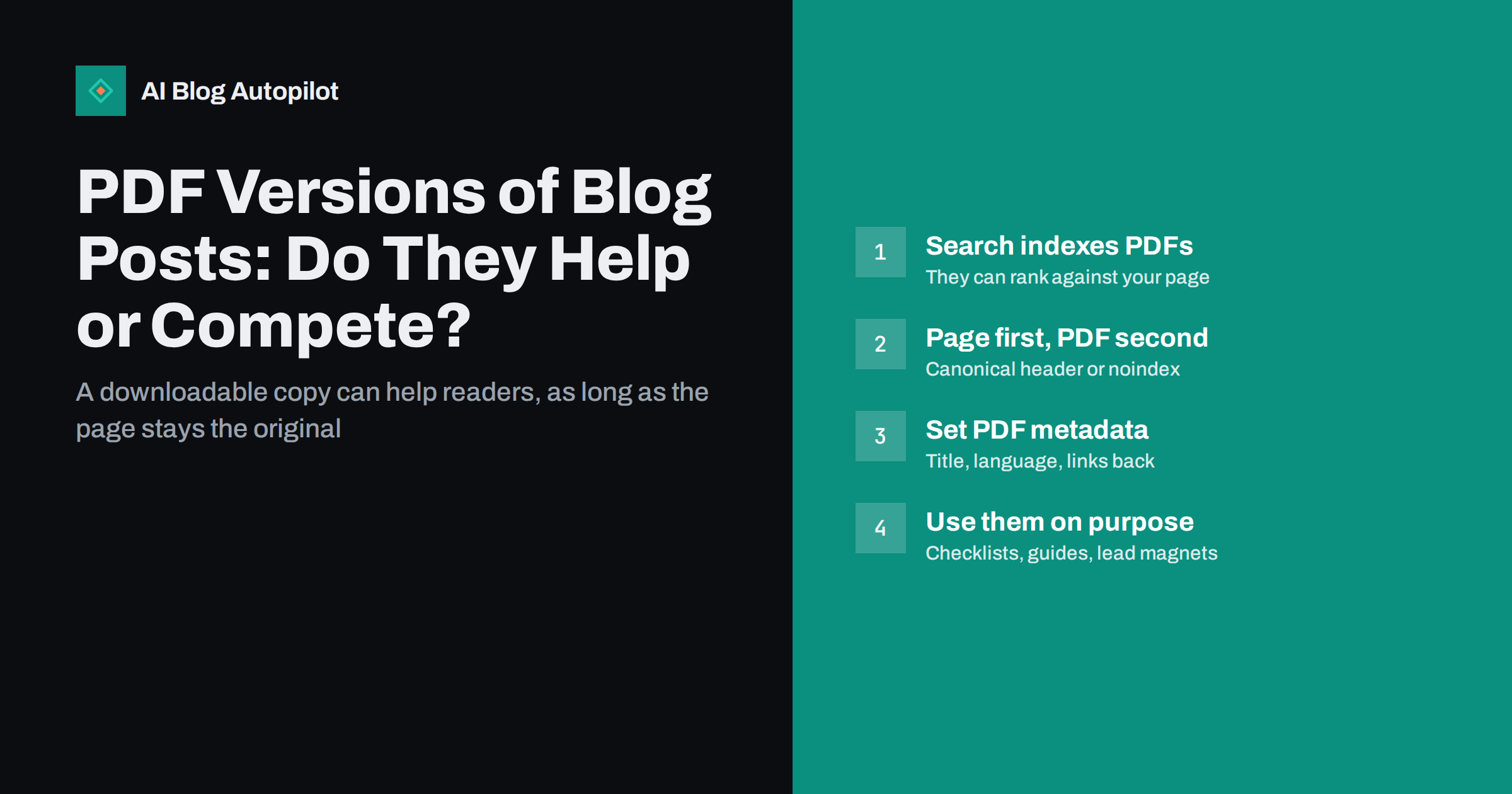
Short answer: a PDF version of a blog post can be useful for readers who want to print, save or share it, and it can work well as a lead magnet. But search engines index PDFs like web pages, so an open PDF with the same text can compete with the original post in search results. To avoid that, keep the HTML page as the main version, point the PDF to it with a canonical HTTP header or keep the PDF out of the index with a noindex header, give the file proper metadata and include links back to your site.
Offering a “download as PDF” option seems harmless. Readers like it, it looks professional, and some of your audience genuinely prefer to read offline or print. Many blogs also turn their best guides into downloadable PDFs to collect email addresses.
What is less obvious is that search engines treat an accessible PDF as another document on your site. This guide explains when PDFs help, when they cause duplicate content problems, and how to set them up so they support your blog rather than competing with it.
Search engines index PDFs
Major search engines crawl and index PDF files. They extract the text, follow links inside the document and can show the PDF in results, labelled as a PDF. If the text of your PDF is identical or nearly identical to a blog post, the search engine has two documents with the same content from the same site.
Usually it chooses one to show, and often that is the HTML page. But not always. A PDF can end up ranking instead of the page, particularly if it attracted links or if the page has technical problems. When that happens, you lose a lot:
- No navigation. Visitors land in a document with no menu, no related posts and no way to explore your site.
- No analytics. Most analytics tools cannot track reading inside a PDF, so these visits are largely invisible.
- No calls to action. Sign-up forms, product links and chat widgets do not exist inside a static file.
- Harder updates. When you update the post, the PDF often stays out of date unless someone regenerates it.
- Worse mobile experience. PDFs designed for paper are awkward to read on a phone.
When a PDF version genuinely helps
None of this means PDFs are a bad idea. They have real uses.
- Checklists and templates that readers want to print or fill in.
- Long guides that people want to read offline or share internally with colleagues who will not visit a website.
- Lead magnets: an expanded version of a popular article, offered in exchange for an email address.
- Formal documents, such as reports and white papers, that are expected in PDF form in some industries.
- Accessible offline copies for readers with limited connectivity.
In each of these cases, the PDF should complement the web page, not replace it. The page is what search engines should rank; the PDF is what readers take away.
Option 1: point the PDF to the page with a canonical header
A PDF cannot contain an HTML canonical tag, but you can send one in the HTTP response. The header looks like this:
Link: <https://example.com/original-post/>; rel="canonical"
This tells search engines that the PDF is a copy of the post and that the post is the preferred version. Signals such as links pointing to the PDF can then be consolidated to the page. Google documents this approach in its guide to consolidating duplicate URLs.
Setting the header usually requires a rule in your web server configuration, a setting at your content delivery network, or a plugin that manages headers for media files. It is the most elegant option when the PDF is a straight copy of the post and you are happy for it to be found through the page.
Option 2: keep the PDF out of the index
If you do not want the PDF in search results at all, send a noindex directive in the HTTP response:
X-Robots-Tag: noindex
This works like a robots meta tag, but for files that cannot contain one. The PDF remains downloadable for readers but will not be shown in results.
Note that blocking the PDF in robots.txt is not the same. A blocked file cannot be crawled, so search engines never see the noindex header, and the URL can still appear in results if other pages link to it. Use the header, not robots.txt, when the goal is to keep the file out of search.
Option 3: gate the PDF
For lead magnets, the PDF is usually delivered after a form is submitted, through an email link or a thank-you page. If the file sits at a public URL that search engines can discover, it may still be indexed, which makes the gate pointless for anyone who finds it in search.
- Link to the PDF only from pages behind the form, and set those pages to noindex.
- Add an
X-Robots-Tag: noindexheader to the file. - Avoid linking to the file from public pages or sitemaps.
- Remember that anyone can share the link once they have it; gating is a courtesy, not security.
When a PDF should be indexable on its own
Sometimes you want the PDF itself to rank: a formal report, a research paper, a data sheet or a document people specifically search for in PDF form. In that case, treat the PDF as a first-class piece of content.
- Make it different from any blog post, or make the post a summary that links to the full document, so they do not compete for the same query.
- Set the document title in the file’s properties. Search engines can use it as the title in results; a file named “Final_v3_Draft” looks unprofessional.
- Use a descriptive file name, lower-case with hyphens.
- Create it from text, not scanned images, so the words can be extracted and read by screen readers.
- Set the language and add headings and alt text when exporting, where your tool supports tagged, accessible PDFs.
- Include links back to your site, such as the home page and related articles.
- Link to the PDF from a relevant HTML page that describes it, so readers and search engines understand its context.
Better alternatives to a PDF copy
Before creating PDF versions of every post, consider whether readers actually need them. Often a lighter solution serves the same purpose.
- A print stylesheet. A simple print style on your blog lets readers print or save any post as a PDF from their browser, with navigation and ads removed, without creating a separate file on your server.
- A downloadable checklist only. Instead of the whole article, offer just the checklist or template as a PDF. It is different content, so it does not compete with the page.
- An email version. Readers who want to save an article can often do so through a newsletter or a “send to email” option.
A print stylesheet in particular is an easy win: most readers who want a PDF simply want a clean copy of what they are reading, and the browser can produce that from the page itself.
How to check what is already indexed
Many blogs already have PDFs online without having thought about any of this: old brochures, exported guides, price lists, event programmes. A quick check shows what search engines have picked up.
- Search your site for PDFs. A site search combined with a file type filter, for example
site:example.com filetype:pdf, lists PDFs a search engine has indexed from your domain. The list is a sample, not a complete inventory, but it reveals surprises quickly. - Look in Search Console. Filter the performance report by pages containing “.pdf” to see which files receive impressions and clicks, and for which queries.
- Compare with your posts. If a PDF appears for the same queries as a blog post, decide which should be the main version and apply a canonical or noindex header accordingly.
- Retire outdated files. Old PDFs with obsolete prices or information can be updated, redirected to a current page or removed.
Keeping PDFs in sync
If you do keep PDF versions, the biggest ongoing risk is drift. The blog post gets updated, and the PDF still says what the post said two years ago. Readers who download it get outdated information, and if the PDF is indexed, search engines may show the old version.
- Keep a list of which posts have PDF versions.
- Add a version date inside the PDF, near the title.
- Regenerate the PDF whenever you substantially update the post.
- Replace the file at the same address rather than creating a new one each time, so existing links keep working.
How AI Blog Autopilot fits in
AI Blog Autopilot writes SEO articles and publishes them as ordinary posts on your WordPress blog, then shares each one to your social networks. It publishes HTML pages, not PDF files, so each article’s page is the single version that search engines index. If you later turn a popular article into a downloadable checklist or guide, the canonical and noindex options above keep the page as the original. You can see how publishing works on the AI Blog Autopilot home page.
Related reading
- Templates, Checklists and Other Reasons to Subscribe
- Duplicate Content: What Counts and What Doesn’t
- Canonical Tags Explained Without the Jargon
- When Other Sites Copy Your Blog Posts: Scrapers and SEO
The bottom line
PDF versions are useful for printing, offline reading, checklists and lead magnets, but search engines index them and they can compete with your posts. Keep the HTML page as the original: point PDF copies to it with a canonical header or keep them out of search with a noindex header, never rely on robots.txt for that, give indexable PDFs proper titles and links, and consider a print stylesheet before creating separate files at all.
GYIK
Does Google index PDF files?
Yes. Search engines crawl and index PDFs, extract their text and can show them in results. That is why a PDF copy of a blog post can compete with the original page.
Can a PDF copy of a blog post cause duplicate content issues?
It can create two versions of the same content, and the search engine has to choose one. Sometimes it picks the PDF. A canonical HTTP header pointing to the post, or a noindex header on the PDF, avoids the problem.
How do I add a canonical tag to a PDF?
PDFs cannot contain HTML tags, so the canonical is sent as an HTTP Link header with rel=”canonical” pointing to the page. This is usually configured on the web server, the CDN or through a plugin that manages headers.
Should I block PDFs in robots.txt?
Not if the goal is to keep them out of search results. A blocked PDF cannot be crawled, so a noindex header is never seen, and the URL can still appear. Use an X-Robots-Tag noindex header instead.
Is a print stylesheet better than offering PDF downloads?
Often, yes. It lets readers print or save any post as a clean PDF from their browser without creating separate files that need to be indexed, updated and maintained.