ENEnglish
 LTLietuviškai
 DEDeutsch
 FRFrançais
 RUРусский
 ESEspañol
 PLPolski
 ITItaliano
 UKУкраїнська
 CSČeština
 PTPortuguês
 JA日本語
JA日本語 LVLatviešu valoda
 ETEesti
 HUMagyar
 IDBahasa Indonesia
 TRTürkçe
 HIहिन्दी
 ELΕλληνικά
 ARالعربية
 THไทย
THไทย VITiếng Việt
 RORomână
 MSBahasa Melayu
 BNবাংলা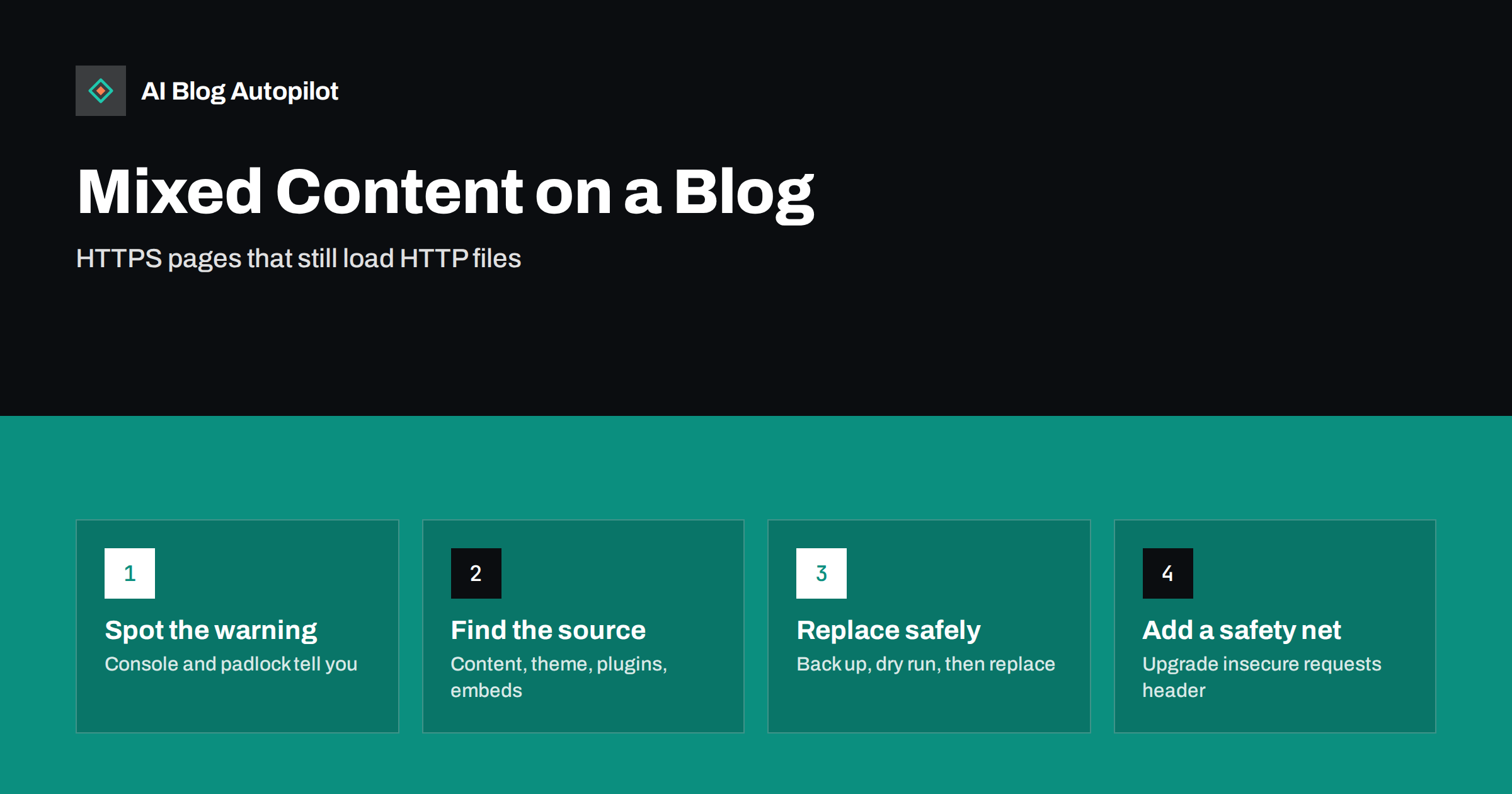
Short answer: mixed content happens when a page served over HTTPS loads images, scripts, stylesheets or embeds over plain HTTP. Browsers block insecure scripts and similar active content outright and try to upgrade or block insecure images and media, which can break layouts and remove the padlock. On a blog the cause is usually old hard-coded http:// links in posts, theme files or plugin settings. Find them with the browser console or a crawler, replace them with HTTPS versions after a backup, and add an upgrade-insecure-requests header as a safety net.
Most blogs moved to HTTPS years ago, often with a certificate installed by the host and a redirect from HTTP. The redirect makes the pages secure, but it does not change the thousands of links stored inside old posts and settings. Every image inserted in 2016 may still point to http://. The result is a slow trickle of warnings, missing images or broken embeds that nobody connects to the original migration.
This article explains what mixed content is, why it matters for readers and search, and a safe way to clean it up, with specific notes for WordPress.
What mixed content is
A secure page is one loaded over HTTPS, where the connection between the browser and the server is encrypted. If that page then loads other files over unencrypted HTTP, the page is “mixed”: part secure, part not. An attacker on the network could, in principle, read or modify the insecure files, and a modified script could change the whole page.
Browsers therefore treat mixed content in two groups, as described in MDN’s guide to mixed content:
- Active content such as scripts, stylesheets, iframes and fonts, which can change the page. Browsers block it when it is loaded over HTTP.
- Passive or display content such as images, audio and video. Modern browsers typically try to load it over HTTPS automatically and block it if that fails, and may show a warning instead of the full padlock.
In practice, that means missing styles, broken widgets, empty embed boxes or images that silently disappear, depending on what was insecure.
Why it matters for a blog
- Broken pages. A blocked stylesheet or script can break a layout, a menu or a form. Readers see a damaged site.
- Missing images. Images that cannot be upgraded to HTTPS vanish from posts, which makes tutorials and guides harder to follow.
- Trust signals. A missing or warning padlock makes visitors hesitant, especially on pages with sign-up or contact forms.
- Search. HTTPS is a lightweight ranking signal, and search engines render pages much like a browser. Blocked resources can affect how a page is rendered and understood, and a broken experience does not help any page perform.
Mixed content is rarely a dramatic problem, but it is a steady source of small failures that are easy to fix once found.
How to find mixed content
Start with a few representative pages, then widen the search.
- Open the browser console. In your browser’s developer tools, the console lists mixed content warnings and errors with the exact URL of each insecure file.
- Check the padlock. Clicking the icon in the address bar shows whether the connection is fully secure.
- Search the page source. View the source and search for
http://. Ignore plain links to other websites (a normal link to an HTTP page is not mixed content); look forsrc=, stylesheet links and embeds. - Crawl the site. Desktop SEO crawlers and some online tools report insecure resources across all pages. This is the fastest way to see the full scope on a large blog.
- Check old posts specifically. The oldest articles, from before the HTTPS switch, are where most insecure links live.
Make a list of the insecure URLs and group them by source: your own domain, a CDN, or third-party services.
The usual sources on a blog
- Post and page content. Images and files inserted before the HTTPS switch, stored with full
http://URLs in the database. - Site settings. On WordPress, the WordPress Address and Site Address under Settings, General should both start with
https://. - Theme files. Hard-coded URLs to images, fonts or scripts in templates or theme options, such as a logo URL.
- Widgets and custom HTML blocks. Badges, banners and embed codes pasted years ago.
- Plugins and page builders. Some store absolute URLs in their own settings or database tables.
- Third-party embeds. Old embed codes from video, map or form services that used HTTP. Most services now support HTTPS; the embed code just needs updating.
- CDN or image service settings. A CDN configured to serve files over HTTP.
How to fix it safely
The fix is usually a search-and-replace, which is powerful and therefore worth doing carefully.
- Take a full backup of the database and files, and confirm you know how to restore it.
- Confirm HTTPS works for every resource you are about to change. Open a few of the insecure URLs with
https://instead. If a third-party file does not exist over HTTPS, you will need to host it yourself or remove it. - Update the site address settings to HTTPS if they are not already.
- Replace your own domain’s HTTP URLs. On WordPress, use a tool that handles serialised data correctly, such as WP-CLI’s search-replace command or a reputable search-and-replace plugin. Run a dry run first to see how many changes would be made, then run it for real, replacing
http://yourdomain.comwithhttps://yourdomain.com. - Fix theme and widget URLs by editing the relevant settings or files. Use a child theme for template changes so updates do not undo them.
- Update embeds with fresh embed codes from each service.
- Clear caches in your caching plugin and CDN, then re-test the pages.
Avoid replacing http:// blindly across the whole database. Links to external websites that only support HTTP would break, and some plugins store data in formats that simple text replacement corrupts.
Special cases that trip people up
A few situations cause mixed content that survives an otherwise careful cleanup.
- Images in the media library with several sizes. WordPress stores responsive image sizes in the
srcsetattribute. If only the mainsrcwas fixed, browsers may still request an HTTP version from the size list. A database-wide replacement of your domain usually handles this; a manual fix of individual posts often misses it. - Content inside page builder data. Page builders often store layouts as serialised or encoded data. A plain SQL replacement can corrupt it, which is why a serialisation-aware tool matters.
- Fonts and icons loaded by the theme. Custom fonts referenced in a stylesheet with an absolute HTTP URL are active content and will be blocked, leaving text in a fallback font or icons as empty squares.
- A proxy or load balancer in front of the site. If the server does not know that visitors arrive over HTTPS, WordPress may generate HTTP URLs for scripts and styles. The fix is a server or configuration setting that passes the original protocol through, not a content change.
- Emails and RSS feeds. These are not web pages, but readers who open images from a newsletter or feed reader may see broken images if the feed still contains HTTP links. Checking the feed after the cleanup is worthwhile.
Add a safety net
Once the main cleanup is done, two measures help prevent new problems.
- Upgrade-insecure-requests. A Content-Security-Policy header or meta tag with
upgrade-insecure-requeststells browsers to fetch any remaining HTTP resources over HTTPS automatically. It is a useful net for stragglers, but it only works if the resource exists over HTTPS, so it does not replace the cleanup. - HSTS. The Strict-Transport-Security header tells browsers to always use HTTPS for your domain. Enable it once you are confident everything works over HTTPS, starting with a short duration, because it is hard to reverse quickly.
Also make sure the redirect from HTTP to HTTPS is a single permanent redirect for every URL, and that your XML sitemap, canonical tags and internal links all use HTTPS.
Checking the result
- Open several old and new posts and confirm the padlock shows a secure connection and the console shows no mixed content messages.
- Re-run your crawler and confirm the insecure resource count is zero, or only includes items you have decided to accept.
- Check that images in old tutorials display correctly.
- In Search Console, use URL inspection on a couple of posts and check the rendered page and any page resource errors.
Put a quick console check into your routine after installing new plugins, changing themes or adding embeds, since those are the most common ways mixed content returns.
How AI Blog Autopilot fits
AI Blog Autopilot publishes new articles into your WordPress blog through a one-click connection, using your site’s own address settings, and shares each article to your social networks. It does not edit old posts, themes or server headers, so a mixed content cleanup of older content remains a one-time job for you or your developer. Once it is done, new articles simply follow your HTTPS setup. Learn more on the AI Blog Autopilot home page.
Related reading
- Security Basics for a Business Blog
- Migrating a Blog Without Losing Its Traffic
- Page Speed on a Content Site: What Actually Helps
- JavaScript SEO for Blogs: When Rendering Hides Your Content
The bottom line
Mixed content is the leftover of an incomplete move to HTTPS: secure pages still loading files over HTTP. Find it with the browser console and a crawl, trace each insecure URL to its source, replace your own domain’s links carefully with a proper search-and-replace after a backup, update embeds and theme settings, and add upgrade-insecure-requests as a safety net. It is usually a one-afternoon job that removes a long tail of small breakages.
GYIK
What is a mixed content warning?
It is a browser warning that a page loaded over HTTPS is also loading files such as images, scripts or stylesheets over insecure HTTP. Browsers block insecure scripts and similar content and may upgrade or block insecure images.
Does mixed content affect SEO?
Indirectly. HTTPS is a lightweight ranking signal, and blocked resources can break how a page renders for readers and search engines. The bigger impact is usually on user trust and page quality.
How do I find mixed content on my WordPress blog?
Open a post, check the browser console for mixed content messages, and search the page source for http:// in image, script and stylesheet addresses. For the whole site, use an SEO crawler that reports insecure resources.
Is it safe to search and replace http with https in the database?
Yes, if you back up first, limit the replacement to your own domain and use a tool that handles serialised data, such as WP-CLI’s search-replace. Run a dry run first. Do not blindly replace every http:// in the database.
Can a plugin fix mixed content automatically?
Some plugins rewrite URLs on the fly as pages load. That can help as a quick fix, but correcting the stored URLs and settings is cleaner and does not depend on a plugin staying active.