ENEnglish
 LTLietuviškai
 DEDeutsch
 FRFrançais
 RUРусский
 ESEspañol
 PLPolski
 ITItaliano
 UKУкраїнська
 CSČeština
 PTPortuguês
 JA日本語
 LVLatviešu valoda
 ETEesti
 HUMagyar
 IDBahasa Indonesia
 TRTürkçe
 HIहिन्दी
 ELΕλληνικά
 ARالعربية
 THไทย
 VITiếng Việt
 RORomână
 MSBahasa Melayu
 BNবাংলা
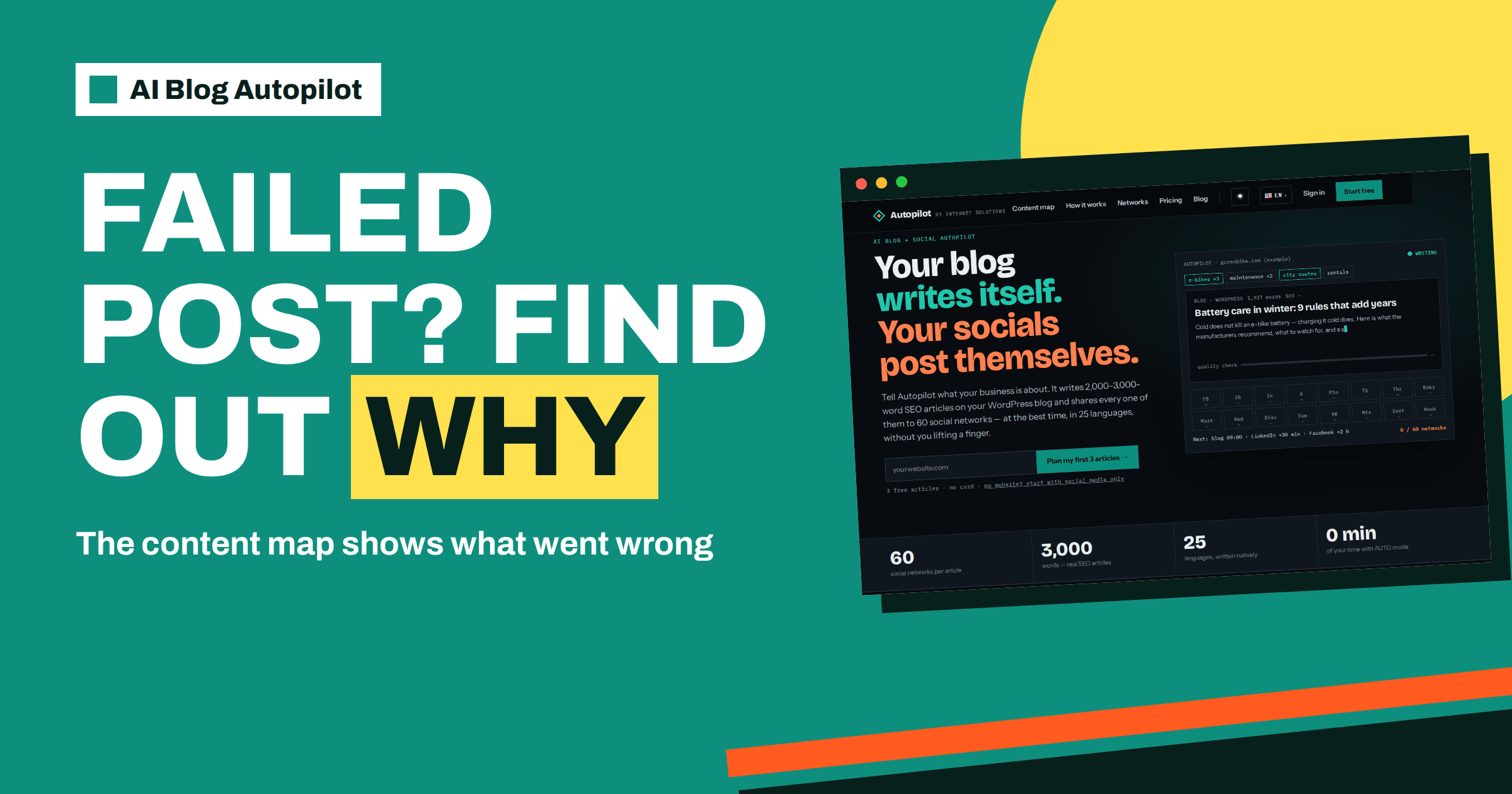
Short answer: open the content map in AI Blog Autopilot, find the cell for that article and network in the network matrix, and read the reason it shows. The home page says that if something failed, the map tells you exactly why, and gives the example of LinkedIn needing to be reconnected, which one click fixes. Then fix the cause, check the other networks and add a weekly look at the map to your routine.
Automation saves time until it quietly stops working. A connection expires, a network changes a rule, a post is rejected, and nobody notices for a fortnight. The value of a good tool is not that nothing ever fails, because on the open internet things do fail, but that you find out quickly and know what to do.
This guide explains how to read failures in the content map, the usual causes, how to fix them and how to build a short routine so that problems never sit unseen. It relies on the product’s home page and networks page, and it describes general causes of failed posts that apply on any platform. Check your account for the exact messages.
Where failures show up
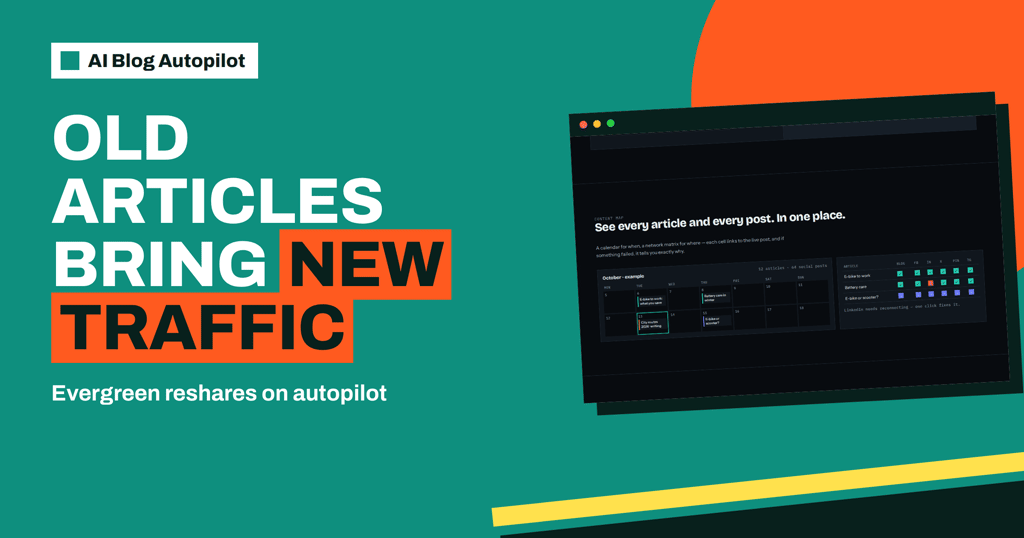
The home page describes the content map as a place to see every article and every post in one view. It has a calendar for when and a network matrix for where. Each cell in the matrix links to the live post, and the example on the page uses ticks for posts that went out, dots for posts that are waiting, and an exclamation mark for a problem. Under the matrix, a note says that LinkedIn needs reconnecting and that one click fixes it.
That small example shows the intended design. A problem is marked where you would look for it, the reason is given in plain words and the fix is attached to the message. You do not have to search logs or compare timestamps. The article on reading the AI Blog Autopilot content map explains the whole screen.
Make the map your first stop whenever you suspect that something did not appear. It is quicker to look there than to open each network in turn.
The usual causes
Failures tend to fall into a few families. The first is an expired or revoked connection. Networks ask for permission to be renewed from time to time, or a password change on the network invalidates it. The example on the home page, LinkedIn needing a reconnection, is of this type.
The second family is a rejected post. A network may refuse a post because of its length, a link it does not like, a repeated message or a rule about content. The product writes each text for its network, which reduces this risk, but no tool can promise that every network will accept every post.
The third family is a temporary problem on the network itself, such as an outage or a slow response. These often clear without action. The fourth is a change on your side, such as a deleted page, a renamed channel, a removed group or an account that has been limited. Knowing the family helps you decide whether to act immediately or wait.
Step by step: fixing a failed post
Start by reading the reason in the map. If it asks you to reconnect, do that first. Use the one-click fix shown, log in to the network if asked and approve the connection. Then check that the network now shows as healthy in your account.
Next, look at the other cells for the same network. If several articles failed on one network, the cause is almost always the connection, and fixing it should restore later posts. If only one post failed while the others went out, the cause is more likely something specific to that post, such as content or length.
If the reason points to a network problem, wait and look again later. Do not repeat the same action many times in a row, since some networks treat repeated attempts as spam. If the problem persists, look at the network’s own status page or help pages, and contact the product’s support through the details on its site.
Finally, decide whether the missed post still matters. A news-style post for a past date may no longer be useful. An evergreen article can be shared again later. The article on when to pause scheduled social posts helps you decide what to do with posts that are out of date.
Checking the live post
A tick in the map is a good sign, but spot-checking is worth the effort in the first weeks. Click through from a cell to the live post and look at it as a follower would. Is the text complete? Does the link work? Is the image shown? Is the post in the right account or channel?
Look at differences between networks. The networks page says each network receives its own text, so a short hook on one and a longer professional post on another is normal. What you are checking is quality and accuracy, not sameness. If something reads oddly, note which network and which article, and look for a pattern.
A habit of opening one or two live posts a week keeps you close to what your audience sees. It also helps you notice small problems, such as a cropped image on one network or a truncated line, before they repeat many times.
Keeping connections healthy
Prevention is cheaper than repair. Use accounts that belong to the business, not a personal profile of someone who may leave, and keep a record of who owns each connection. If the owner of a network account changes their password or removes access, the connection may need renewing, so tell the person who manages the product.
Avoid making large changes to a connected account without checking, such as converting a personal profile to a business page, changing the page name or moving it between managers. These changes can break the link. After any such change, look at the map on the next scheduled post.
The networks page says you connect each network once in your account. That one place is also where you check status, so keep it tidy. If you no longer use a network, remove it so that it does not create warnings that you learn to ignore.
A weekly five-minute check
Pick a day and time, such as Monday morning, and open the content map. Scan the previous week for exclamation marks. Reconnect anything that needs it. Open two live posts. Look at the week ahead, to see that the calendar has articles in the right places. That is the whole routine, and it takes about five minutes.
If you manage several websites, repeat the check for each one. An agency may keep a shared checklist with one line per client. The article on running client blogs as an agency shows how to organise this across many sites.
Write down what you find and what you did, for example reconnected one network on a given date. After a few months, the notes show whether one network is unreliable or whether problems follow a pattern.
Learning from repeated failures
If the same network fails again and again, treat it as a signal and not as bad luck. Ask whether you really need that network. A channel that keeps breaking, that nobody replies on and that brings no readers costs attention without giving anything back. Removing it from your setup is a legitimate decision, and the networks page makes clear that the list is long, so you can swap it for another that suits your audience better.
Consider also whether a pattern links the failures to timing or to content type. If long posts fail on one network and short ones succeed, the topic settings that influence length may need attention. If failures cluster after a change on your side, such as a new security tool, the change is the likely cause. Keeping notes for a few months turns scattered incidents into a clear picture.
When you contact support, bring facts: the article title, the network, the date and time shown in the map and the message it gave. A precise report is solved faster than a general complaint. Include what you already tried, such as reconnecting the account, so that nobody asks you to repeat it.
When the problem is the article
Sometimes the failure is not on the network but in the article itself, such as an article that did not publish on the blog, so there was nothing to share. The home page says an automatic quality check runs before anything goes live and that weak articles wait for you instead of going out. If an article is waiting, it will not appear on the blog or the networks until you deal with it.
Look at the calendar for articles that are marked as waiting or still being written. If something is waiting, review it, make a decision and let it go out or leave it. The article on the quality gate explains what is checked.
Check also that the blog connection is healthy. If WordPress cannot be reached, for example because a security plugin blocks the connection, the article cannot go live, and the posts that depend on it cannot follow. A reconnection through WordPress usually restores it.
How AI Blog Autopilot helps
The product shows each article and each post on a calendar and matrix, links every cell to the live post and tells you why something failed. That makes problems visible within a minute of looking. Learn more on AI Blog Autopilot, and test it with your first three free articles.
Related reading
- How to Read the AI Blog Autopilot Content Map
- Automated Social Posting Mistakes That Make Accounts Look Robotic
- When to Pause Scheduled Social Posts
The bottom line
Read the reason in the content map, fix the connection or content that caused it, check the other networks and look at the map for five minutes every week.
GYIK
Where do I see why a post failed?
On the content map. The home page says that if something failed, it tells you exactly why.
What does a reconnection warning mean?
A network connection needs renewing. The home page gives LinkedIn as an example and says one click fixes it.
Will other networks be affected?
Usually not. Each network has its own connection, but check the other cells in the matrix to be sure.
Should I retry a failed post many times?
No. Fix the cause first, and avoid repeated attempts that a network may treat as spam.
How often should I check the map?
Once a week is enough for most sites, with a quick look after any change to a connected account.