ENEnglish
 LTLietuviškai
 DEDeutsch
 FRFrançais
 RUРусский
 ESEspañol
 PLPolski
 ITItaliano
 UKУкраїнська
 CSČeština
 PTPortuguês
 JA日本語
JA日本語 LVLatviešu valoda
 ETEesti
 HUMagyar
 IDBahasa Indonesia
 TRTürkçe
 HIहिन्दी
 ELΕλληνικά
 ARالعربية
 THไทย
THไทย VITiếng Việt
 RORomână
 MSBahasa Melayu
 BNবাংলা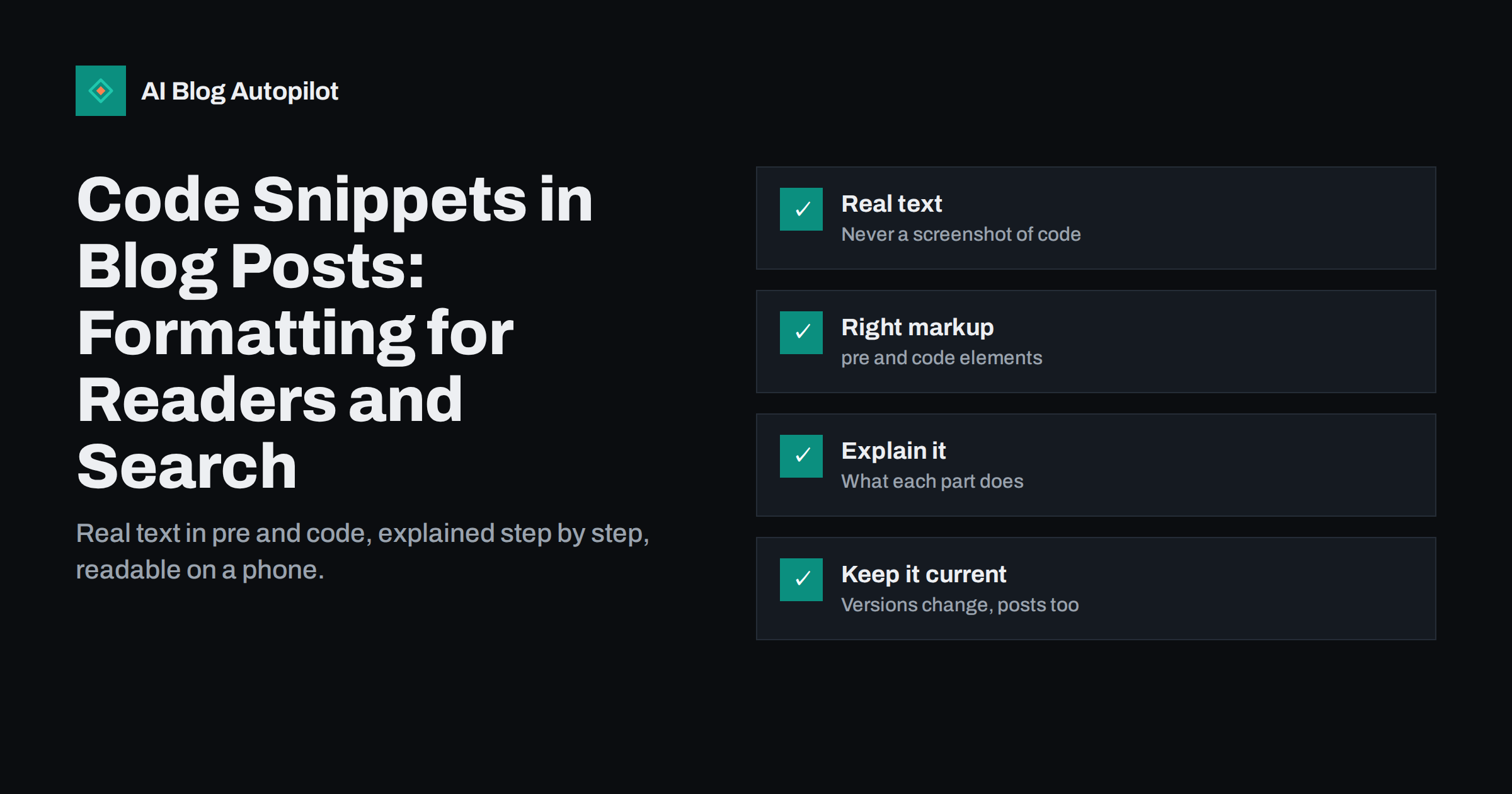
Short answer: put code in blog posts as real text inside <pre><code> elements, never as screenshots, so readers can copy it and search engines can read it. Keep snippets short and focused, label the language, explain what each part does in the surrounding text, and make sure long lines scroll inside the code block on mobile instead of breaking the page. Use lightweight syntax highlighting, test every snippet before publishing, and note the versions it was written for so you can update it when things change.
Technical blogs live and die by their code examples. A developer who searches for a fix wants a snippet that works, explained well enough to adapt. Non-developer blogs use code too: a line for a WordPress configuration file, a tracking snippet, a spreadsheet formula, a robots.txt rule. In all these cases, how you present the code affects whether readers succeed, whether they trust you and how well the page performs in search. Here is how to do it properly.
Always use real text, not images
Screenshots of code are tempting because they look exactly as they do in your editor. They are a poor choice for almost every other reason:
- Readers cannot copy them. Retyping code invites typos and frustration.
- Search engines cannot read them reliably. Error messages, function names and configuration keys are exactly what people search for, and text in images is far less useful for that.
- Screen readers cannot read them. An image of code is inaccessible unless you repeat the whole snippet in alt text, which defeats the purpose.
- They do not scale. On a phone, a screenshot shrinks until it is unreadable; on a large screen it may look blurry.
- They are hard to update. Changing one line means recreating the image.
Screenshots still have a place for showing interfaces, error dialogs or results. For code itself, use text.
The right HTML for code
HTML has dedicated elements for code. The MDN reference for the code element describes them in detail. In short:
- Inline code, such as a function name or a file name in a sentence, goes in a
<code>element. - Code blocks go in
<pre><code>. Thepreelement preserves spaces and line breaks;codemarks the content as code. - Special characters such as
<,>and&must be escaped inside HTML, or the browser will treat them as markup. Editors usually do this for you. - A language label, commonly a class such as
language-phpon the code element, tells highlighting tools which rules to use and can be shown to readers.
In WordPress, the block editor has a Code block that outputs pre and code correctly and escapes special characters. Pasting code into a normal paragraph is the most common way snippets get mangled: quotes turn curly, spaces collapse and angle brackets disappear.
Watch out for curly quotes and invisible characters
Typography features that make prose look nice break code. WordPress and many editors convert straight quotes into curly ones and double hyphens into dashes in normal text. In a code snippet, a curly quote makes the code invalid, and readers who copy it get errors they cannot see.
The Code block and code elements are usually protected from these conversions, but content pasted from word processors, chat tools or some page builders may carry curly quotes, non-breaking spaces or zero-width characters. If readers report that a snippet does not work, check for these first. Copying the snippet from the live page into a plain text editor and running it is the simplest test.
Keep snippets short and focused
A snippet should show one idea. Long files with many unrelated parts make readers hunt for the line that matters.
- Show only the relevant part. If the change is three lines in a large configuration file, show those lines plus enough context to know where they go.
- Mark omissions. Use a comment such as “existing settings” in place of skipped code, so readers know something is missing on purpose.
- Split long examples. Break a long process into several snippets, each followed by an explanation.
- Offer the complete version separately if readers need it, for example as a downloadable file or a link to a repository.
Short snippets are also easier to keep correct. Every extra line is something that can go out of date.
Explain the code in the text
Code without explanation helps only readers who already understand it. The text around each snippet is what makes the article useful and what search engines and AI answers draw on to understand the page.
- Before the snippet, say what it does and where it goes: which file, which setting screen, which part of a theme.
- After the snippet, explain the key parts, especially values readers must change, such as their own domain name or ID.
- Mention prerequisites, such as required plugins, permissions or versions.
- Explain the expected result, so readers know whether it worked.
- Warn about risks, such as editing a live configuration file without a backup.
Comments inside the code can help, but they do not replace explanation in normal sentences. Keep comments short and use them to label sections, not to tell the whole story.
Syntax highlighting without slowing the page
Colour coding makes code easier to read, but highlighting libraries can add noticeable weight to a page, especially if they load support for dozens of languages on every post.
- Load only what you need. Choose a highlighter that lets you include only the languages you actually use.
- Load it only where needed. Posts without code should not download the highlighting script or styles.
- Consider server-side highlighting. Some plugins and static site tools add colours when the page is generated, so no script runs in the browser.
- Check contrast. Highlighting themes with pale colours on light backgrounds are hard to read and can fail accessibility contrast guidelines. Test in your blog’s light and dark modes if it has both.
Plain, well-formatted code without colours is better than colourful code that slows the page or is hard to read.
Make code readable on mobile
Code blocks are one of the most common causes of horizontal scrolling on mobile. A long line in a pre element can push the whole page wider than the screen, so readers have to scroll sideways to read even normal text.
The fix is to let the code block scroll on its own while the page stays within the screen:
- Give code blocks a maximum width of 100% and horizontal scrolling inside the block.
- Use a slightly smaller, monospace font size for code than for body text, but not so small that it is unreadable.
- Where possible, break very long lines in the example itself, for instance by putting each argument on its own line.
- Test a post with your longest snippet on a real phone.
Some blogs wrap long lines instead of scrolling. That avoids sideways scrolling but can make the structure of code harder to follow. For most programming languages, scrolling inside the block is the clearer choice.
Copy buttons, line numbers and accessibility
Small interface touches make snippets easier to use:
- A copy button saves readers from selecting text by hand and avoids accidentally copying line numbers. Make sure it has a text label for screen readers.
- Line numbers help when the explanation refers to specific lines. Implement them so they are not copied with the code.
- A visible language label tells readers at a glance whether the snippet is PHP, JavaScript, a shell command or a configuration file.
- Distinguish commands from output. When showing terminal sessions, separate the command readers should type from the output they should expect, so nobody pastes output into their terminal.
Code and search engines
Search engines read code in pre and code elements as text. That matters because developers often search for exact strings: an error message, a function name, a configuration option. A post that contains the exact error text in a code block, followed by a clear explanation and fix, is well placed for those searches.
A few points help further:
- Write the error message or key term in normal text as well, for example in a heading or the first paragraph, so the topic is clear from the prose alone.
- Give each major step its own descriptive heading, which helps both skimming readers and search features that show steps.
- Do not hide code behind tabs or click-to-reveal elements that load content only after interaction.
- If your snippets are long reusable programs, the SoftwareSourceCode type on schema.org exists, but for ordinary tutorials, Article markup and good text are enough.
Test and maintain every snippet
Nothing damages trust faster than a code example that does not work. Before publishing, run every snippet in a clean environment exactly as a reader would copy it from the preview. After publishing, keep an eye on it:
- Note the versions the code was written for, such as the WordPress or language version.
- Review popular technical posts when major versions are released.
- Read comments and messages for reports of broken examples and fix them quickly.
- When you update a snippet, update the explanation and the “updated” date too.
How AI Blog Autopilot fits in
AI Blog Autopilot writes full SEO articles with clear structure, FAQ, tags and meta, and publishes them to WordPress with an automatic quality check before anything goes live. For technical posts with code you have tested yourself, you can switch on approval and review each article before it is published. See the pricing page for plans.
Related reading
- Screenshots, Diagrams and Charts in Blog Articles
- Semantic HTML for Blog Posts: Markup That Helps Search
- How to Write a How-To Article People Can Actually Follow
- Reading a Blog on a Phone: What to Fix First
The bottom line
Good code snippets are real text in proper pre and code markup, short enough to show one idea, and surrounded by explanations of what they do and where they go. Protect them from curly quotes, keep highlighting light, make blocks scroll inside themselves on mobile, and add copy buttons and language labels. Test every snippet as readers will copy it, note the versions it targets and update it when things change.
GYIK
Should I use screenshots of code in blog posts?
No. Readers cannot copy code from images, screen readers cannot read it and search engines cannot use it well. Use real text in code blocks, and keep screenshots for interfaces and results.
How do I add code to a WordPress post?
Use the Code block in the block editor. It outputs pre and code elements, preserves spacing and escapes special characters. Pasting code into a normal paragraph often breaks quotes and formatting.
Does syntax highlighting slow down a blog?
It can if a large highlighting library loads on every page. Load only the languages you use, only on posts with code, or use server-side highlighting that needs no script in the browser.
Can search engines read code in blog posts?
Yes. Text inside pre and code elements is readable, which helps with searches for exact error messages and function names. Explaining the code in normal sentences makes the topic even clearer.
Why does my code snippet not work when readers copy it?
Common causes are curly quotes, non-breaking spaces or invisible characters added by an editor, or line numbers copied with the code. Copy the snippet from the live page into a plain text editor and test it.