ENEnglish
 LTLietuviškai
 DEDeutsch
 FRFrançais
 RUРусский
 ESEspañol
 PLPolski
 ITItaliano
 UKУкраїнська
 CSČeština
 PTPortuguês
 JA日本語
JA日本語 LVLatviešu valoda
 ETEesti
 HUMagyar
 IDBahasa Indonesia
 TRTürkçe
 HIहिन्दी
 ELΕλληνικά
 ARالعربية
 THไทย
THไทย VITiếng Việt
 RORomână
 MSBahasa Melayu
 BNবাংলা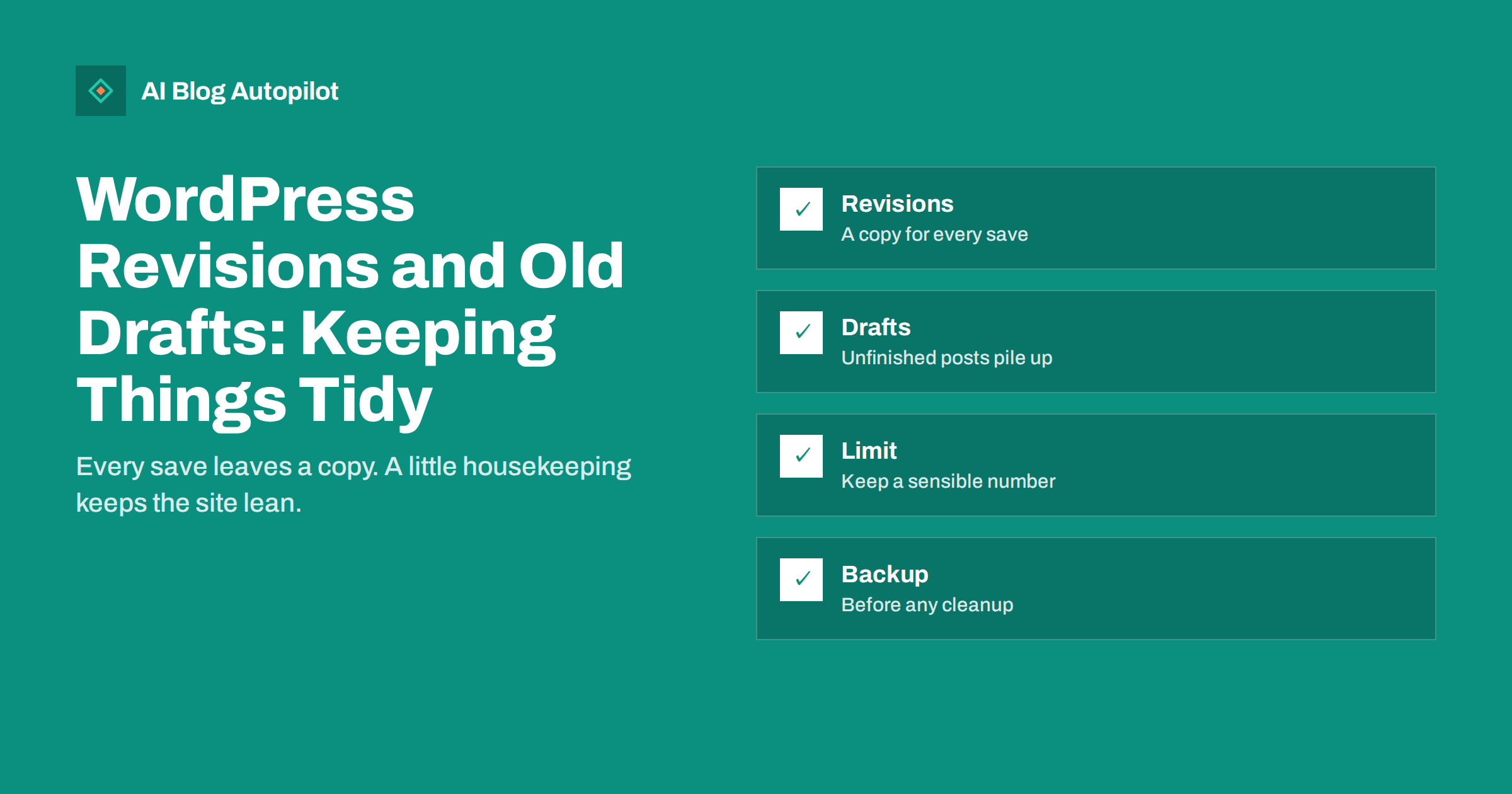
Short answer: WordPress saves a copy of a post each time you save or update it, and it also keeps autosaves, drafts and trashed items. These do not appear to readers or search engines, but they add rows to your database and can clutter your editor. Limit how many revisions are kept, review old drafts a few times a year and always take a backup before any cleanup.
Most blog owners never think about revisions until something goes wrong: a page loads more slowly in the editor, a backup grows large or a draft that was meant to stay private turns out to be reachable. This article explains what WordPress stores, what matters for SEO and speed and how to tidy up in a safe order, using ordinary settings and plugins that you already know.
What WordPress keeps behind the scenes
When you write a post, WordPress saves automatic drafts at intervals, so that you do not lose text if the browser closes. When you click save or update, it also stores a revision, which is a snapshot of the post at that moment. Each revision is a separate entry in the database, linked to the original post. You can open the revision screen and compare versions or restore an older one.
Beyond revisions, there are drafts that you started and did not finish, posts waiting for review, private posts, scheduled posts and items in the trash. Media files that are no longer used in any post may also remain in the library. All of these are normal parts of WordPress, and they exist for good reasons.
The trash is a safety net. By default, items sent to the trash are deleted for good after a set number of days, which is thirty in a standard setup. Until then, they can be restored. Knowing these defaults makes it easier to judge what really needs your attention.
Also remember that scheduled posts are not drafts. A scheduled post is waiting for its date and will go live automatically, so do not remove it during a cleanup unless you mean to cancel it. Check the status column before you delete anything.
Do they affect SEO?
Revisions and autosaves are not public pages. Search engines do not see them, and they do not create duplicate content. They are stored for the use of editors only. In normal use, they have no direct effect on rankings.
The indirect effects are small but real. A very large database can slow some operations, such as backups, searches inside the admin area and certain plugins that read many entries. If your site is slow in the dashboard, revisions may be one cause, though a heavy plugin or a weak host is more common. For speed in general, see page speed for content sites and web hosting and SEO.
A more important risk is exposure. A draft or private post is not public, but a mistake in settings, a staging copy or a plugin that publishes by accident can make unfinished content visible. Keep an eye on what is live, as described in staging sites indexed by Google.
How many revisions are too many?
A post that you edit often can gather dozens or even hundreds of revisions over time. Each one holds the full text, so a long article with many saves occupies a lot of space. For a small blog, even a few thousand revisions are not a disaster, but they add to the size of every backup and every database export.
Most owners do not need more than a handful of revisions per post. Three to ten is enough to undo a recent mistake or compare a recent change. Older revisions have little use, because you rarely go back months in a post’s history.
If you work in a team, a longer history can be useful, since several people may edit one article. In that case, keep more revisions on posts that are actively edited and fewer on posts that are finished. The principle is to keep the history that supports your work, not every version forever.
How to limit revisions
WordPress lets you set a limit on the number of revisions kept for each post, through a setting in the site configuration file or through a plugin. A site administrator or developer can do this in a few minutes. Changing the configuration file is a technical step, so take a copy of the file first or ask someone who is used to it.
Several well-known plugins offer a simple screen for the same job. They let you choose how many revisions to keep and can clean old ones. If you use a plugin, read what it does before running it, and test on a staging copy where you can.
Remember that the limit applies to future saves, and it does not remove old revisions by itself. To reduce what is already stored, you must run a cleanup, which is the next step. Do both so that the number stays low in the future.
Record what you removed, even in a single line, with the date and the number of items. If a colleague asks later where an old version went, you can answer, and you can judge whether the next cleanup should be larger or smaller.
Cleaning old revisions and drafts
Take a full backup first, using the advice in backups for a blog. A cleanup deletes data, and once it is gone, you can restore it only from a backup. Do this at a quiet time, and do not run it while several people are editing.
Then run the cleanup in small steps. Begin by removing old revisions of published posts, keeping the latest few. Look at the result, check that your posts still open and edit well, and only then continue. Delete automatic drafts that are older than a few weeks and empty the trash if you are sure that nothing in it is needed.
Treat real drafts with more care. A draft is someone’s work, even if it is old. Go through the list, and for each one decide to finish it, merge it into another post, keep it for later or delete it. Ask the author if you can. Write down what you decide, so that the same drafts are not reviewed again and again.
Treat scheduled content as part of the same review. Look at what is planned for the next month, check that each post has an owner and a final date, and remove any placeholder that was created only to hold a slot in the calendar.
Drafts, ideas and the content backlog
Old drafts often show topics that you meant to cover. Before you delete them, look for ideas worth saving. A short note in your content plan is often enough. Use the checks in a content inventory spreadsheet to record what exists, what is planned and what you decided to drop.
Avoid leaving half-written posts with real titles and addresses. If a draft has a title that sounds like a published post, someone may confuse it with live content. Use a clear label in the title or a status note, such as “idea” or “needs facts”, so that the purpose is plain.
If several people share the site, set a simple rule for drafts: who owns them, how long they may stay and what happens after that. A rule such as “drafts without changes for six months are reviewed” keeps the list small without a big project. The roles described in WordPress user roles for a blog team help you decide who can do what.
Unused media and other clutter
The media library often grows faster than the post list. Old uploads, test images and files from deleted posts stay until someone removes them. Large unused images take space, slow backups and may be reachable by address even if no page links to them.
Review media with the same care. Use a tool that shows which files are unused, but check the results before deleting, since some images are used in widgets, theme settings or custom fields that a tool may not detect. Again, a backup comes first.
Also look at plugins and themes that you no longer use. They add clutter and can add security risks if they are not updated. The advice in too many WordPress plugins and blog security basics covers the next steps.
Keep an eye on the size of your database and of your backup files. If either grows quickly without a matching growth in content, something is storing more than it should, such as a plugin that logs a lot of data. Look at it early, before it becomes a problem.
Make it a habit
Add housekeeping to your calendar a few times a year. A short checklist is enough: confirm that a backup exists, check the revision limit, review drafts, empty the trash, look at unused media and see how large the database is. After each session, note the date and what you did.
Keep the work proportionate. You do not need to be perfect, and a lean site is a side effect of good editing habits, not the goal of the blog. The aim is a clear editor, small backups and no surprises.
If something goes wrong during a cleanup, stop and restore from the backup instead of trying to repair by hand. Then repeat the work in smaller steps. Patience is cheaper than a lost article.
How AI Blog Autopilot helps
AI Blog Autopilot writes full SEO articles for your WordPress blog from the topics, keywords, audience and tone you set, with FAQ sections, tags and SEO meta included, and it shares each one to your social networks. Approval mode lets you read each article before it goes live, and a regular housekeeping routine keeps the rest of your WordPress site in good order alongside it. See the pricing page for plans.
Related reading
The bottom line
Revisions and drafts do not harm rankings, but they add clutter and size. Limit revisions, review drafts a few times a year, back up first and clean in small steps.
FAQ
Do WordPress revisions hurt SEO?
Not directly. They are not public pages. A very large database can slow the admin area and backups, though.
How many revisions should I keep?
For most blogs, three to ten per post is enough. Teams that edit often may keep more on active posts.
Is it safe to delete old revisions?
Yes, after a full backup and in small steps. Check that your posts still open and edit normally afterwards.
What should I do with old drafts?
Finish them, merge them, keep a note of the idea or delete them. Ask the author when you can.
Does the trash empty itself?
By default WordPress removes trashed items after a set number of days, thirty in a standard setup. Check your own settings.