ENEnglish
 LTLietuviškai
 DEDeutsch
 FRFrançais
 RUРусский
 ESEspañol
 PLPolski
 ITItaliano
 UKУкраїнська
 CSČeština
 PTPortuguês
 JA日本語
JA日本語 LVLatviešu valoda
 ETEesti
 HUMagyar
 IDBahasa Indonesia
 TRTürkçe
 HIहिन्दी
 ELΕλληνικά
 ARالعربية
 THไทย
THไทย VITiếng Việt
 RORomână
 MSBahasa Melayu
 BNবাংলা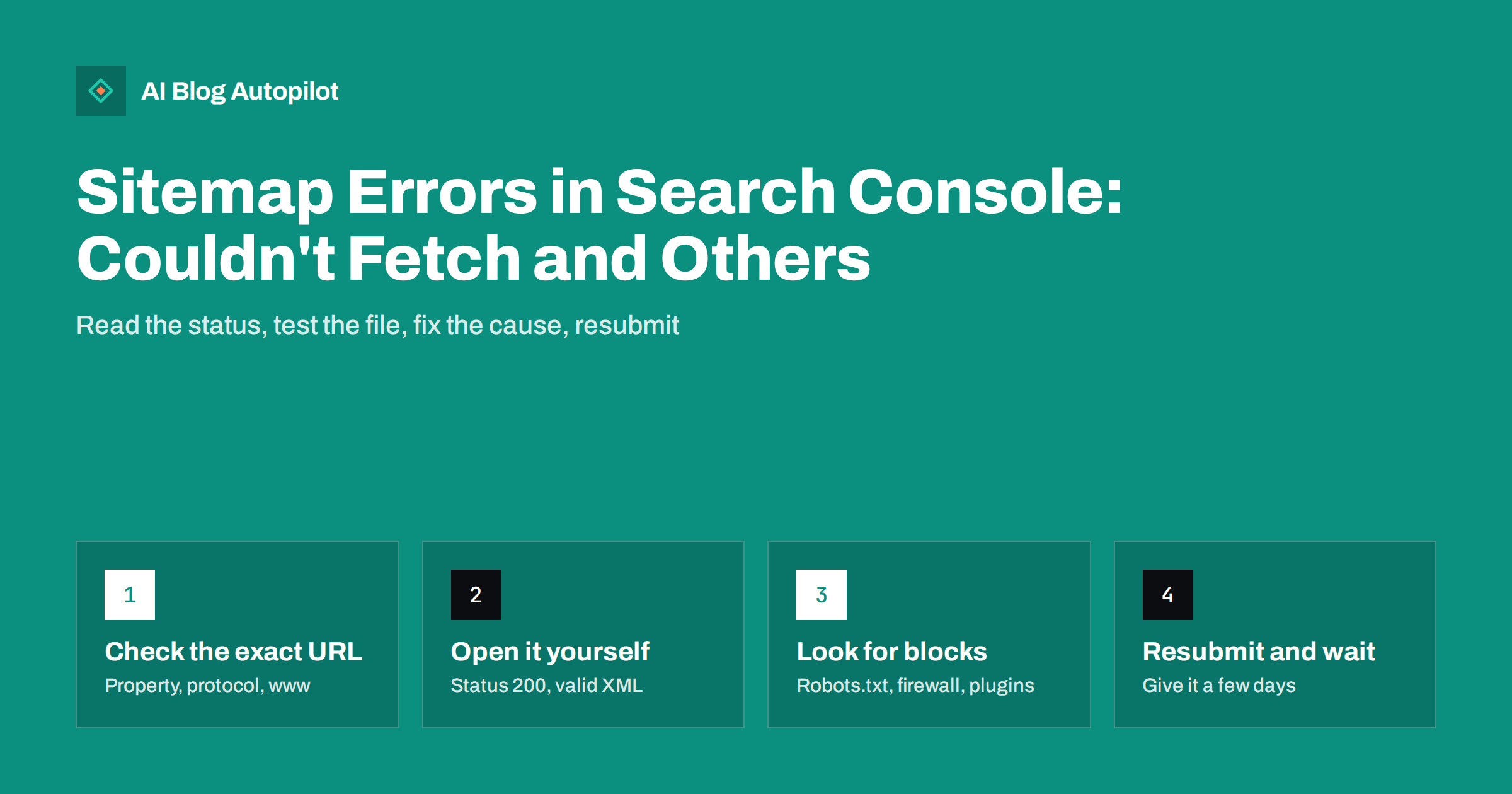
Short answer: the Sitemaps report in Search Console shows one of three statuses for each submitted sitemap: Success, Has errors, or Couldn’t fetch. “Couldn’t fetch” means Google could not download the file, usually because the submitted URL is wrong, returns an error, redirects, or is blocked by robots.txt, a firewall or a security plugin. “Has errors” means the file was read but some entries are invalid. Open the sitemap URL yourself, confirm it returns a valid XML file with status 200, fix the cause, and resubmit.
A sitemap error looks alarming, but it rarely means your blog is invisible. Google finds most blog posts through links as well, and a failed sitemap does not remove pages from the index. Still, a working sitemap helps new articles get discovered quickly and gives you useful indexing data, so it is worth fixing. This guide walks through what each status means, the most common causes on blogs, and a calm order of checks.
What the Sitemaps report shows
The Sitemaps report lists only sitemaps submitted through the report itself or the Search Console API, not those Google found through robots.txt. For each one it shows the type, the submission date, the last time it was read, the status and the number of discovered pages. Google’s Sitemaps report help page defines the statuses:
- Success: the sitemap was loaded and processed without errors, and its URLs are queued for crawling.
- Has errors: the file was fetched, but it contains one or more errors. URLs that could be parsed are still used.
- Couldn’t fetch: Google could not download the sitemap at all.
Two details are often misunderstood. First, “Discovered pages” is the number of URLs found in the sitemap, not the number indexed. To see indexing, filter the Page indexing report by sitemap. Second, if Google has read a sitemap successfully before, a later failure does not make it forget the URLs it already learned.
“Couldn’t fetch”: the usual causes
When the report says Couldn’t fetch, open the sitemap’s details for any more specific message, then check these causes in order:
- The URL is wrong. WordPress core uses
/wp-sitemap.xml, while SEO plugins often use/sitemap_index.xmlor/sitemap.xml. Submitting the wrong one, or one left over from a previous plugin, produces a fetch error. - The URL does not match the property. A sitemap at
http://or withoutwwwin anhttps://wwwproperty, or the reverse, causes problems. The report lists the exact URL you submitted and does not follow redirects for it, so submit the final address rather than one that redirects. - The server returns an error. A 404, 403 or 5xx response means Google cannot read the file. Plugin conflicts and caching problems often cause these.
- Something blocks Googlebot. Robots.txt rules, hosting firewalls, bot-protection services or security plugins sometimes block crawlers from XML files while letting browsers through.
- A newly submitted sitemap has not been processed yet. The status can sometimes show a problem before Google has had a proper chance to read the file. If every check below passes, wait a few days before assuming something is wrong.
If a fetch keeps failing, Google retries a few times and then stops trying, so fix the cause and resubmit rather than waiting indefinitely.
How to test the sitemap yourself
You do not need special tools for the first checks:
- Open the sitemap URL in a private browser window. It should display XML, or a styled list of URLs if your plugin adds a stylesheet, not a login page, an HTML error page or a redirect to the home page.
- Check the status code. A command such as
curl -I https://example.com/sitemap_index.xmlshows the HTTP status. You want 200, with an XML content type. - Use URL Inspection. Inspecting the sitemap URL in Search Console and running a live test shows whether Googlebot can fetch it and whether robots.txt blocks it. The guide on the URL Inspection tool explains the live test.
- Check robots.txt. Make sure no rule disallows the sitemap path. It is also good practice to reference the sitemap there with a
Sitemap:line. - Open a child sitemap. If the main file is a sitemap index, open one of the sitemaps it lists to confirm they work too.
“Has errors”: common parsing problems
When the file can be fetched but has errors, the details page lists them. The ones most often seen on blogs:
| Error | What it usually means | Typical fix |
|---|---|---|
| Sitemap is HTML | The URL returns a web page, not XML | Submit the real XML sitemap URL |
| Invalid XML or parsing error | Broken tags or stray characters | Check plugins that print output before the XML |
| Leading whitespace | Blank space before the XML declaration | Remove whitespace; often a theme or plugin file |
| URL not allowed | URLs on another domain or protocol | Make URLs match the sitemap’s host and protocol |
| Invalid date | Badly formatted last-modified dates | Use W3C date format, as plugins normally do |
| Sitemap too large | Over 50,000 URLs or 50 MB uncompressed | Split into several sitemaps with an index |
Leading whitespace is a classic WordPress problem: a blank line at the end or start of a PHP file in a theme or plugin gets printed before the XML. Google says this particular warning does not stop processing, but other XML consumers may be stricter, so it is still worth fixing.
Sitemap indexes and other formats
Most blogs today use a sitemap index: one small file that lists several child sitemaps, usually one per content type, such as posts, pages and categories, and further files once a type grows large. That affects how you read the report:
- Submit the index, not every child. Submitting the index is enough. Search Console then shows the child sitemaps within it, and the discovered pages count covers all of them.
- An error can sit in one child. If the index shows errors, open the details to see which child sitemap is affected. Often it is a single file, such as an old custom post type left behind by a removed plugin.
- Children must be on the same site. Child sitemaps listed in an index should be under the same host and protocol as the index itself.
Google also accepts RSS and Atom feeds and plain text files listing one URL per line as sitemaps. A feed can be a useful extra sitemap for recent articles, because it contains only the newest posts and changes whenever you publish. It does not replace a full XML sitemap, since older articles drop out of the feed.
WordPress-specific causes
On WordPress blogs, most sitemap problems come from a few situations:
- Two sitemap systems at once. WordPress has had built-in sitemaps since version 5.5, and SEO plugins usually replace them with their own. Submitting both, or switching plugins, leaves an old URL in Search Console that no longer works.
- Caching the sitemap badly. A cache or optimisation plugin can serve a stale or minified sitemap, or break it. Exclude sitemap URLs from page caching and minification if you see problems.
- Permalink rules not refreshed. After changing plugins, sitemap URLs can return 404 until permalinks are saved again under Settings, which refreshes the rewrite rules.
- Noindexed content types. Plugins normally exclude noindexed content from the sitemap. If you see URLs you did not expect, check which post types and taxonomies the plugin includes.
- Maintenance or staging mode. A maintenance plugin can return a holding page to Googlebot, turning every sitemap fetch into an error.
After the fix: resubmit and verify
- Resubmit the exact working URL in the Sitemaps report. If an old, dead sitemap is still listed, remove it from the report so it does not keep showing errors.
- Wait a few days, then check that the status shows Success and the last read date is recent.
- Filter the Page indexing report by the sitemap to see how many of its URLs are indexed and why others are not.
- Spot-check a new article: publish, confirm it appears in the sitemap, and inspect its URL a day or two later.
Removing a sitemap from the report only stops Search Console tracking it. It does not remove any pages from Google.
Mistakes to avoid
- Submitting the same sitemap repeatedly without fixing anything. Resubmission does not speed up a fetch that keeps failing for the same reason.
- Listing redirecting, noindexed or deleted URLs in the sitemap. A sitemap should contain the canonical URLs you want indexed.
- Panicking about “Discovered pages” not matching indexed pages. Not every URL in a sitemap will be indexed, and that is normal.
- Blocking the sitemap in robots.txt while trying to hide something else with a broad rule.
How AI Blog Autopilot fits in
AI Blog Autopilot publishes articles as normal WordPress posts, so they appear in whatever sitemap your site already generates, core or plugin, as soon as they go live. The sitemap itself, robots.txt and Search Console setup remain on your side, and the checks in this guide apply unchanged. See how Autopilot works.
Related reading
- XML Sitemaps Explained for People Who Publish
- Google Search Console: The Five Reports That Matter
- Domain or URL-Prefix Property: Setting Up Search Console
The bottom line
Most sitemap errors come down to the wrong URL, a mismatch with the property, a server error or something blocking Googlebot. Open the file yourself, confirm it returns valid XML with status 200, test it with URL Inspection, fix the cause and resubmit the exact working address. Then judge success by the status and the Page indexing report, not by resubmitting more often.
FAQ
What does Couldn’t fetch mean in the Sitemaps report?
It means Google could not download the sitemap file. Common causes are a wrong or outdated sitemap URL, a mismatch with the property’s protocol or www version, a server error, or robots.txt, a firewall or a security plugin blocking Googlebot.
Does a sitemap error stop my posts from being indexed?
Not by itself. Google also discovers posts through links, and URLs it learned from earlier successful reads are not forgotten. A working sitemap still helps new articles get found quickly, so it is worth fixing.
Which sitemap URL should I submit for WordPress?
Submit the sitemap your site actually uses. WordPress core serves /wp-sitemap.xml, while SEO plugins usually replace it with their own, often /sitemap_index.xml. Open the URL first to confirm it returns XML.
Why is the number of discovered pages higher than indexed pages?
Discovered pages counts URLs listed in the sitemap, not pages in Google’s index. Some URLs may not be indexed for quality, duplication or crawling reasons, which the Page indexing report explains when filtered by sitemap.
How long after resubmitting should the status change?
It often takes a few days for Google to fetch and process the sitemap again. If the status still shows an error after that, repeat the checks, because resubmitting without a fix will not help.
Should I submit every child sitemap separately?
No. Submitting the sitemap index is enough, and Search Console shows the child sitemaps it contains. Open the details of the index to find which child file has an error if one appears.