ENEnglish
 LTLietuviškai
 DEDeutsch
 FRFrançais
 RUРусский
 ESEspañol
 PLPolski
 ITItaliano
 UKУкраїнська
 CSČeština
 PTPortuguês
 JA日本語
JA日本語 LVLatviešu valoda
 ETEesti
 HUMagyar
 IDBahasa Indonesia
 TRTürkçe
 HIहिन्दी
 ELΕλληνικά
 ARالعربية
 THไทย
THไทย VITiếng Việt
 RORomână
 MSBahasa Melayu
 BNবাংলা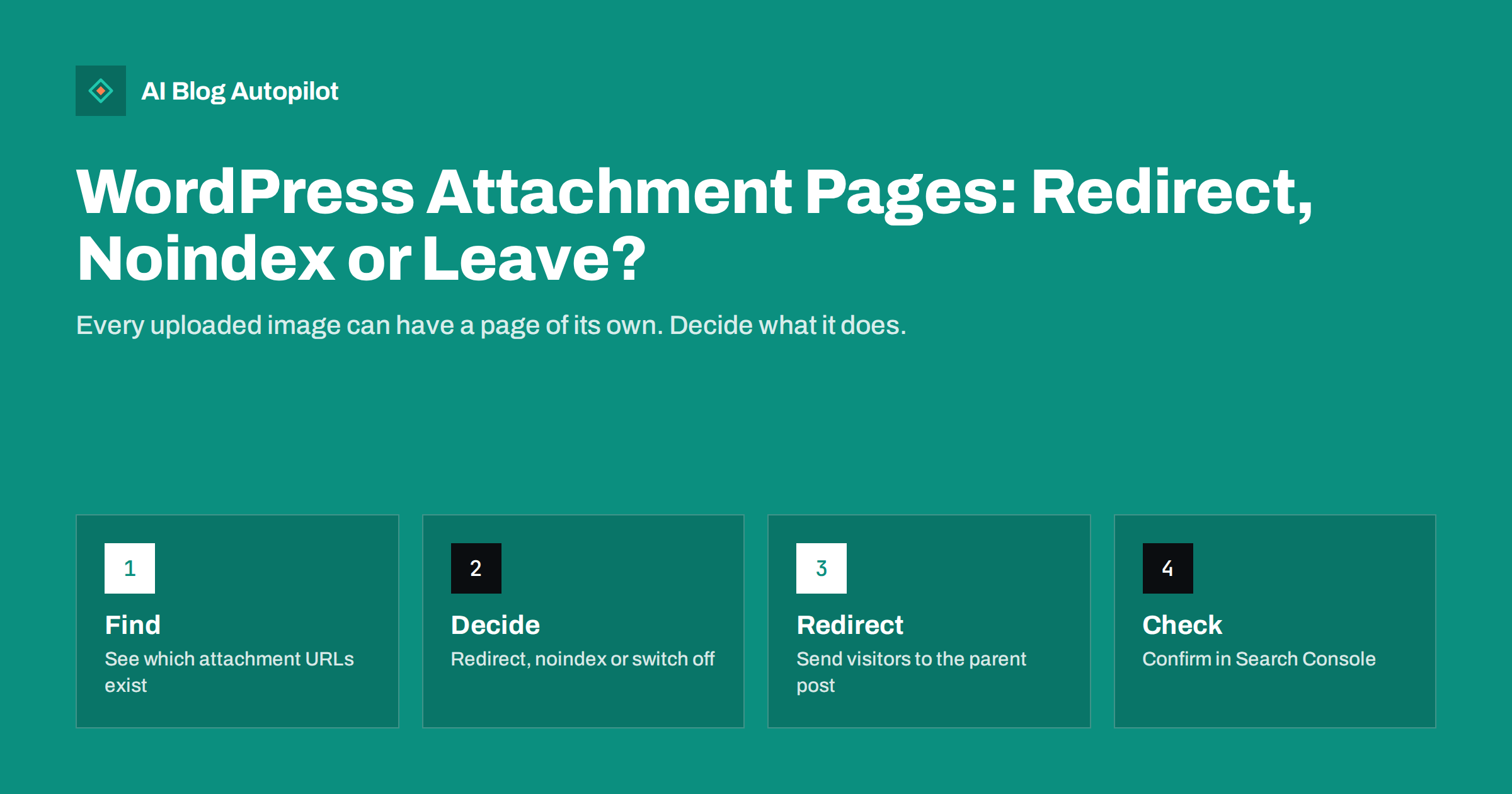
Short answer: an attachment page is a thin page that WordPress can create for every file you upload, usually showing a single image on its own. Most blogs gain nothing from them, so redirect each one to its parent post or to the file itself, or switch the pages off, and then confirm in your search reports that they drop out of the index. Keep a page only if it has real content of its own.
Attachment pages are one of those quiet WordPress behaviours that nobody chooses and many sites carry for years. A post with six images can create six extra addresses, each with a title taken from the file name and almost no text. Search engines may find some of them, index a few and then judge the site by the weakest pages. The fix is small, but it is worth doing with care so that no useful traffic is lost.
What an attachment page is
When you upload a file to the media library, WordPress stores it as an item of a special type called an attachment. Depending on the settings, that item can be shown on a public page with its own address, usually below the post that it was uploaded to. The page typically displays the image, the file name as a title, and maybe a caption and a link back to the post. Nothing else.
The page exists for convenience in some themes, such as galleries where a visitor clicks an image to see it larger. On a normal business blog it is just a duplicate view of material that already sits in the article. Newer installations of WordPress turn these pages off by default, but older sites, sites that were migrated and sites with certain themes or plugins may still have them. Check your own site instead of assuming.
Why they can hurt a blog
Each attachment page has almost no text, so it looks like thin content. If search engines index many of them, they take a share of attention that should go to your articles, and they may appear in results ahead of the post that they belong to. A visitor who lands on a bare image page with no context is likely to leave at once.
They can also confuse reporting. In the page indexing report you may see a long list of strange addresses with image names, and it becomes hard to see real problems among them. In extreme cases an attachment page outranks the article for a phrase, which gives a poor first impression. None of this is a disaster, but it is clutter that is easy to remove.
There is a minor crawl cost too. On a small blog it hardly matters, as explained in crawl budget for small sites, but a tidy site is easier to audit and less likely to show odd results.
There is also a quality signal to think about. A site whose indexed pages are mostly bare images and short fragments gives a weaker overall impression than one where every indexed address is a real article. Cleaning up is not a trick to raise rankings, but it helps the engines see what your blog is actually about, and it keeps your own reports honest.
How to find them
Start with a search for your own site. Searching the domain name together with a typical image file name, or looking at the indexed pages in your search reports, will often reveal them. Addresses usually look like the post address followed by the file name, or a number with the word attachment in the query string. Your sitemap may list them, which is a clear sign that your SEO plugin treats them as pages. See XML sitemaps explained for how to read that file.
In the search console, open the indexing report and filter the list for addresses that contain image extensions or odd short names. The URL inspection tool tells you whether a particular address is indexed and which page the search engine considers the main version.
In the media library, the list view shows what each file is attached to. Files that belong to no post are called unattached, and their pages have no parent to redirect to. That is a separate case, and the solution below covers it.
The options and when to use each
Redirect to the parent post. This is the usual best choice. The address of the attachment page sends visitors and search engines with a permanent redirect to the article that uses the image. Any value that the page has gathered moves to the article, and visitors land somewhere useful. Many SEO plugins offer this as a single setting, and WordPress itself has an option to disable the pages. Our guide to 301 and 302 redirects explains why a permanent redirect is the right type.
Redirect to the file. If the attachment has no parent, send visitors straight to the image file. This is also how recent WordPress versions behave when the pages are off. It keeps links that others made to the old address working.
Noindex. If you must keep the pages for a gallery, mark them so that they stay out of search results. This keeps the visitor experience but removes the clutter from the index. Read noindex pages on a blog before you use it, because a page that is blocked in the robots file cannot show its noindex instruction.
Improve the page. If an image deserves a page, because it is an original photograph or a diagram that people search for, add a proper description, a caption and a link to the article. That is more work, and it is rarely needed on a typical blog.
A safe way to make the change
First take a backup, as described in backups for a blog. Then change one setting at a time. In your SEO plugin, find the option for redirecting attachment addresses to the parent post, and switch it on. If you prefer to do it in WordPress, use the setting or a short code snippet that disables the pages, and test it on a staging copy when you have one.
After the change, open three or four old attachment addresses in a private browser window. Each one should send you to the article or the file with no error. Check that the redirect is a single step, because chains waste time and may be dropped, as covered in redirect chains and loops.
Update your sitemap if it listed the pages. Most plugins remove them on their own when the redirect is on, but confirm by opening the file. Then resubmit the sitemap in your search reports so that the engines notice the change sooner.
Do not forget old links. Over the years other sites, newsletters or your own posts may have linked to an attachment address. A permanent redirect keeps those links working, which is one more reason to prefer it over deleting the pages or letting them return an error. If you do see errors for such addresses in your reports, fix them with the steps in broken links: find and fix.
What to check afterwards
Give the search engines a few weeks. Watch the indexing report for the old addresses: they should move from indexed to redirected or excluded, and the number of oddly named pages should shrink. If some stay for a long time, request a fresh look at one or two through the inspection tool, but do not spam requests.
Check that your images still appear in image results and in the articles. Redirecting the page does not remove the image from the post. For tips on making the images themselves work, see image SEO for blog posts, including file names, alt text and sizes.
Finally, look at traffic to the articles. A small rise is common because the attention that went to image pages now reaches the posts. If you notice a drop for a particular article, check that its images still load and that the redirects point to the right place.
Mistakes to avoid
The most common mistake is blocking the attachment pages in the robots file. That stops crawlers from seeing any redirect or noindex instruction, so addresses already known may linger in the index. Use a redirect or a noindex tag, and leave the pages open to crawling until they have dropped out.
Another is redirecting every attachment address to the home page. That looks like a soft error to search engines and sends visitors to a page that has nothing to do with what they wanted. Always point to the parent post or to the file.
A third is changing a theme or plugin without checking the result. Some themes build galleries that depend on attachment pages, and switching them off can break the layout. Test one gallery before you roll the change out. The notes in changing a blog theme without hurting SEO apply here as well.
Lastly, do not forget the people who work on the site. If an editor expects to link to an image page in a post, explain the change so that they link to the file or the article instead.
How AI Blog Autopilot helps
AI Blog Autopilot writes full SEO articles for your WordPress blog from the topics, keywords, audience and tone you set, with FAQ sections, tags and SEO meta included, and it shares each one to your social networks. Housekeeping such as attachment pages is a one-off job on your site, and once it is done, new articles can keep arriving without leaving extra pages behind. Approval mode lets you read each article first. See the pricing page for plans.
Related reading
- Thin Content on Blogs: What It Is and What to Do
- Noindex Pages on a Blog: What to Hide From Search
- Image SEO for Blog Posts
The bottom line
Find the attachment pages, redirect them to the parent post or the file, keep them open to crawling while they drop out, and check the reports after a few weeks.
FAQ
Do I need attachment pages on a blog?
Rarely. Most blogs gain nothing from them, so a redirect to the parent post or the file is the usual choice.
Is a redirect better than noindex?
Usually yes, because it sends visitors somewhere useful. Use noindex only when you must keep the pages for a gallery.
Will redirecting remove my images from the posts?
No. The images stay in the articles. Only the separate page for each file is redirected.
Should I block attachment pages in the robots file?
No. Blocking stops crawlers from seeing the redirect or the noindex instruction, so the addresses may stay in the index.
How long until the old addresses disappear?
Often a few weeks, depending on how often the pages are crawled. Check the indexing report to follow progress.