ENEnglish
 LTLietuviškai
 DEDeutsch
 FRFrançais
 RUРусский
 ESEspañol
 PLPolski
 ITItaliano
 UKУкраїнська
 CSČeština
 PTPortuguês
 JA日本語
JA日本語 LVLatviešu valoda
 ETEesti
 HUMagyar
 IDBahasa Indonesia
 TRTürkçe
 HIहिन्दी
 ELΕλληνικά
 ARالعربية
 THไทย
THไทย VITiếng Việt
 RORomână
 MSBahasa Melayu
 BNবাংলা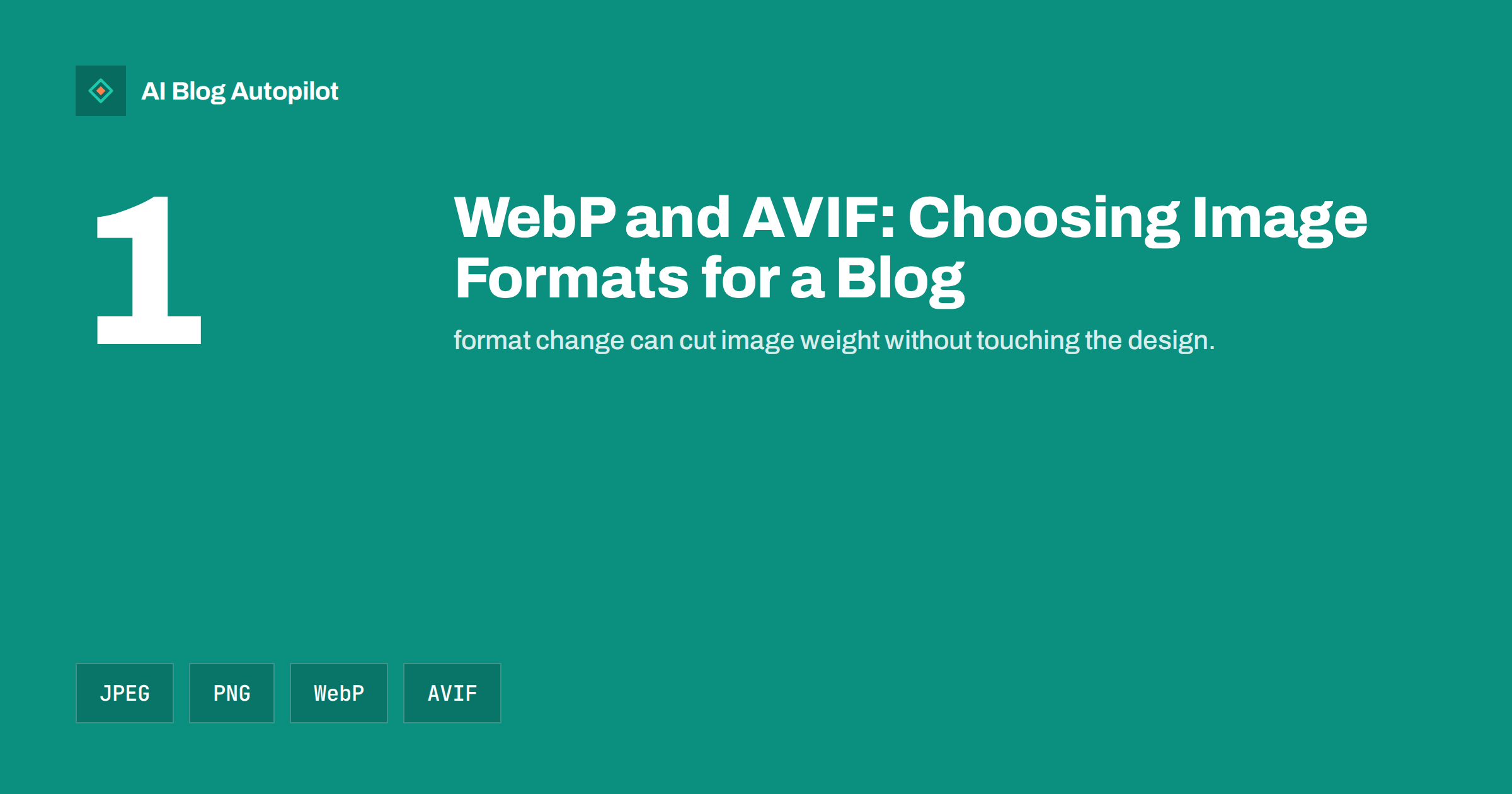
Short answer: use a modern format such as WebP or AVIF for the images on your blog pages, because they are often much smaller than JPEG or PNG at similar quality, and keep JPEG or PNG as a fallback and for the preview image that social networks fetch. Resize before you convert, check the result by eye, and let WordPress or a plugin serve the right file to each browser.
Images are usually the heaviest part of a blog post. A page with a large cover picture and a few photographs can weigh several megabytes, which is slow on a mobile connection and makes the main content appear late. Choosing a better format is one of the few speed improvements that needs no change to the design or the text. It is also easy to get wrong, so it helps to understand what each format does well.
What each format is for
JPEG is the long-standing format for photographs. It handles gradients and complex scenes well, it works everywhere and almost every tool can create and read it. Its weaknesses are that it does not support transparency and that heavy compression produces visible blocks and smudges around edges and text.
PNG keeps every pixel exactly, supports transparency and is good for screenshots, logos, diagrams and anything with sharp edges and flat colours. Its weakness is size: a photograph saved as PNG can be many times larger than the same picture as JPEG.
WebP supports both lossy and lossless compression, transparency and, in some cases, animation. It is generally smaller than JPEG or PNG for a similar appearance, and current browsers support it. AVIF is newer and can be smaller still, especially for photographs with smooth areas, and it supports transparency and high-quality colour. The price is that creating AVIF files takes more processing time and some older software cannot open them.
Browser support and fallbacks
WebP is supported by the browsers that most visitors use today, and AVIF is supported by the current versions of the main ones. Support is not universal, however, and some older browsers, email programs, feed readers and desktop tools still cannot display these formats. Check the current figures on a compatibility table before you decide, and think about your own audience: if your analytics show many visitors on old devices, keep a fallback.
The standard way to offer a choice is the picture element, which lists the modern sources first and a JPEG or PNG last. The browser picks the first format it understands. Many WordPress themes and plugins build this markup for you. If you write it by hand, keep the width and height attributes and the plain description for each image, so that the layout does not jump and the picture remains accessible. Our guide to image alt text explains how to write the description.
What WordPress can do for you
Recent versions of WordPress accept WebP uploads and can generate WebP versions of the sizes it creates, and the newest versions also handle AVIF where the server supports it. The server needs the right image library, so the options depend on your hosting. Check the media settings and the site health screen to see what is available, and test with one image before you convert a whole library.
Plugins and image services can convert existing images and serve the right format to each browser. Choose one that keeps your original files, lets you change the quality, can undo the conversion and does not slow the server on every request. Avoid combining several image plugins that all try to do the same job. Our guide to WordPress SEO plugin settings describes a careful approach to configuration that applies here too.
Resize first, then compress
The biggest saving usually comes from not sending a huge picture at all. A photograph straight from a camera may be thousands of pixels wide, while the page shows it at a few hundred. Resize the image to the largest size at which it will be shown, allowing for sharp screens, and only then choose the format and quality. Converting a giant file to a modern format helps, but not as much as sending the right dimensions.
Use responsive images, so that phones receive smaller files than desktops. WordPress creates several sizes and adds the necessary attributes by default for images inserted in the normal way. Our article on lazy loading images and SEO explains how to delay images that are far down the page, and why the main image at the top should not be delayed.
Choose quality by looking, not by a fixed number
There is no single quality setting that suits every picture. A photograph of a landscape tolerates more compression than a portrait with fine skin detail, and a screenshot with text needs more care than either. Export a few versions, compare them at the size they will be shown and choose the smallest one that still looks clean. Pay attention to text inside images, thin lines and areas of smooth colour, where problems show first.
Keep the originals in a safe place. Converting an already compressed file again and again loses detail each time, so always work from the best source. If you are not sure, a moderate setting is safer than an aggressive one: the difference in size between a good and a very low quality is often small compared with the damage to the picture.
Animated pictures need a word of caution. Animated GIF files are very large for what they show, and modern formats or short muted videos usually do the same job at a fraction of the weight. Use animation only where it explains something, such as a short demonstration of a setting, and give people a way to read the same information as text. A looping banner that distracts from the article is rarely worth the download.
Remember the preview image for social networks
The image that appears when your post is shared is fetched by other services, and not all of them handle every modern format. The safe choice is a JPEG or PNG for the preview image that you declare in your page markup, at the size recommended for sharing. Check it with a preview tool after you publish, as described in our guide to Open Graph tags, and see our article on image sizes and crops for social posts for dimensions.
The same caution applies to images used in emails, feeds and newsletters. Many email programs do not display newer formats reliably, so use JPEG or PNG there. When in doubt, test by sending the message to a few different accounts.
If you manage the site for a client or a team, write down the rules in one page and share it. Say which formats are allowed, the maximum width, who may upload and how images are named. A written rule is easier to follow than a verbal habit, and it makes it simple to train a new colleague.
Check speed and search effects
After you change formats, measure. Run a speed test on a few representative pages before and after, and look at the weight of the images, the time at which the main image appears and any layout shifts. Our article on Core Web Vitals for bloggers explains the main measures. If the numbers improve, keep the change. If not, look for another cause, such as unoptimised scripts or a slow server, as discussed in our guide to page speed for content sites.
Search engines can index modern image formats, but a faster page is the main benefit, not a ranking trick. Keep descriptive file names, alt text and captions, and make sure the images are in the page markup rather than loaded only by scripts, as covered in our guide to image SEO for blog posts.
Consider accessibility and the reader’s data costs as well. People on limited mobile plans or slow connections benefit most from lighter pages, and they are often the visitors who give up first when a page loads slowly. Provide a meaningful description for every informative image, mark purely decorative pictures so that screen readers skip them, and avoid putting important text inside an image, because it cannot be resized, translated or read aloud. A smaller, well-described picture helps every reader, whatever device they use.
Finally, keep a short checklist beside your publishing routine: resize to the right width, export in the chosen format, name the file with a few plain words, add the description, check the weight and look at the picture on a phone. Once the steps become a habit, new posts keep the benefit without extra effort, and the library stays tidy for the next redesign.
A simple rollout plan
Do not convert everything at once. Start with new images, using a workflow that resizes and exports in the right format. Then convert the images on your most visited pages and check them. Finally, deal with the older library in batches, keeping backups. Write down the settings you chose so that anyone who adds an image in future follows the same rules.
Check the pages on a real phone and on a slow connection. Look for blurry images, missing pictures in older browsers and changes in colour. If a picture looks wrong, restore the original and try another setting. A small, careful change is better than a mass conversion that nobody checks.
How AI Blog Autopilot helps
AI Blog Autopilot writes full SEO articles for your WordPress blog from the topics, keywords, audience and tone you set, with FAQ sections, tags and SEO meta included, and it shares each one to your social networks. Your own image rules, such as formats and sizes, stay in your WordPress setup and your media workflow. Approval mode lets you read each article first, so that you can check the page, including its pictures, before it goes live. See the pricing page for plans.
Related reading
- Image SEO for Blog Posts
- Lazy Loading Images and SEO
- Page Speed for Content Sites
- Featured Images for Automated Posts
The bottom line
Resize first, then choose the format: WebP or AVIF for pages, with a JPEG or PNG fallback, and a plain JPEG or PNG for social previews and email. Check the picture by eye, measure the result and roll out in small steps.
KKK
Is WebP better than JPEG?
Often it gives a smaller file at similar quality, and current browsers support it. JPEG remains a safe fallback.
Is AVIF worth using?
It can be smaller still, but it takes longer to create and is less widely supported in older tools. Use it with a fallback.
Should my social preview image be WebP or AVIF?
Use JPEG or PNG for the declared preview image, because not every service handles newer formats.
Do I need to convert old images?
Start with new images and your most visited pages, then convert the rest in batches while keeping backups.
Will changing format improve my rankings?
The main benefit is a faster page and a better reader experience. Keep file names, alt text and captions in order as well.