ENEnglish
 LTLietuviškai
 DEDeutsch
 FRFrançais
 RUРусский
 ESEspañol
 PLPolski
 ITItaliano
 UKУкраїнська
 CSČeština
 PTPortuguês
 JA日本語
JA日本語 LVLatviešu valoda
 ETEesti
 HUMagyar
 IDBahasa Indonesia
 TRTürkçe
 HIहिन्दी
 ELΕλληνικά
 ARالعربية
 THไทย
THไทย VITiếng Việt
 RORomână
 MSBahasa Melayu
 BNবাংলা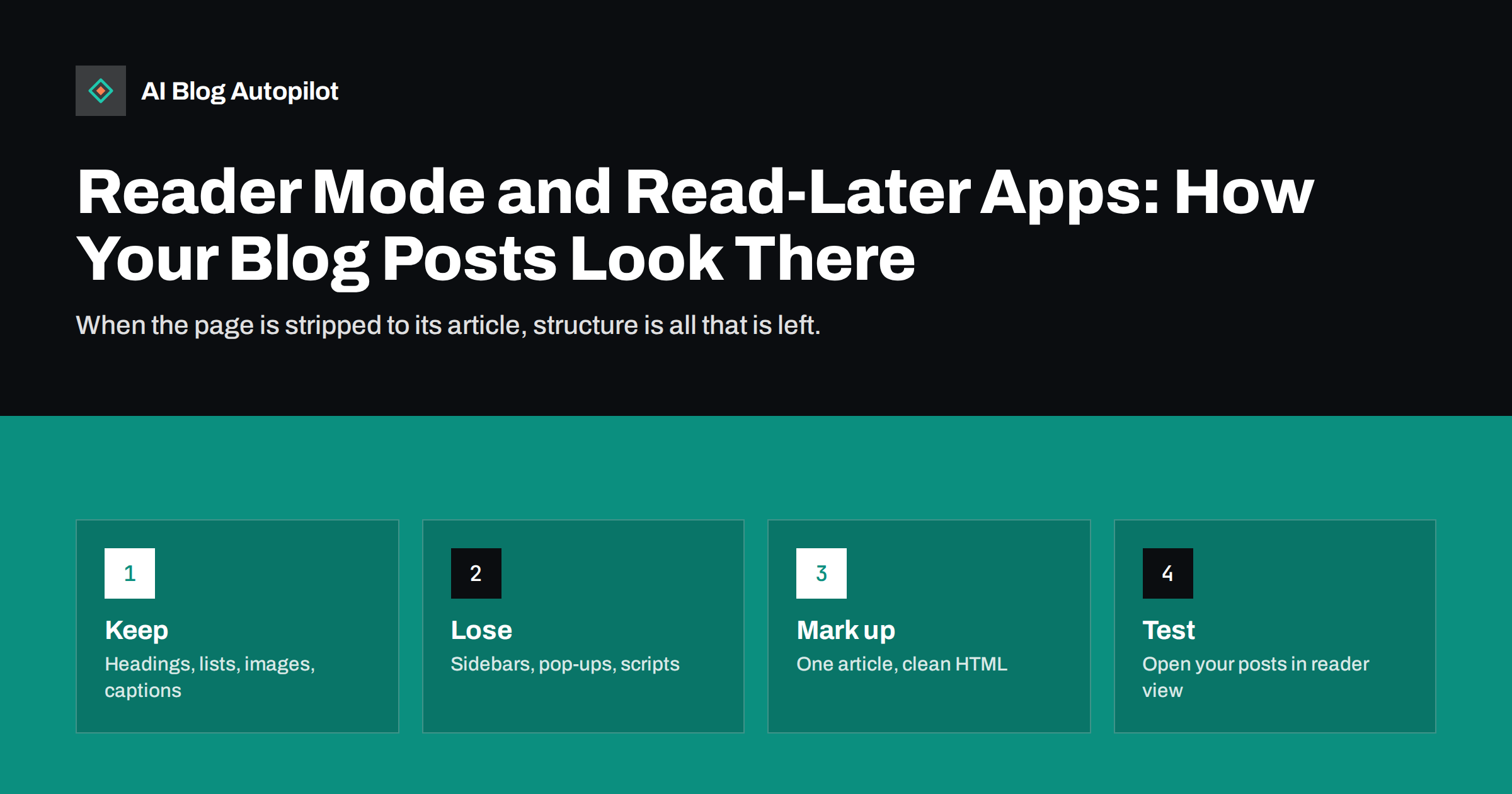
Short answer: reader modes in browsers and read-later apps extract what they judge to be the main article from a page and show it in their own clean layout, usually without your header, sidebar, pop-ups, related posts, comments or styling. They keep the headline, the body text, headings, lists, images with captions, tables and links, and they often add an estimated reading time. If your post is a single, well-marked article with real headings, plain paragraphs and images placed inside the article body, it will read well there. If important content lives in sidebars, tabs, scripts or decorative blocks, it may disappear. Test your own posts in reader view, and write and mark them up so that the article alone makes sense.
A growing share of readers never see your page as you designed it. They tap the reader icon in their browser to escape clutter, save the article to a read-later app for the train, have it read aloud by an assistant or receive it in an email digest built from the same extraction. The same stripping logic powers many tools that summarise articles and some of the systems that feed text to AI assistants. None of these care about your theme. They care about whether the main content can be found and whether it stands on its own. This article explains how the extraction works, what survives and what does not, and the small changes that make posts hold up anywhere.
How reader modes decide what the article is
Reader tools use a mix of signals to find the main content. They look for the largest block of continuous text with many paragraphs and few links, they favour elements marked as an article or main region, they read the title from the heading and the page metadata, and they discard regions that look like navigation, sidebars, footers, advertisements and comment threads. Most also read structured data and metadata to find the author, the publication date and the lead image. The rules are heuristics, which means that a page with an unusual structure can confuse them: an article split across several blocks, a long sidebar of text, or a body wrapped in generic containers with no semantic markup. The more clearly your HTML says “this is the article, this is everything else”, the more reliably every tool finds it.
What usually survives
Across browsers and apps the kept elements are broadly the same.
- The headline, usually from the main heading or the page title.
- Body paragraphs in order, with bold and italic text and inline links.
- Headings at each level, which become the article’s visible structure.
- Lists and numbered steps.
- Images inside the article body, with alt text and figure captions.
- Tables, though wide ones may be squeezed or scrolled.
- Block quotes and code blocks.
- Author, date and reading time, where the tool can detect them.
Some tools also show the lead image from your social metadata at the top, and some fetch the embedded video player if it is a standard embed.
What usually disappears
Anything that is not part of the article as the tool sees it is dropped, and some things inside the article are dropped too.
- Header, menu, sidebar, footer and anything else outside the article container.
- Pop-ups, banners and sticky bars, including cookie notices and newsletter overlays.
- Related posts, author boxes and comment sections, unless they are inside the article markup, in which case they may be kept as noise.
- Content loaded by scripts after the page renders, such as tabs, accordions and lazy-loaded sections that require interaction.
- Call-to-action blocks built as styled containers rather than text, and buttons that are not plain links.
- Background images and CSS-only visuals, which have no place in the extracted HTML.
- Your styling: colours, fonts, column layouts and custom spacing are replaced by the reader’s own.
- Tables of contents that are generated by script, and sometimes those that are plain links too, if they look like navigation.
The practical consequence is that any sentence the reader must see has to be in the article body as ordinary text. Our article on content in tabs and accordions covers the related indexing question.
Marking up a post so it extracts cleanly
Most of this is simply good HTML, and most WordPress themes do it by default. Check rather than assume.
- One article element that contains the headline and the whole body, and nothing else of substance. Keep related posts, comments and sharing buttons outside it.
- A single main heading that matches the title people will see in the tool.
- Real headings for sections, not bold paragraphs pretending to be headings.
- Images as figures with captions inside the body, each with alt text, so that the image and its explanation travel together.
- Plain links for calls to action, with sentences around them, so that a request to contact you survives as readable text.
- Author and date in the markup, using the conventional elements or structured data, so that tools can show them.
- Article structured data with headline, author, dates and image, which many tools read to fill gaps.
- Content delivered in the HTML, not assembled by scripts after load, for every part of the article that matters.
Semantic markup is the common thread. Our article on semantic HTML for blog posts goes through the elements in detail.
If your theme wraps the post in generic containers, a child theme or a small template change usually fixes it, and the change benefits every article at once. Page builders deserve a closer look, because some of them nest the body inside several layers of layout blocks and place widgets inside the article area, which is exactly what confuses extractors.
Writing for a stripped page
Markup gets the article into the tool. Writing decides whether it makes sense once it is there.
- Do not depend on layout. “See the box on the right” or “as the sidebar shows” means nothing in reader view. Put the information in the text.
- Make headings descriptive. In a plain layout, headings are the only visual structure, so “Pricing” beats “What you need to know”.
- Put the main point early in each section and in the article, since readers in these tools skim and reading time is shown up front.
- Explain images in captions and text. A chart with no caption and no explanation nearby loses its meaning when the surrounding design is gone.
- Write calls to action as sentences. “If you want help with this, contact us through the form on our contact page” survives; a styled button may not.
- Keep tables narrow. Three or four columns read well on a phone in reader view; eight do not.
- Avoid content that only works with interaction, such as quizzes or calculators, unless there is a text summary of the result.
Testing your posts
Testing takes minutes and reveals problems that no analytics report shows.
- Open a recent post in two different browsers and switch on reader view. Check the title, the first paragraph, the headings, every image and the end of the article.
- Save the post to a read-later app and open it on a phone. Note anything missing or any noise that was kept.
- Check the FAQ section and the final summary in particular, because tools sometimes stop extracting where the article appears to end, and anything after a large related-posts block or an advert can be cut off.
- Compare the reading time the tool shows with your own estimate. A number that is far too low usually means that part of the article was not extracted, and a number that is too high means that noise was included.
- Ask a text-to-speech assistant to read the page. Listen for headings read as sentences, missing captions and calls to action that make no sense aloud.
- View the page with styles disabled, which shows roughly what extractors receive.
- Repeat the test after any theme change or plugin update, since those are what usually break extraction.
Keep a note of what each tool kept and dropped. Patterns across several posts point to a template problem; a problem on one post points to its content.
Why this matters beyond reader mode
The same extraction underlies more than reading apps. Email digests and newsletter tools that pull in articles use it. Summarisation features in browsers and productivity tools use it. Accessibility tools and screen readers rely on the same semantic structure. And systems that gather text for AI assistants need to find the main content of a page too; a post whose key facts live in a script-driven widget is invisible to them. Writing and marking up each article so that it stands alone in plain form is therefore not a niche concern. It is the baseline for being read, summarised, cited and heard correctly, whoever or whatever is doing the reading.
How AI Blog Autopilot helps
AI Blog Autopilot publishes articles to your WordPress blog as ordinary posts with real headings, paragraphs, lists and an FAQ section, with the title, description and tags set at publication, so that the article body is clean, self-contained HTML that reader tools can extract. Each article is also shared to your connected social networks with its own text and timing. The theme and template remain yours to check. Plans are on the pricing page.
Related reading
- Semantic HTML for Blog Posts: Markup That Helps Search
- Blog Design That Helps People Read
- Content in Tabs and Accordions: Does Search Index It?
- Reading a Blog on a Phone: What to Fix First
The bottom line
Reader modes and read-later apps reduce your page to its article, keeping headings, text, lists, images with captions and links, and discarding layout, scripts, sidebars and overlays. Mark each post up as one clearly defined article with real headings and figures, keep everything that matters in the body as text, write without depending on layout, and test posts in reader view after every template change. The same habits make posts easier to summarise, read aloud and cite.
KKK
Do reader modes keep images?
Usually yes, if the images are inside the article body with alt text and captions. Background images and decorative CSS visuals are dropped.
Why does my sidebar text appear in reader view?
The extractor judged it to be part of the main content, often because it sits inside the article container or contains a lot of text. Move it outside the article markup.
Will content in tabs or accordions show in reader mode?
Only if it is present in the HTML when the page loads. Content built or fetched by scripts on interaction is usually missing.
Does reader mode affect SEO?
Not directly, but the same clean structure helps search engines, accessibility tools and AI systems find and understand the article, so the fixes overlap.
How can I test how my post looks in these tools?
Open the post in a browser’s reader view, save it to a read-later app on a phone and view the page with styles disabled. Repeat after theme or plugin changes.