ENEnglish
 LTLietuviškai
 DEDeutsch
 FRFrançais
 RUРусский
 ESEspañol
 PLPolski
 ITItaliano
 UKУкраїнська
 CSČeština
 PTPortuguês
 JA日本語
JA日本語 LVLatviešu valoda
 ETEesti
 HUMagyar
 IDBahasa Indonesia
 TRTürkçe
 HIहिन्दी
 ELΕλληνικά
 ARالعربية
 THไทย
THไทย VITiếng Việt
 RORomână
 MSBahasa Melayu
 BNবাংলা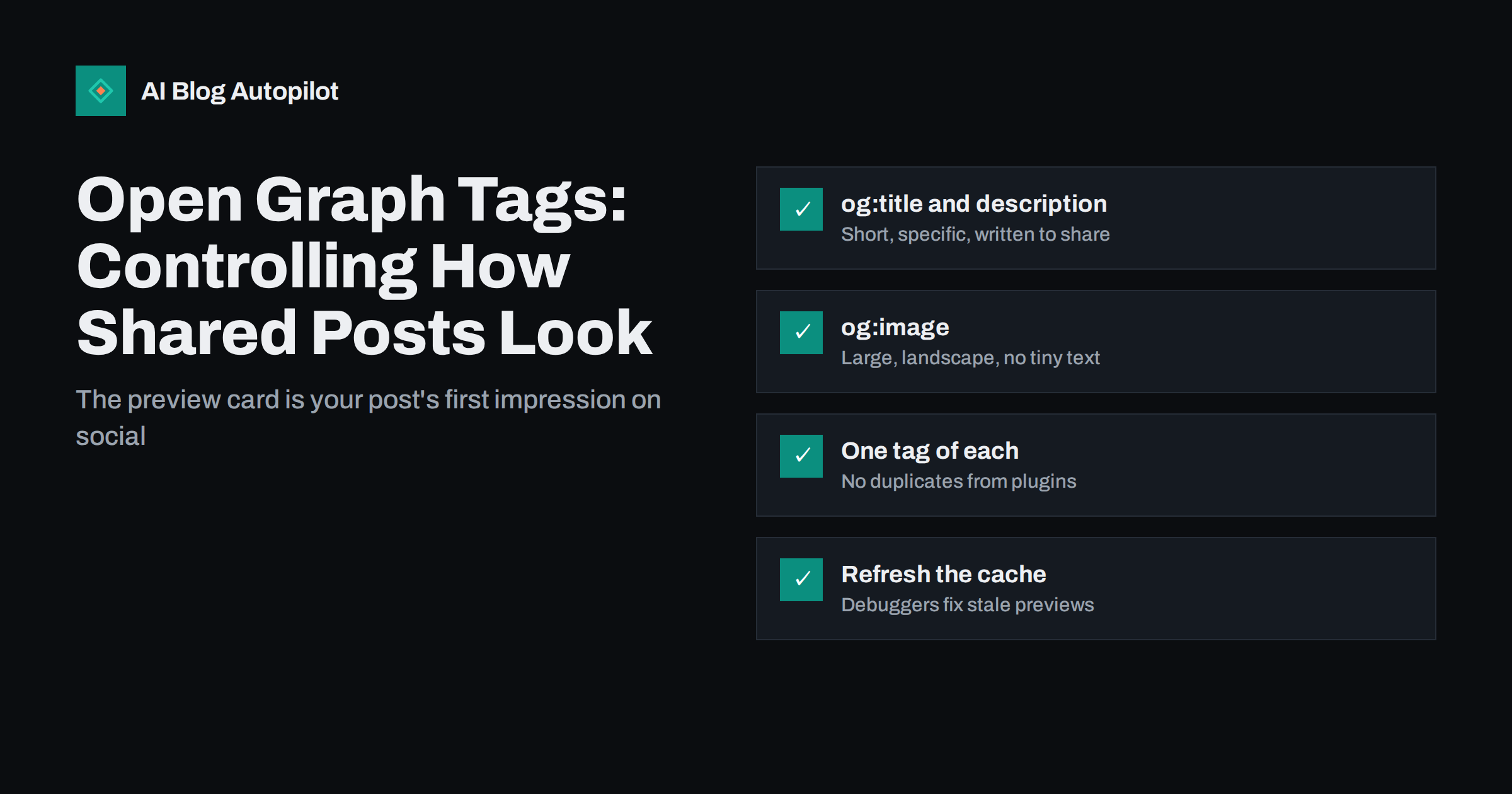
Short answer: Open Graph tags are meta tags in a page’s HTML head that tell social networks and messaging apps what title, description and image to show when someone shares the link. For a blog post, the essentials are og:title, og:description, og:image, og:url and og:type, plus the Twitter card tags that some platforms read instead. Most WordPress SEO plugins generate them from the post title, excerpt and featured image. The most common problems are a missing or badly cropped image, duplicate tags from two plugins and old previews cached by the platforms, which their debugging tools can refresh.
When a blog post is shared on a social network or pasted into a chat, it usually turns into a card: an image, a headline and a line of text. That card is often the first thing people see of your article, long before they read a word of it.
Whether the card looks sharp or broken is decided by a handful of tags in your page’s HTML. This guide explains what they are, how to set them well on a blog and how to troubleshoot the problems that appear most often.
What Open Graph tags are
The Open Graph protocol was introduced by Facebook to let any web page describe itself as a rich object when shared. It is documented at ogp.me and is now read by most major social networks and many messaging apps.
The tags are ordinary meta elements with a property attribute, placed in the head of the page:
<meta property="og:title" content="Canonical Tags Explained Without the Jargon">
<meta property="og:description" content="What a canonical tag does and when to use one.">
<meta property="og:image" content="https://example.com/images/canonical-cover.png">
<meta property="og:url" content="https://example.com/canonical-tags-explained/">
<meta property="og:type" content="article">
When someone shares the URL, the platform fetches the page, reads these tags and builds the preview card from them. If the tags are missing, the platform guesses from the page content, which often produces the wrong image or a random sentence as the description.
The tags a blog post needs
A small set covers almost every case:
| Tag | What it controls | Typical source on a blog |
|---|---|---|
| og:title | Headline on the card | Post title or a separate social title |
| og:description | Line of text under the headline | Excerpt or meta description |
| og:image | The preview image | Featured image |
| og:url | The canonical address of the post | The post’s permalink |
| og:type | Kind of content | “article” for posts, “website” for the homepage |
| og:site_name | Site name shown on some cards | Your blog or business name |
| twitter:card | Card layout on X and some other platforms | Usually “summary_large_image” |
Article pages can also carry tags such as article:published_time and article:author. They are not essential for the preview, but some platforms and tools read them.
The Twitter card tags deserve a note. X reads its own twitter: tags first and falls back to Open Graph for most values, so a site with good Open Graph tags plus a twitter:card tag is usually covered. Most SEO plugins output both.
Writing the title and description for sharing
The social title and description do not have to match your search title and meta description, although they often can. The context is different: in search, people are looking for an answer; on social, they are scrolling past things they did not ask for.
- Keep the title specific. Say what the article gives the reader. “Seven robots.txt mistakes that hide blog posts” is more shareable than “Robots.txt guide”.
- Keep it short. Many cards show only one or two lines of title. Put the key words first.
- Make the description add something. Do not repeat the title. Give the main benefit or the most useful detail in one sentence.
- Stay honest. A card that promises more than the article delivers gets clicks that leave immediately, and your followers remember.
Most SEO plugins let you set a separate social title and description per post. Use those fields when the search version does not work well on social; otherwise leave the defaults.
Getting the preview image right
The image does most of the work on a card, and it causes most of the problems.
- Use a large landscape image. 1200 × 630 pixels is the widely used recommendation for large link previews and works across most platforms. Smaller images may be shown as a small thumbnail instead of a large card.
- Keep important content in the centre. Platforms crop differently; some trim the edges or show a square version. Text or faces near the edges may be cut off.
- Avoid tiny text. Cards are often viewed on phones at a fraction of the original size. A headline on the image should be large and short, or absent.
- Use an absolute URL over https. The og:image value must be a full address that the platform can fetch publicly, not a relative path or an image behind a login.
- Keep file size reasonable. Very large files may time out when the platform fetches them. A well-compressed PNG or JPEG usually works best.
- Give every post its own image. A single default image on every card makes all your shares look the same in a feed.
Avoid plain white backgrounds for preview images: on light-themed feeds the card edges disappear and the image looks unfinished. A solid brand colour or a dark background stands out better.
Think about the preview image as part of a series. Readers who follow you see many of your cards over time, so a consistent layout, colour and style helps them recognise your posts at a glance, while a different title or key idea on each image keeps them distinct. Designing a simple template once and reusing it for every post is usually more effective than creating each image from scratch.
Setting Open Graph tags in WordPress
WordPress core does not output Open Graph tags by itself, but most SEO plugins do, and some themes include their own. The typical setup:
- Install one SEO plugin and enable its social or Open Graph features.
- Set a default image in the plugin, used when a post has no featured image.
- Give every post a featured image of a suitable size; the plugin uses it for og:image.
- Write a good excerpt or meta description; the plugin uses it for og:description.
- Override the social title, description or image per post only when needed.
The most important rule is to let only one component output the tags. When a theme, an SEO plugin and a social sharing plugin all add Open Graph tags, the page ends up with two or three og:image tags, and platforms may pick the wrong one.
Troubleshooting broken previews
When a card looks wrong, the cause is usually one of these:
- Wrong or missing image. View the page source and search for og:image. If it is absent, the plugin is not outputting tags or the post has no featured image. If there are several, disable the duplicate source.
- An old preview. Platforms cache previews, sometimes for a long time. If you changed the title or image after the first share, the old version keeps appearing.
- Image not fetched. The image URL is blocked by robots.txt, requires a login, uses http on an https site or redirects several times.
- Description taken from the page body. og:description is missing, so the platform picked text itself, often a cookie notice or menu text.
- Wrong URL on the card. og:url points at a staging address or a different version of the page.
Platforms provide tools to check and refresh previews. Facebook’s Sharing Debugger shows what its crawler sees and lets you scrape the page again, and LinkedIn offers a similar Post Inspector. Run the URL through them after fixing tags, then share again.
Messaging apps behave similarly. They fetch the page when a link is first pasted, build a preview and may keep it for a while. If a link was pasted before you fixed the tags, the old preview can persist in that conversation even after the platform’s cache is refreshed.
Check before you share
A thirty-second routine before sharing a new post prevents most embarrassment:
- Paste the URL into a sharing debugger and look at the card it builds.
- Confirm the image is the right one, sharp and not badly cropped.
- Read the title and description as a stranger would.
- Only then share it, because the first share is often what gets cached.
If you share automatically, run this check once on a few posts after any theme or plugin change, since that is when tags usually break.
How AI Blog Autopilot shares posts
AI Blog Autopilot publishes each article to your WordPress blog and then shares it to your connected social networks, with its own text, length and timing for each network. Where a network shows a link preview, that preview is built from your blog’s Open Graph tags, so a sound setup of the kind described here makes every automatic share look as intended. You can see the networks and how sharing works on the AI Blog Autopilot home page.
Related reading
- Turning an Article Into Social Posts That Get Read
- Featured Images for Automated Posts: What Works and What to Avoid
- Auto-Post Every New Blog Article to Social Media Automatically
- Title Tag vs H1: Should They Match on a Blog Post?
The bottom line
Open Graph tags decide how your posts look everywhere they are shared. Let one SEO plugin output them, give every post a large, well-cropped featured image and a clear excerpt, and write a social title when the search title is not enough. When a preview looks wrong, check the page source for missing or duplicate tags and refresh the platform’s cache with its debugging tool before sharing again.
KKK
What are Open Graph tags?
Open Graph tags are meta tags in a web page’s HTML head that tell social networks and messaging apps which title, description, image and URL to use when the page is shared. They were introduced by Facebook and are now read by most major platforms.
What size should an Open Graph image be?
1200 by 630 pixels is the widely used recommendation for large link previews and works on most platforms. Keep important content near the centre, because some platforms crop the edges or show a square version.
Why is the wrong image showing when I share my post?
The page may have no og:image tag, several conflicting og:image tags from different plugins, or the platform may still be showing a cached preview. Check the page source, remove duplicate sources of tags, then refresh the preview with the platform’s debugging tool.
Do I need Twitter card tags as well as Open Graph?
It is best to have at least the twitter:card tag. X reads its own tags first and falls back to Open Graph for most values, so Open Graph plus twitter:card usually covers it. Most SEO plugins output both automatically.
Do Open Graph tags help SEO?
They do not directly affect search rankings. They control how your posts look when shared, which influences whether people click and share them further. That can bring more visitors and attention, but it is not a ranking signal in itself.