ENEnglish
 LTLietuviškai
 DEDeutsch
 FRFrançais
 RUРусский
 ESEspañol
 PLPolski
 ITItaliano
 UKУкраїнська
 CSČeština
 PTPortuguês
 JA日本語
JA日本語 LVLatviešu valoda
 ETEesti
 HUMagyar
 IDBahasa Indonesia
 TRTürkçe
 HIहिन्दी
 ELΕλληνικά
 ARالعربية
 THไทย
THไทย VITiếng Việt
 RORomână
 MSBahasa Melayu
 BNবাংলা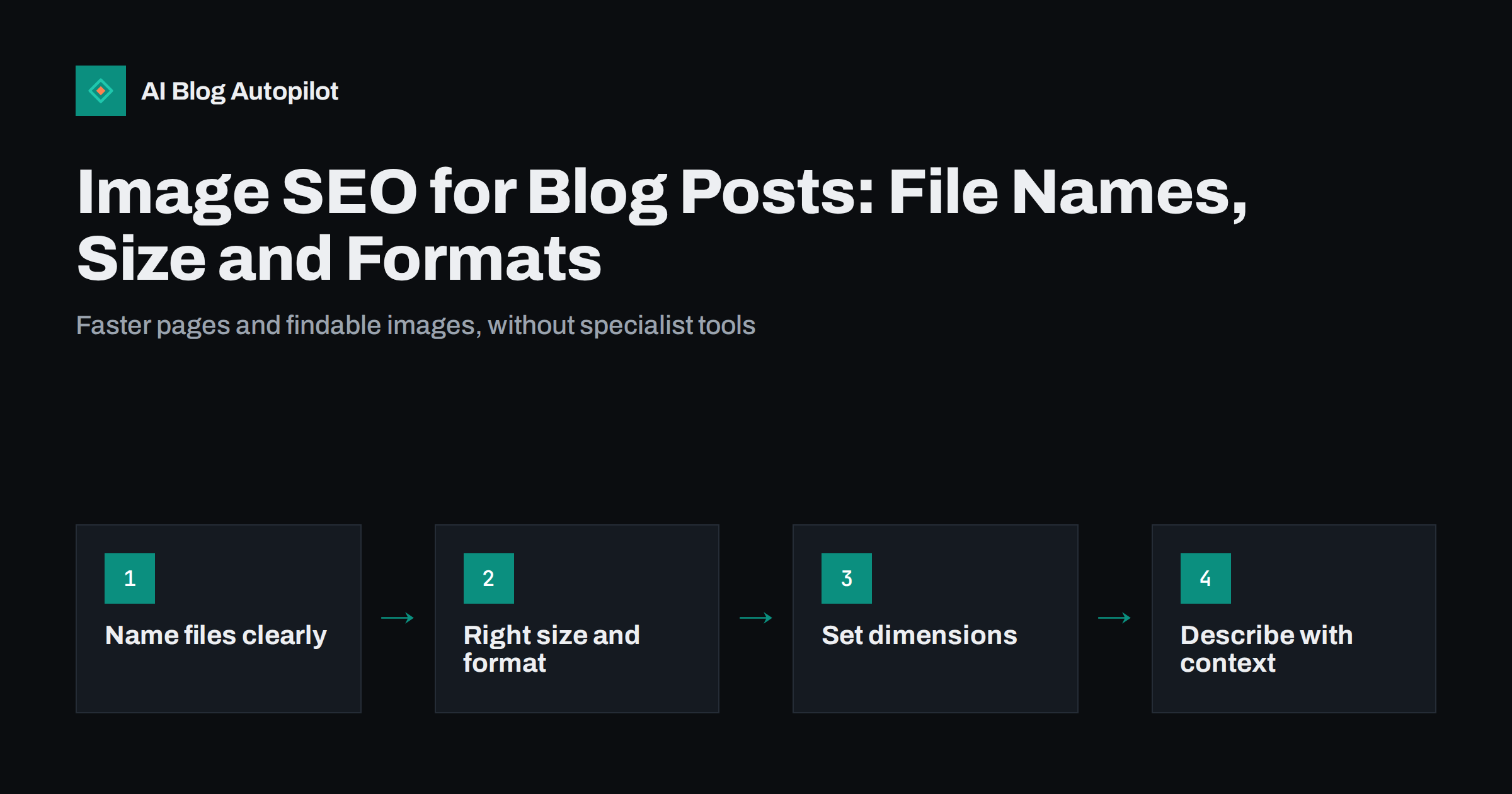
Short answer: image SEO for a blog comes down to a few habits. Give each image a descriptive file name, resize it to roughly the largest size it will be displayed at, compress it and use a modern format such as WebP or AVIF, or JPEG for photos and PNG for simple graphics. Set width and height so the layout does not jump, lazy-load images below the first screen, and describe each meaningful image with alt text and, where useful, a caption. Place images near the text they illustrate. These steps make pages faster and help search engines understand and show your images.
Images make blog posts easier to follow, more shareable and more memorable. They are also, very often, the heaviest part of a page and the part search engines understand least. A single uncompressed photo can weigh more than the entire rest of the article.
Image SEO is about fixing both problems: making images light enough not to slow the page, and clear enough that search engines know what they show. None of it requires special software. This guide covers the essentials for a typical blog.
Why images matter for SEO
Images affect search performance in several ways:
- Page speed. Large images are the most common cause of slow pages on content sites. The main image near the top of a post is often the element that determines how quickly the page appears to have loaded.
- Layout stability. Images without set dimensions push text around as they load, which is irritating for readers and measured by search engines as layout shift.
- Image search. Well-described images can appear in image results and in visual search features, bringing visitors who would never have found the article through text search.
- Understanding. Alt text, captions and surrounding text help search engines understand what an image shows and how it relates to the article.
- Sharing. The featured image often becomes the preview image when a post is shared on social networks.
Google’s image SEO best practices cover many of these points and are worth reading once.
File names that describe the image
A file name is a small but free signal. Compare IMG_4821.jpg with sourdough-starter-bubbles.jpg. The second tells search engines, and anyone who downloads the image, what it shows.
- Use a few descriptive words, separated by hyphens.
- Describe the image, not the article. “sourdough-starter-bubbles” is better than “best-bread-baking-tips-2”.
- Use lowercase letters and avoid spaces and special characters, which can produce awkward encoded URLs.
- Rename before uploading. Changing a file name after publication changes its URL and can break embeds and links.
This takes seconds per image and is easy to build into a routine. If several people upload images, agree on a simple pattern, such as subject first and then detail, so the media library stays searchable. A tidy library also makes it easier to find and reuse images later, instead of uploading the same picture three times under different meaningless names.
Choosing the right format
Different formats suit different images:
| Format | Best for | Notes |
|---|---|---|
| WebP | Photos and graphics | Usually smaller than JPEG or PNG at similar quality; widely supported |
| AVIF | Photos | Often smaller still; support is broad in current browsers |
| JPEG | Photos | Universal fallback; use sensible compression |
| PNG | Screenshots, diagrams, images with transparency | Lossless and sharp, but large for photos |
| SVG | Logos, icons, simple illustrations | Scales perfectly; not for photos |
Many WordPress setups and image optimisation plugins can convert uploads to WebP automatically and serve the original format to the rare browser that needs it. If yours does, you can keep uploading JPEG and PNG files.
Resizing and compressing
The most common image mistake on blogs is uploading a photo straight from a camera or phone, often several thousand pixels wide and several megabytes in size, into an article column that displays it at a fraction of that width.
- Resize to the display size. Check the maximum width of your content column and upload images at roughly that width, or up to twice that for sharp display on high-density screens. Featured and social preview images have their own recommended sizes.
- Compress. Use an image optimisation plugin, an online compressor or your editing software’s export settings. For photos, moderate lossy compression usually saves a great deal with no visible difference.
- Let WordPress create responsive sizes. WordPress generates several sizes of each upload and adds a
srcsetattribute, so browsers can choose a smaller file on a phone. Upload a sensibly sized original so these copies are useful. - Check the result. Open the published post on a phone and look at the image file sizes in your browser’s developer tools. A typical in-article image rarely needs to be more than a few hundred kilobytes.
Be careful with very aggressive compression on screenshots and diagrams. Text in a screenshot becomes blurry quickly, and a chart with smudged labels is worse than no chart. For those images, a lossless format or gentler settings are usually the better trade-off, even if the file is a little larger.
It is also worth checking old posts. Many blogs have years of oversized uploads from before anyone thought about image weight. Bulk optimisation plugins can compress existing images in the media library, but test them on a copy or a few posts first and keep backups of the originals.
Dimensions and lazy loading
Two HTML details have a large effect on how a page feels:
- Width and height attributes. When an image has its dimensions set, the browser reserves the right amount of space before the file arrives, so text does not jump. WordPress adds these automatically for images inserted through the editor; check custom themes and page builders.
- Lazy loading. The
loading="lazy"attribute, documented on MDN’s img reference, tells the browser to load an image only when the reader scrolls near it. WordPress adds it by default to most images.
One exception matters: the main image at the top of the post should not be lazy-loaded, because it is visible immediately and delaying it slows the page’s main content. Recent WordPress versions try to detect this and leave the first large image eager, but it is worth checking in your theme.
Alt text, captions and surrounding text
Search engines cannot see images the way people do. They rely on text:
- Alt text describes the image for people using screen readers and for search engines. Write a short, specific description of what the image shows and why it is there. Leave it empty only for purely decorative images.
- Captions are read by far more people than body text, and they give context. Use them when an image needs explanation, such as a chart or a before-and-after comparison.
- Surrounding text matters too. An image placed next to the paragraph that discusses it is easier to understand than one dropped at random.
- Title attributes are optional and add little; alt text is what counts.
Original images carry more value than stock photos that appear on thousands of other sites. A photo of your own product, a screenshot of a real setting or a diagram you drew yourself gives readers something they cannot find elsewhere, and gives search engines a reason to show your version.
Avoid stuffing keywords into alt text. “Sourdough starter with active bubbles in a glass jar” is useful. “Sourdough bread recipe best sourdough starter” is not.
Featured images and social previews
The featured image does more than decorate the top of a post. Themes use it in archive pages and related-post blocks, and SEO plugins usually use it as the social preview image.
- Use a large, landscape image, commonly 1200 × 630 pixels or larger for social previews.
- Keep important content away from the edges, since different places crop it differently.
- Give each post its own image, so posts are distinguishable in archives and feeds.
- Avoid plain white backgrounds, which can look unfinished in search features and on light social feeds.
A quick image checklist before publishing
- File renamed with descriptive, hyphenated words.
- Resized to roughly the display width and compressed.
- Modern format, or automatic conversion enabled.
- Alt text written for every meaningful image.
- Caption added where the image needs explanation.
- Top image not lazy-loaded; others lazy-loaded.
- Featured image set and suitable for social previews.
- Page checked on a phone for speed and layout.
Once these become habits, image SEO takes a minute or two per post.
How AI Blog Autopilot fits in
AI Blog Autopilot writes and publishes long-form articles, with FAQ, tags and SEO meta, to your WordPress blog and shares each one to your social networks. Your WordPress theme and image plugins continue to handle image sizes, formats and lazy loading as they do for any post, so the one-off checks in this guide apply to automated posts too. You can see how it works on the AI Blog Autopilot home page.
Related reading
- Alt Text: How to Write It and Why It Matters
- Page Speed on a Content Site: What Actually Helps
- Featured Images for Automated Posts: What Works and What to Avoid
- Screenshots, Diagrams and Charts in Blog Articles
The bottom line
Image SEO is mostly about habits, not tools. Name files clearly, upload images at a sensible size, compress them and use modern formats, set dimensions, lazy-load everything except the top image, and describe meaningful images with alt text and captions. The result is faster pages, steadier layouts and images that search engines can understand and show.
KKK
Do image file names matter for SEO?
They are a small signal, but a free one. A descriptive, hyphenated file name such as sourdough-starter-bubbles.jpg helps search engines understand the image, while names like IMG_4821.jpg say nothing. Rename files before uploading.
What is the best image format for a blog?
For most photos and graphics, WebP is a good default because it is usually smaller than JPEG or PNG at similar quality. AVIF can be smaller still. JPEG remains a safe fallback for photos, PNG suits screenshots and diagrams, and SVG suits logos and icons.
How large should blog images be?
Resize images to roughly the width they are displayed at, or up to twice that for sharp display on high-density screens, and compress them. A typical in-article image rarely needs to be more than a few hundred kilobytes.
Should I lazy-load all images?
Lazy-load images below the first screen, but not the main image at the top of the post. That image is visible immediately, and delaying it slows how quickly the main content appears.
Is alt text required for every image?
Every meaningful image should have alt text that describes what it shows. Purely decorative images, such as dividers or background patterns, should have empty alt text so screen readers skip them.
Can images bring traffic from image search?
Yes, especially for topics where people look for visual answers, such as products, recipes, designs, diagrams and how-to steps. Descriptive file names, alt text, relevant surrounding text and original images improve the chances, although traffic from image search is usually smaller than from web search.