ENEnglish
 LTLietuviškai
 DEDeutsch
 FRFrançais
 RUРусский
 ESEspañol
 PLPolski
 ITItaliano
 UKУкраїнська
 CSČeština
 PTPortuguês
 JA日本語
JA日本語 LVLatviešu valoda
 ETEesti
 HUMagyar
 IDBahasa Indonesia
 TRTürkçe
 HIहिन्दी
 ELΕλληνικά
 ARالعربية
 THไทย
THไทย VITiếng Việt
 RORomână
 MSBahasa Melayu
 BNবাংলা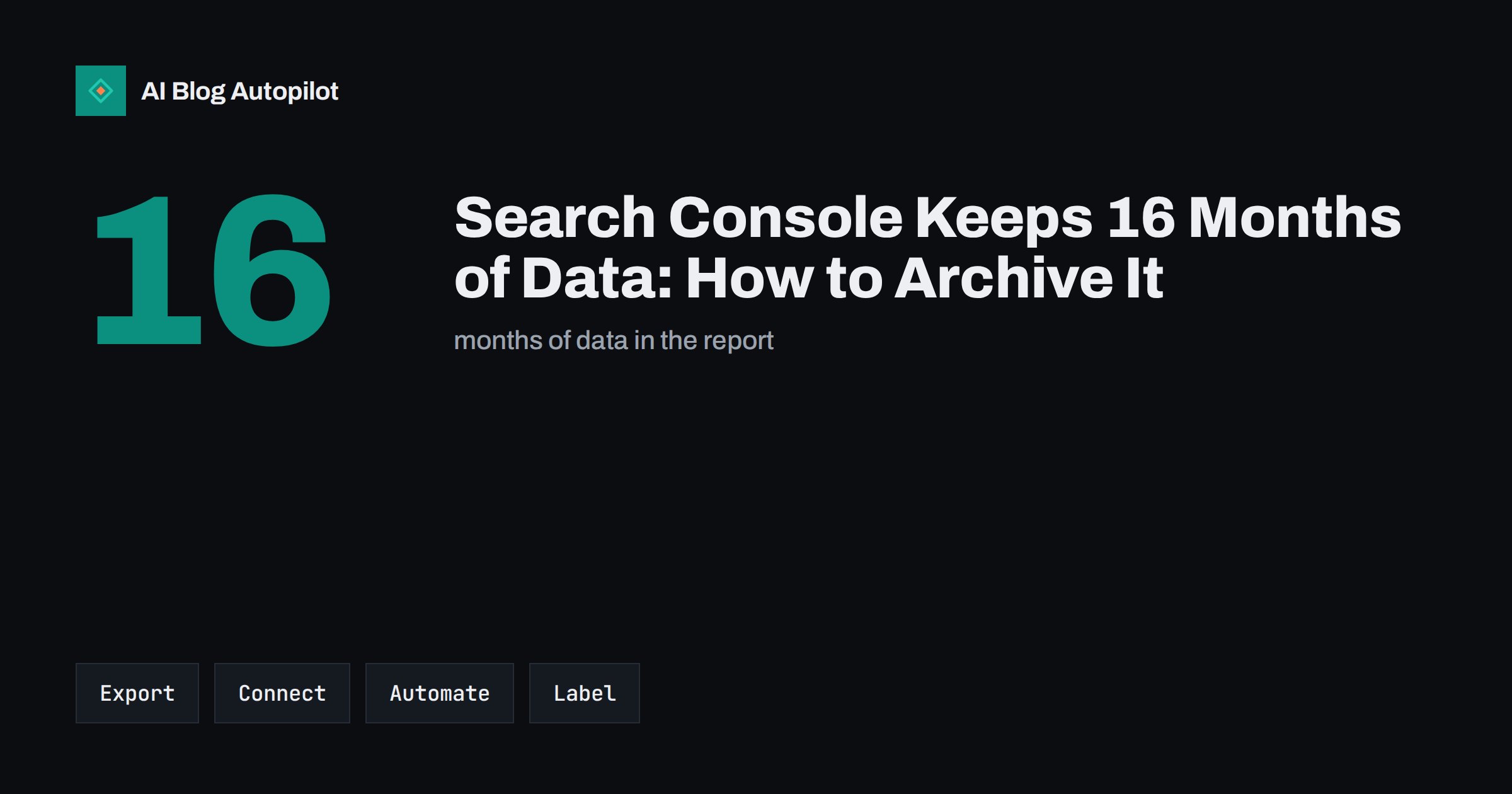
Short answer: the performance report in Google Search Console shows about 16 months of data, and older figures cannot be recovered afterwards. To keep a longer history, save your own copy. The simplest method is a monthly export to a spreadsheet. More advanced options are a connected dashboard that stores data, the reporting interface of the service and an automatic bulk export that you switch on once. Whichever you choose, start now, since only the data collected after you begin is safe.
Many site owners discover the limit only when they want to compare this autumn with last autumn, and find that part of last year is missing. For a blog, year-on-year comparisons are some of the most useful numbers, because they remove the effect of the seasons. This article explains what is stored, what to save and four practical ways to build an archive without much cost.
You do not need to be technical to do the first two methods. They take a few minutes a month and give you a record that grows more valuable each year.
What the limit means
Search Console keeps search performance data for about 16 months. Each day, the oldest day drops out of the report. If you open the report today, you can see data back to roughly the same date more than a year ago, and nothing earlier. There is no setting to extend this.
The limit applies to the performance reports on queries, pages, countries and devices. Other reports, such as indexing status, have their own history and their own limits, and some show only the latest state. It is worth checking each report you care about, and noting how far back it goes.
Without an archive, you lose the ability to compare long periods, to see how a change made two years ago played out, or to prove to a client what happened. The guide to year-over-year blog traffic shows why such comparisons matter, and why one extra year of history can change your conclusions.
Think about the questions you may ask in two years. Which articles gave the most search visits in a given season? Did a change of theme or a clean-up of old posts help? How did branded searches grow compared with other searches? An archive that can answer these is worth the small effort of saving it, and it is easier to design with the questions in mind.
What to save
Decide what you will want to know later. The most useful tables are the daily totals of clicks, impressions, average click-through rate and average position, the table of pages with their clicks and impressions, and the table of queries. If you serve several countries or languages, add the country table. Device splits are useful as a second priority.
Save the data at the level that you will use. Daily totals are small, and they allow any chart later. Page and query tables are bigger, and they are best saved per month, so that you can see which pages and phrases rose or fell. A table of the top pages for each month is usually enough for a small blog.
Remember to save the context, too. Note which property you used, the filters that you applied, such as excluding the brand name, and the date of the export. A file without this information is hard to interpret a year later. A short text line at the top of each file is enough.
Do a small check each time. Open the file and look at the totals for the month, and compare them with the number shown in the report. If they match, the export is complete. If they do not, you may have applied a filter by mistake, and it is better to find this out now than when you need the file.
Method 1: a monthly export
The simplest archive is a set of files saved once a month. In the performance report, choose the date range for the whole of the last month, select the tab that you want, such as pages, and use the export option to download a spreadsheet or open it in a spreadsheet tool. Repeat for queries and for the daily totals.
A direct export from the screen is limited to the rows shown, up to a fixed number per table, which is enough for most small blogs but not for large sites. If you reach the limit, filter by country or by folder to get more complete coverage, or use one of the other methods below.
Name the files in a regular way, such as the year, the month and the table, and keep them in one folder that is backed up. Put a reminder on the first day of each month. It is dull but dependable, and it will give you a record that is yours. The article on Search Console for bloggers explains the reports that are worth saving.
Method 2: a connected dashboard
You can also connect Search Console to a reporting tool, such as Looker Studio, and build a dashboard. This is a good way to look at data, and it saves manual work. But be careful: a dashboard that reads live data from Search Console shows only what Search Console still holds, so it does not extend your history by itself.
To keep the data, you must store it, for example by sending it into a spreadsheet or database on a schedule, and then connect the dashboard to that store. Some tools offer this as a feature, and some need a small script. If you only want to look, a live connection is enough. If you want to keep, add storage.
The step-by-step guide to a blog SEO dashboard in Looker Studio shows how to build the view. When you do, think about the archive at the same time, so that the dashboard can show last year as well as this year.
Think about privacy as well. Search queries can include words that people typed that are personal in rare cases, and Search Console already hides rare queries to protect users. Treat your archive as business data, store it in a place with proper access control and share it only with people who need it, such as your agency or analyst.
Method 3: the reporting interface
Search Console offers a programming interface for search performance data. With it, a developer or a tool can fetch the numbers each day or week and write them into a spreadsheet or database. This method gives you the most control, including more rows than the screen export and the ability to split data in your own way.
It does need some skill or help. If you have a developer or a technical friend, a small scheduled script can do the job in an afternoon. If not, some spreadsheet add-ons and reporting tools use the same interface and handle the technical part for you, usually with a monthly cost or a limited free plan.
Choose a regular schedule, and keep the raw data as it was returned, as well as any summary you create. If you change a summary later, you can rebuild it from the raw files. As with any automatic process, check it every month, so that you notice if it stops.
Method 4: the bulk export
Search Console also has a bulk data export, which sends your performance data to a cloud database every day once you set it up. It is aimed at larger sites, but a small site can use it too if it is comfortable with a cloud account. The key point is that it starts from the day you turn it on and does not fill in the past.
That is a reason to switch it on early, even if you do not yet know what you will do with the data. Storage for a small blog is usually small. You can query the data later with simple database commands, or connect it to a dashboard.
Setup needs an account with a cloud provider and a few permissions, so give yourself time, and write down the steps. If you are not sure, start with the monthly export and move to the bulk export later. Both can run side by side.
Make a habit of looking at the same four numbers every quarter: total clicks, total impressions, the number of pages that received at least one click, and the share of clicks from queries that do not contain your brand name. Over time these show whether the blog is widening its reach, which is the real aim of publishing regularly, and they are easy to calculate from the archive.
Using the archive well
An archive is only valuable if you use it. Once a quarter, compare the last three months with the same months a year earlier, and look at clicks, impressions and the biggest changes in pages. The notes in the article on annotating your analytics help you to explain the changes, since they record what you did and when.
Keep the difference between sources in mind. The numbers in Search Console will never match those in your analytics tool, as the article on Search Console versus Analytics explains, so compare like with like. Compare Search Console with its own past, and analytics with its own past.
Finally, protect the archive. Keep a copy in a second place, and avoid storing it only on the laptop of one person. If you work with an agency or a freelancer, agree who keeps the files, and who gets them if the work ends.
How AI Blog Autopilot helps
AI Blog Autopilot writes and publishes SEO articles for your WordPress blog on a regular schedule, so your archive of search data will show clearly when new articles started to bring impressions and clicks. On the higher plans, it can import topics from Search Console to guide what to write next. See the pricing page for plans.
Related reading
- Google Search Console: The Five Reports That Matter
- Year-over-Year Comparisons for Blog Traffic: Reading Real Change
- Search Console vs Analytics: Why the Numbers Never Match
The bottom line
Search Console forgets data after about 16 months, so keep your own copy. Start with a monthly export, add a stored dashboard or bulk export when you are ready, and note what changed on your site.
FAQ
How long does Search Console keep performance data?
About 16 months. Older data drops out day by day and cannot be recovered afterwards.
Can I get my old data back if I did not save it?
No. Only the data still shown in the report can be exported, so start saving now.
Is a monthly export enough for a small blog?
Usually yes. Save daily totals, a pages table and a queries table each month, with a short note of the filters used.
Does connecting a dashboard keep my history?
Not by itself. A live connection shows only what Search Console still holds, so you need to store the data somewhere as well.
When does the bulk export start collecting data?
From the day you switch it on. It does not fill in earlier months, which is why it is best to enable it early.