ENEnglish
 LTLietuviškai
 DEDeutsch
 FRFrançais
 RUРусский
 ESEspañol
 PLPolski
 ITItaliano
 UKУкраїнська
 CSČeština
 PTPortuguês
 JA日本語
 LVLatviešu valoda
 ETEesti
 HUMagyar
 IDBahasa Indonesia
 TRTürkçe
 HIहिन्दी
 ELΕλληνικά
 ARالعربية
 THไทย
 VITiếng Việt
 RORomână
 MSBahasa Melayu
 BNবাংলা
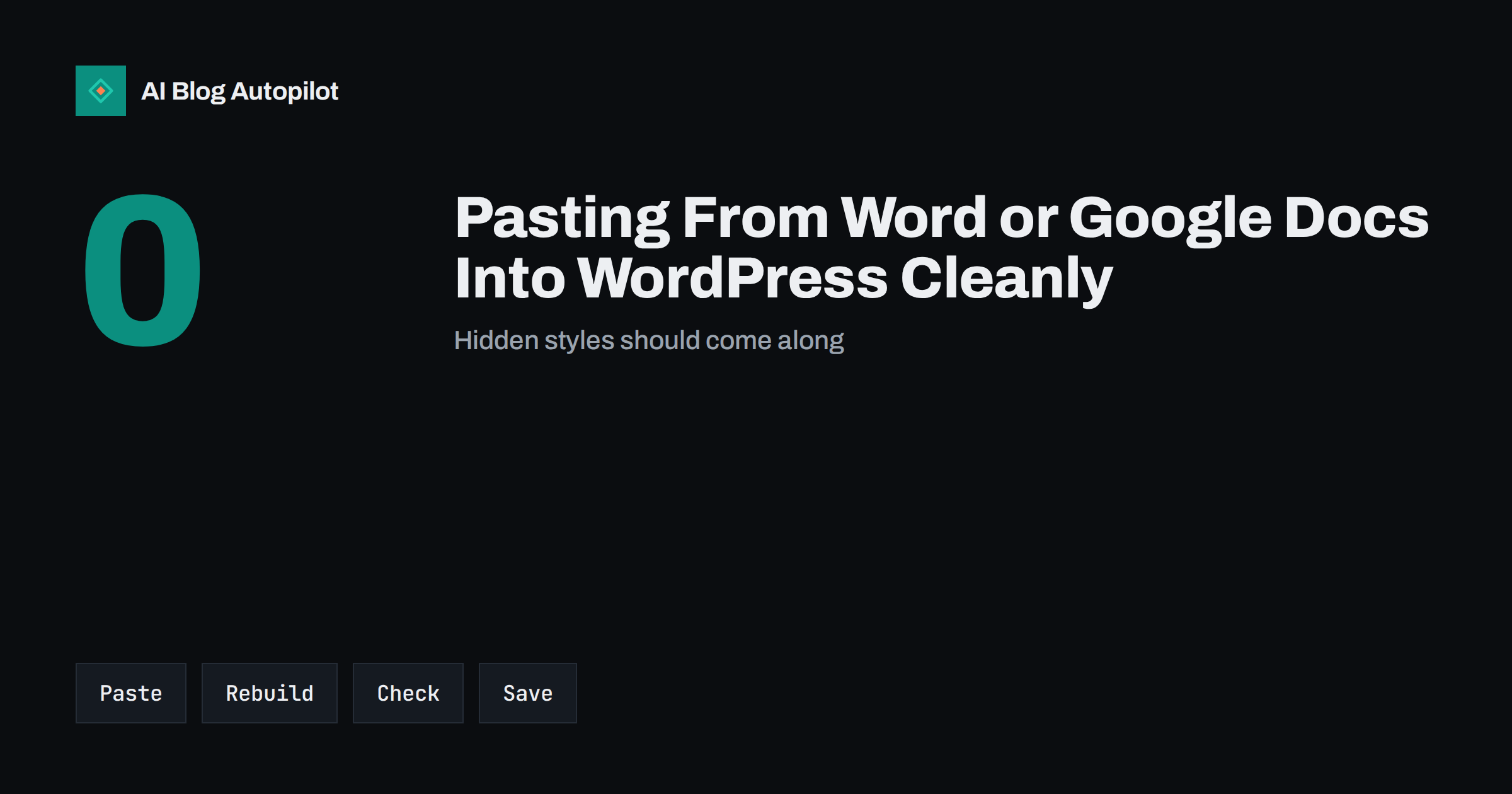
Short answer: paste your text into WordPress as plain text, then rebuild headings, lists, links and emphasis with the editor’s own blocks. This avoids the hidden fonts, colours, spacing and code that word processors add, which can make pages heavier, break the layout on phones and cause odd results in search snippets. A short routine, written down and shared with every writer, removes most of the problems in a few minutes per article.
Many business blogs are drafted in a word processor. Teams like it because it offers comments, suggestions, version history and easy sharing with people who never log in to the website. The trouble starts at the moment of transfer. A document looks simple on the screen, but under the surface it carries a lot of formatting that a web page does not need.
This guide explains what goes wrong, how to avoid it and how to set up a routine that works for a team. It applies to Word, Google Docs and similar tools, and to WordPress with the block editor, which is the default editor in current versions.
What travels with the text
When you copy from a document, you copy more than words. The clipboard also holds font names, font sizes, colours, line spacing, margins, style names and sometimes tracking data or comments. A modern editor tries to clean part of this, but it cannot guess your intent, so some of it survives.
The result is often invisible until the page is published. A paragraph may use a font that differs from the rest of the theme, a heading may be set in a large bold style instead of a real heading, or a list may be made of paragraphs that start with dashes and not real list items. Each of these looks fine in the editor and wrong on a phone.
There is a cost to search, too. Real headings and real lists tell search engines and screen readers how the page is organised. Fake ones, made only by bold text or dashes, give no structure. The guide on heading structure for SEO explains why proper levels matter.
Common problems after a paste
Some problems appear again and again. Extra spaces and empty paragraphs create gaps that vary from device to device. Non-breaking spaces stay inside sentences and make lines wrap badly. Curly quotes may turn into strange characters if the encoding is wrong, and long dashes may become question marks in certain tools.
Links are another weak point. A link in a document may carry a tracking wrapper from the document service, which sends readers through a redirect, or it may point to a private document that only you can open. Tables lose their widths or arrive as images. Images pasted straight in may be inserted as large files with no description.
Finally, comments and suggestions sometimes survive in the clipboard. In rare cases, a draft note such as “check this figure” ends up in the published text. A careful read before publishing is the only sure defence, and it is a good habit even when the paste is clean.
The plain-text method
The most reliable method is to paste without formatting. In most browsers, you can use the keyboard shortcut for paste as plain text, or you can paste into the editor and use the option to clear the formatting. In the block editor, pasting plain text creates one paragraph block per paragraph, which is a clean starting point.
After the paste, rebuild the structure. Turn headings into heading blocks at the right level, mark lists as list blocks, add emphasis with the bold and italic buttons and re-create links by selecting text and adding the address. It takes a few minutes for a long article, and it gives you total control of the result.
If your document is long, do it section by section. Paste one section, format it, then move on. This also gives you a chance to read the text again and to catch things that were missed in the document, such as a repeated sentence or a paragraph that is too long.
Keep the source document tidy as well. If writers use real heading styles in the document, rather than large bold text, the structure has a better chance of surviving a transfer. Ask your team to apply the heading styles from the toolbar, to use the built-in list buttons and to avoid manual spacing with repeated returns or tabs. A well-built document is easier to convert, and it is also easier to read for the reviewers.
Agree on a few simple conventions, such as one blank line between paragraphs and no formatting inside headings. These small rules save a surprising amount of cleaning time, and they cost nothing to follow once they become habit.
When a formatted paste is acceptable
The block editor can convert pasted content into blocks, and Google Docs content often arrives in decent shape: headings become headings and lists become lists. If you use this method, check the result carefully. Open the list view of the editor to see the structure of blocks, and look for stray inline styles or empty blocks.
It is wise to test with one article before you adopt the method for the whole team. Publish a draft or a private preview, open it on a phone and compare it with a post that you wrote directly in the editor. If spacing, fonts or links differ, go back to the plain-text method.
Some teams prefer to write directly in the editor to avoid the issue completely. This works well for short posts and for writers who are comfortable with blocks. For longer pieces, with several reviewers, a document is often easier, so the routine below is worth having.
Headings, lists and tables
Use one first-level heading, the article title, and let the main sections be second-level headings. Use third-level headings only inside a section that needs a sub-division. Do not choose a heading level because of its size. The theme controls the look, and the level should describe the structure.
For lists, use real list blocks. If a list has steps in order, use a numbered list, and if the items have no order, use bullets. Keep each item short and parallel in form. Real lists are easier to read on a phone and are easier for search systems to understand than a run of paragraphs.
Tables from a document often fail. If the table is small, rebuild it with the table block and keep the columns few. If it is large, consider whether the reader needs it at all, or whether a short list would do. The article on when a table beats three paragraphs helps you decide.
Watch the spacing around blocks, too. Empty paragraphs used as spacers create gaps that look different on each screen, and they are read aloud as blank lines by assistive tools. If a section needs more space, use the spacer or the margin settings of the theme, or leave it to the theme to decide. Consistent spacing is part of what makes a blog look professional.
Be careful with special characters. Copy a few sentences that contain quotation marks, apostrophes, accented letters and dashes, and check that they display properly in the preview and in the search snippet. If a character looks wrong, correct it in the editor and not in the source document, so that you fix the published version directly.
Images, links and accessibility
Do not paste images from a document. Save them as files, check their size and add them through the media library, with a clear file name and a description. The guide to alt text shows how to write descriptions that help people who cannot see the image.
Retype or re-add every link. Check that each one opens the right page, that it goes straight to the final address without a tracking wrapper and that it does not point to a private file. For links to other sites, decide whether they should open in the same window, which is the safest default, and add the right attributes where needed.
Check readability on a small screen. Look at the preview on a phone and scan for long paragraphs, odd line breaks and text that touches the edge of the screen. The article on accessibility for a blog lists further checks that take only a few minutes.
Do a short test whenever the theme or the editor is updated. A change in either can alter how pasted content behaves, and a quick check with a sample document tells you whether the routine still works. Keep that sample document in a shared folder, with headings, a list, a table, a link and an image, and paste it into a draft after each update.
A routine for teams
Write the routine down and keep it with your style guide. A short version could read: write in the shared document, finish all comments, accept or reject all suggestions, copy the text, paste as plain text, rebuild headings, lists and links with blocks, add images from the media library, preview on desktop and phone, and run the pre-publication checklist.
Name one person who does the final transfer, at least at the start. Having one trained person reduces mistakes, and they can show others the method later. The article on WordPress user roles for a blog team explains who should have access to publish and who should only draft.
Use the checklist for the last look. Our guide to the pre-publication checklist for every article includes the items that catch the typical paste problems: headings, links, images, meta text and the preview.
How AI Blog Autopilot helps
AI Blog Autopilot sends finished articles to your WordPress blog directly, with headings, lists, FAQ sections, tags and SEO meta already in place, so there is no copying between documents for those posts. Your team can still use a document for notes and briefs, and you can choose to approve each article before it goes live. See the pricing page for plans and monthly credits.
Related reading
- Heading Structure for SEO: H2s, H3s and Common Mistakes
- The Pre-Publication Checklist for Every Article
- How to Edit an AI Draft: The Four Passes That Matter
The bottom line
Paste as plain text, rebuild the structure with blocks, re-add links and images properly, and follow one written routine so every article is clean.
FAQ
Why does my pasted text look different on my phone?
Hidden styles from the document, such as fonts, sizes and spacing, can override the theme. Pasting as plain text removes them.
Can I paste from Google Docs directly?
Often it works well, but check the result. Look at headings, lists, links and spacing, and use plain text if anything looks wrong.
Do hidden styles affect SEO?
Not directly, but they can slow pages, break layouts and replace real headings with bold text, which weakens the structure.
Should I paste images from a document?
No. Upload them to the media library, check the size and add a clear description.
How can a team avoid these problems?
Use one written routine, train one person to do the transfer and run the pre-publication checklist before each post goes live.