ENEnglish
 LTLietuviškai
 DEDeutsch
 FRFrançais
 RUРусский
 ESEspañol
 PLPolski
 ITItaliano
 UKУкраїнська
 CSČeština
 PTPortuguês
 JA日本語
JA日本語 LVLatviešu valoda
 ETEesti
 HUMagyar
 IDBahasa Indonesia
 TRTürkçe
 HIहिन्दी
 ELΕλληνικά
 ARالعربية
 THไทย
THไทย VITiếng Việt
 RORomână
 MSBahasa Melayu
 BNবাংলা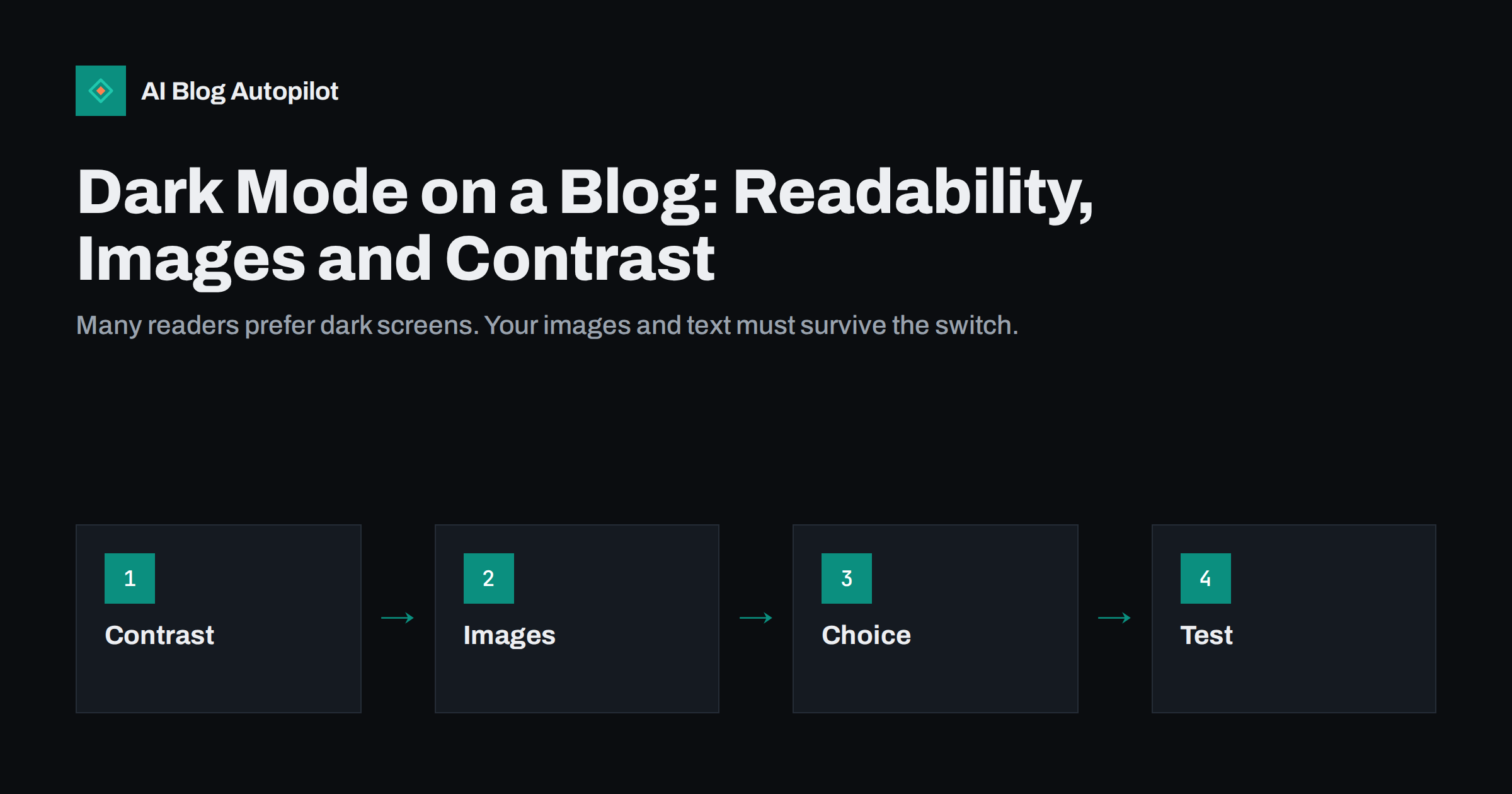
Short answer: a dark colour scheme can make reading more comfortable for some people, especially at night, but it needs care. Keep text contrast high, check that logos, charts and transparent images still look right, respect the reader’s device setting and test the pages on real screens. Do not rely on dark mode as a ranking tool, because it is a reader comfort feature.
Phones, laptops and many apps now offer a dark appearance, and a growing number of readers choose it. If your blog ignores the setting, it may flash a bright white page at someone who set their device to dark. If it supports dark mode badly, text and pictures can become hard to read. This article explains what to check and how to approach the change in a safe, small way.
Accessibility needs add another reason to take the setting seriously. Some people with light sensitivity or certain visual conditions depend on dark schemes, while others with different conditions cannot read light text on dark at all. This is why choice matters more than a single fixed design.
Why readers use dark mode
People choose a dark appearance for many reasons. Some find bright screens uncomfortable in a dark room. Some like the look. Some believe it saves battery on certain screens. Others have conditions that make bright backgrounds painful. These reasons are personal, and not everyone shares them, so dark mode should be a choice and not a rule.
The research on reading is mixed. Many people read dark text on a light background more accurately in normal conditions, while a dark scheme can be more comfortable in low light. Because of that, the best approach is to give readers the option that matches their device or their choice, and make both versions good.
Think about when your readers read. A blog that people open on a commute or late at night may see more dark mode use than one that is read at a desk during the day. Your analytics may show the time of day and device type, which can guide how much effort to spend.
Be aware of third-party widgets as well. Social embeds, maps and comment systems may follow the page or may decide for themselves. Some allow you to pass the scheme to them, and some do not. If a widget cannot match, consider placing it inside a neutral container, or choose another widget that supports both schemes.
How websites follow the device setting
Browsers can tell a page whether the reader’s device prefers a light or dark scheme. A style rule, usually called a colour scheme media query, lets the page change its colours accordingly. Many modern themes include this, and some offer a toggle button so the reader can override the device setting.
The safest approach is to follow the device by default and allow a manual switch if you can. Readers should not be forced into dark or light. Also remember the first moment of loading: a page that flashes white before it turns dark feels clumsy. Good implementations set the scheme before the content is shown.
If your theme or builder includes a dark mode feature, read its documentation and test it on a copy of the site first. If you have custom styles, check that they do not hard-code light colours that clash with the dark scheme.
Pay attention to code, quotes and highlighted notes too. A syntax colour scheme that was designed for a white background can produce pale text on a pale box when the page turns dark. Check each special block, not just normal paragraphs, and keep the same contrast rule for all of them.
Text contrast and colour
Contrast is the most important point. Accessibility guidelines recommend a minimum contrast ratio of 4.5 to 1 for normal body text, and a lower one for large text. These rules apply in both light and dark schemes. Pure white text on pure black can feel harsh and cause a glowing effect for some readers, so many designers use a softer off-white on a very dark grey. Test with a contrast checker rather than guessing.
Look at links, buttons and small text. A link colour that looks fine on white may be too dark on a dark background, and a muted grey caption may nearly disappear. Check hover and focus states too, because keyboard users rely on visible focus indicators. The guidance in accessibility for blogs covers these points.
Do not rely on colour alone to carry meaning. If a warning is shown only by a red tone, some readers will miss it in either scheme. Add an icon or a label so the meaning survives any colour change.
Photos with a lot of white, such as product shots on a white background, are a special case. In dark mode they appear as bright rectangles. You can leave them as they are, which is often fine, or place them on a neutral card so that the edge looks intentional and not like a mistake.
Images, logos and charts
Images cause most surprises. A logo saved with a transparent background and dark lettering can vanish on a dark page. A chart with a white background can look like a bright box that jars with the page. Screenshots with white interfaces can be glaring. Check every type of image your blog uses.
Possible fixes include supplying a light version of the logo for dark pages, giving images a subtle border or rounded container so they sit well, and using charts with transparent or neutral backgrounds. Photos usually work in both schemes, but very bright photos in a dark layout may feel intense, and that is acceptable.
Featured images used for social sharing are separate. They appear outside your site, on other people’s feeds, in both schemes. Pick a design that looks good on both light and dark screens, with a solid background and clear edges. See featured images for automated posts for practical tips.
Reading comfort and layout
Dark mode does not change the basics of good reading. Line length, line spacing, font size and paragraph breaks still matter, and some readers find that light text on a dark background benefits from slightly larger text and more line spacing. Check that your body text is not too thin, because fine strokes can look weaker on dark backgrounds. A font weight that is regular rather than light often works better.
Look at long articles. Read a full post in the dark scheme on a phone, from the first screen to the end. Pay attention to code blocks, tables, quotes and lists, which often have their own colours. Block quotes with a light background, for example, may remain bright and look out of place.
For more on readable layouts, see blog design for reading and mobile-first blog layout. The principles apply no matter what colours you choose.
Treat the change as a small project with a clear end. Decide who owns it, what counts as done and when you will review it. A blog that is well kept in both schemes shows care, and readers notice the difference even if they cannot say why.
Does dark mode affect SEO?
Not directly. Search engines do not rank a page higher because it has a dark option. The effect is indirect: a comfortable page may keep readers longer and a broken dark layout may drive them away. The measures that search engines do use, such as loading speed and layout stability, are discussed in core web vitals for bloggers.
Take care that your implementation does not slow the page or cause layout shifts. A script that waits for the page to load before switching the scheme can create a visible flash and a jump in layout. Use styles that apply from the start whenever possible.
Also make sure that text stays in the page and not in images. If you place a text heading in a picture to get the right look in both schemes, search engines and screen readers cannot read it. Keep text as text.
Do not forget the extras. Pop-ups, cookie notices, comment forms, search boxes and embedded videos are often styled separately, and they may keep their light colours. Walk through each of them in the dark scheme. A bright cookie banner on a dark page is a common sign of an unfinished job.
Keep a screenshot of each key page in both schemes. These pictures make it simple to compare after a theme update and show quickly what changed, which saves time when a problem is reported later.
A small test plan
Before you switch dark mode on for everyone, run a short test. Set your own device to dark and open the home page, a long article, a category page, a page with a table or code, and the contact page. Look for unreadable text, odd images, bright boxes and unreadable form fields. Repeat on a second device and in a second browser.
Ask someone else to look too. A fresh pair of eyes will find problems that you have stopped noticing. If you have readers with accessibility needs, invite their feedback and treat it as a priority.
Roll out in a simple way: first the theme styles, then images and logos, then special blocks. Keep a list of what you fixed so you can check it again after theme updates.
How AI Blog Autopilot helps
AI Blog Autopilot writes full SEO articles for your WordPress blog from the topics, keywords, audience and tone you set, with FAQ sections, tags and SEO meta included, and it shares each one to your social networks. Once your theme looks right in both schemes, every new article can simply follow it, and approval mode lets you read each one first. See the pricing page for plans.
Related reading
The bottom line
Offer dark mode as a reader choice, keep contrast high, fix logos and charts that disappear and test on real devices. It is a comfort feature, not a ranking trick.
FAQ
Does dark mode help SEO?
Not directly. It is a comfort feature, though a readable page can keep visitors longer and a broken one can drive them away.
Should I force dark mode on readers?
No. Follow the device setting by default and let readers switch if you can.
What contrast do I need for text?
Accessibility guidelines suggest at least 4.5 to 1 for normal body text. Check both the light and dark versions.
Why does my logo disappear in dark mode?
It probably has a transparent background and dark lettering. Provide a light version for dark pages.
Is pure black with pure white text best?
Often not. A very dark grey with soft off-white text can be easier on the eyes. Test with real readers.