ENEnglish
 LTLietuviškai
 DEDeutsch
 FRFrançais
 RUРусский
 ESEspañol
 PLPolski
 ITItaliano
 UKУкраїнська
 CSČeština
 PTPortuguês
 JA日本語
JA日本語 LVLatviešu valoda
 ETEesti
 HUMagyar
 IDBahasa Indonesia
 TRTürkçe
 HIहिन्दी
 ELΕλληνικά
 ARالعربية
 THไทย
THไทย VITiếng Việt
 RORomână
 MSBahasa Melayu
 BNবাংলা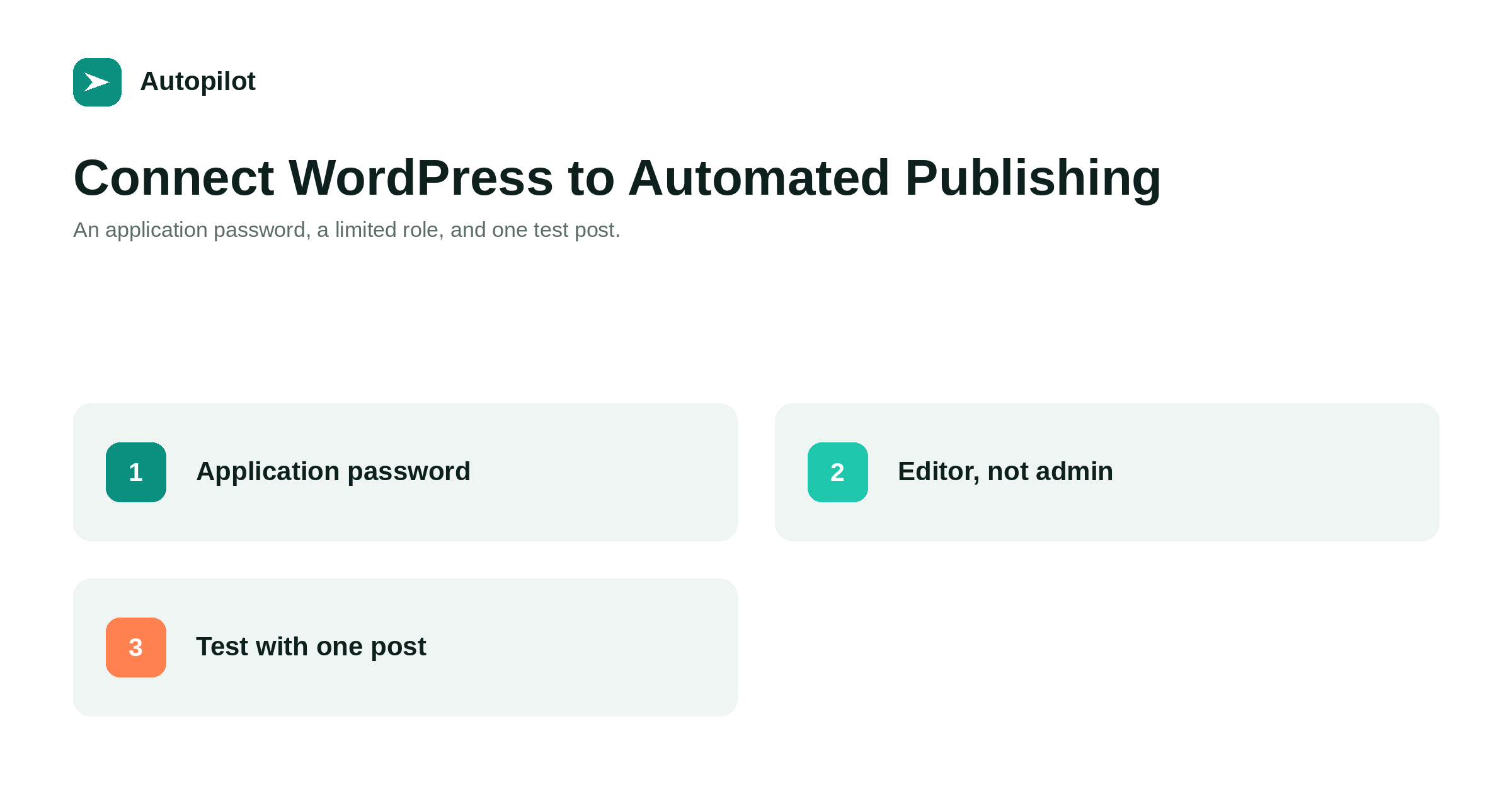
Short answer: create a dedicated WordPress user with the Editor role, generate an application password for it, and give that to the publishing tool. Never use your own administrator account or your real password. An application password is a core WordPress feature: it is tied to one user, it can be revoked at any time without changing that user’s password, and revoking it does not log anyone out. Test with a single post before turning anything on at volume.
Connecting a publishing tool to WordPress is a five-minute job that people routinely do dangerously, usually by handing over the administrator login because it was the credential at hand.
There is a supported way to do this that gives the tool exactly what it needs and nothing else, and that you can undo in one click.
Application passwords, in plain terms
An application password is a second credential attached to a WordPress user. It works for the REST API and not for the login screen, it is generated in the user’s own profile, and it can be revoked individually.
What that means practically: the tool never knows the real password, revoking access takes one click, nobody gets logged out when you revoke it, and you can see in the profile which application passwords exist and when each was last used.
It is built into WordPress core on current versions, so there is no plugin to install and nothing to configure on the server.
Create a dedicated user, not your own
Do not attach the application password to your own administrator account. Create a new user for publishing.
- Role: Editor. It can publish posts, upload files and edit posts by others. It cannot install plugins, change site settings or manage users, none of which a publishing tool needs.
- A real email address you control, so notifications reach someone.
- A recognisable name. When you look at a post in six months you want to know immediately what created it.
The one thing to verify rather than assume is the capabilities, not the role label. A user can be named anything and hold any set of permissions; what matters is whether publish_posts, upload_files and edit_others_posts are actually present. A tool that checks this before publishing will tell you; if yours does not, a single test post answers it.
The setup, step by step
- In WordPress, go to Users and add a new user with the Editor role.
- Open that user’s profile and scroll to Application Passwords.
- Name the password after the tool, so you know later what it belongs to.
- Generate it and copy the value, including the spaces. WordPress shows it once.
- Paste it into the tool, together with the site address and the username.
- Publish one test post and check it appears correctly on the public site.
- Delete the test post, or keep it if it is genuinely useful.
The spaces in the generated password are part of it. Stripping them is the single most common reason a connection that should work returns an authentication error.
What to check on the first post
A test post tells you more than any settings screen. Look at five things.
| Check | What you want to see | If it is wrong |
|---|---|---|
| Status | Published, not draft or scheduled | The user lacks publish rights |
| URL | A clean permalink, no ?p= in it | The post did not actually publish |
| Featured image | Present and loading | Upload permission or size limit |
| Category | The one you chose, never Uncategorized | Fix the default in the tool |
| Title and description | What you expect in the page source | See titles and descriptions |
Doing this once with a single post is the difference between finding a problem now and finding it after thirty articles have published the wrong way.
Settings worth getting right before you start
A few WordPress settings are easier to fix before there are hundreds of posts.
Permalinks. Decide the structure now. Changing it later means redirecting every existing URL, and any internal link pointing at an old address quietly starts travelling through a redirect — the problem described in internal linking as you publish.
Time zone. Set it to where you are. A site left on UTC stamps posts with yesterday’s date whenever publishing happens late in the evening, which is confusing for everyone who looks at the blog.
The default category. Make it a real one. Uncategorized on a hundred posts is a tedious thing to unpick.
Excerpts. Decide whether your theme shows them. If it does, a real excerpt per post is worth the minute.
Revoking access, and why it is easy
This is the part that makes application passwords worth using. If you stop using the tool, suspect something, or simply want to rotate credentials, open the user profile, find the named password and revoke it. The tool stops working immediately. Nothing else on the site is affected.
Compare that with sharing an administrator password: revoking it means changing your own password, logging everyone out, and hoping nothing else depended on it.
A reasonable habit is to revoke and regenerate whenever someone with access to the credential leaves, and to check the last-used column occasionally to confirm nothing unexpected is connecting.
What Autopilot needs
For transparency, the requirements on our side are the ones described above and nothing more: a site address, a username and an application password for a user that can publish posts and upload files. No plugin is installed on your site, and no administrator access is requested.
The first three articles are free, which is a sensible way to run the test-post step for real rather than with placeholder text. Plans and limits are on the pricing page, and automating a blog without losing quality covers what to watch in the weeks after the connection is working.
Related reading
If this was useful, these cover the questions that usually come next.
- Automating a blog without losing quality — what to hand over once the connection works
- Featured images for automated posts — the upload permission you just granted, put to use
- Draft, approve or full auto — deciding what publishes directly and what waits
The bottom line
Create a dedicated Editor, generate an application password named after the tool, keep the spaces, and prove the whole path with one test post before trusting it with a schedule. Fix permalinks, time zone and the default category while the blog is small. Done this way the connection is minimal, auditable and revocable in one click, which is roughly the opposite of handing over an administrator login.
FAQ
Is an application password safe?
Safer than sharing a login. It is scoped to one user, works only for the API, is revocable individually, and never exposes the real password.
Which role should the publishing user have?
Editor. It can publish and upload, which is everything a publishing tool needs, and it cannot install plugins or change site settings.
Do the spaces in the password matter?
Yes. WordPress generates it with spaces and expects them. Removing them is the most common cause of a connection that fails for no obvious reason.
Can I revoke access without changing my password?
Yes, that is the point. Revoke the named application password in the user profile and the tool loses access immediately; nothing else changes.
Do I need a plugin?
No. Application passwords and the REST API are part of WordPress core on current versions.
What if posts arrive as drafts when I asked for published?
The user lacks publishing rights, whatever its role is called. Check the capabilities rather than the role name, and fix it before publishing anything else.